


Blog
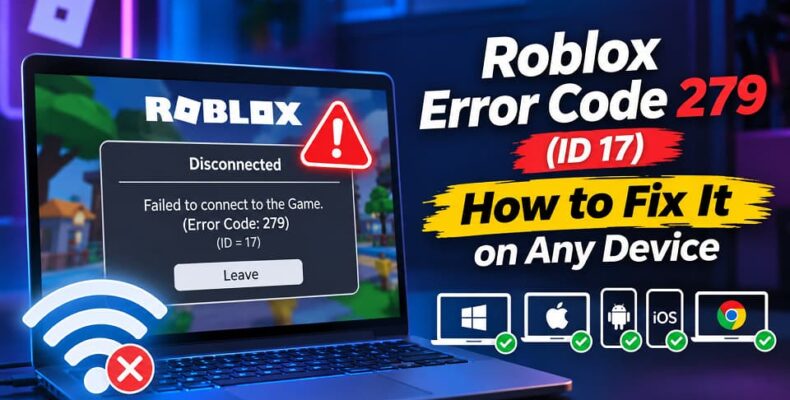
How to Fix Roblox Error Code 279 (ID 17) on Any Device
Roblox Error Code 279 can stop you from joining an experience, even when your internet appears to work. The error is often shown with ID 17 and the message “Failed to connect to the Game.”
It means the Roblox client could not establish the connection needed to join a game server. Possible causes include network restrictions, firewall settings, application problems, or an issue affecting one experience. The right fix depends on where the connection fails.
This guide explains what Roblox Error Code 279 (ID 17) means and how to troubleshoot it. Follow the Windows 11, Mac, Android, iPhone, or Chromebook steps that match your device. Start with the quick checks, then use the test results to choose the relevant fix.
Quick Ways to Fix Roblox Error Code 279
Before trying advanced settings, work through these basic checks. They help identify common connection problems without changing important network configurations.
Check the official Roblox Status page for a Game Join disruption.
Close Roblox completely, reopen it, and restart your device if needed.
Try joining a different Roblox experience.
Compare your usual Wi-Fi connection with another trusted network or mobile hotspot.
Review firewall and security-app permissions without disabling protection permanently.
Reinstall Roblox only if simpler checks do not resolve the problem.
If these checks do not help, use the detailed instructions below to isolate the cause.
Quick Diagnosis: Where Should You Start?
Use the results of these simple tests to decide which part of the connection needs attention. These clues narrow down the cause; they do not prove it by themselves.
| What you notice | What to investigate next |
| Only one Roblox experience fails | That experience, its server, or its creator announcements |
| Roblox fails on your home Wi-Fi but works on a hotspot | Your router, broadband connection, or network filtering |
| Roblox fails on multiple networks | Your device, Roblox installation, security software, or Roblox services |
| Several experiences fail and Roblox reports an incident | Wait for the affected Roblox service to recover |
| Roblox works after correcting an app permission | Firewall or security-software rules |
What Does Roblox Error Code 279 Mean?
Error Code 279 indicates that Roblox could not establish the connection required to join an experience. Your device might connect to the internet normally, but the network communication needed to enter a Roblox game can still fail.
For example, you might open the Roblox website, browse other websites, and use online applications without any problems. However, when you try to join a Roblox experience, the game remains on the loading screen before displaying Error Code 279.
This usually points to a problem somewhere along the connection between your device, network, and the Roblox game server. Identifying where that connection fails is the first step toward fixing it.
What Does ID 17 Mean in Roblox?
ID 17 is the connection-failure identifier associated with Roblox Error Code 279. You may see it alongside the following message:
Failed to connect to the Game. (ID = 17: Connection attempt failed.) (Error Code: 279)
The two numbers describe the same connection failure. Error Code 279 is the main error code, while ID 17 identifies the associated connection-attempt failure.
You do not need to troubleshoot ID 17 separately. The solutions for Roblox Error Code 279 also apply to this message.
What Happens When the Roblox Connection Fails?
When you select a Roblox experience, the application attempts to establish a connection with the server hosting that game. If the connection cannot be established, Roblox may fail to complete the joining process and display Error Code 279.
Depending on where the problem occurs, you might experience:
- Stuck on the loading screen: Roblox takes longer than usual to join an experience before showing the error.
- Failed to join a game: The experience does not open, even though the Roblox application launches normally.
- Repeated connection failures: The same error appears when you try joining multiple experiences.
- Problems on one network: Roblox works through another internet connection but fails on your usual Wi-Fi network.
- Experience-specific failures: Other Roblox games work, but one particular experience refuses to load.
These symptoms can help narrow down the cause. For example, if only one experience fails, the problem may be related to that game or its server. If multiple experiences fail across different devices on the same network, investigate your router or network restrictions.
Why Does Roblox Error Code 279 Occur?
Roblox Error Code 279 usually occurs when your device cannot establish a reliable connection with a Roblox game server. However, the cause isn’t always your internet connection. Network security settings, router restrictions, application problems, or issues with a specific Roblox experience can also prevent the game from loading.
Understanding the possible causes helps you choose the right solution instead of trying random fixes. Here are the most common reasons Roblox displays Error Code 279 (ID 17).
1. Unstable Internet Connection
An unstable internet connection is one possible reason behind Roblox Error Code 279. Your internet may work for browsing and streaming but still experience interruptions during online gaming.
Roblox needs a stable connection to communicate with its game servers. Frequent packet loss, sudden disconnections, or network interruptions can prevent the application from completing the connection process.
This problem is more likely when you use a weak Wi-Fi signal, an overloaded network, or an unreliable mobile data connection.
2. Firewall or Antivirus Interference
Windows Firewall and third-party antivirus programs protect your computer by controlling network connections. Sometimes, these security tools can block Roblox or restrict the communication it needs to join an experience.
This can happen because of incorrect firewall rules, overly restrictive security settings, or an antivirus program mistakenly treating Roblox traffic as suspicious.
If Roblox works after temporarily testing a different network or reviewing your security settings, firewall or antivirus restrictions may be worth investigating. You should never leave your security protection disabled as a permanent solution.
3. Router or Network Restrictions
Your router controls how devices communicate with the internet. Certain router configurations, parental controls, network filters, or restricted network environments can interfere with Roblox connections.
For example, school, college, office, and public Wi-Fi networks may restrict gaming traffic. Some home routers also use security or filtering settings that affect online multiplayer games.
If Roblox works through mobile data but fails on your usual Wi-Fi connection, your router or network configuration could be contributing to the problem.
4. Corrupted or Outdated Roblox Installation
Damaged application files or an outdated Roblox installation can sometimes interfere with normal game operation.
This may happen after an interrupted update, an incomplete installation, or a problem with locally stored application data. The Roblox application might launch normally but fail when attempting to join an experience.
Updating Roblox or reinstalling the application can help when the problem originates from its local installation.
5. Browser or Application Problems
Roblox players may launch experiences through the website or the Roblox desktop application. Problems with the browser, launch process, cached data, or application permissions can sometimes prevent the game from opening correctly.
For example, an outdated browser, problematic extensions, or a failed handoff from the Roblox website to its application may interrupt the joining process.
If Roblox works through one launch method but fails through another, investigate the browser or application rather than immediately changing your network settings.
6. Roblox Server or Experience Problems
Roblox services or an individual experience may experience temporary outages, maintenance, or server-side connection problems. These issues can prevent players from joining even when their devices and internet connections work normally.
If other experiences work, investigate the affected game first. Its server, configuration, scripts, or recent update may be responsible. If several experiences fail, check the official Roblox Status page.
During a confirmed service disruption, wait for Roblox or the experience creator to resolve the issue. Reinstalling Roblox or changing DNS settings will not fix a server-side problem.
7. Internet Service Provider (ISP) or Network Routing Problems
Your Internet Service Provider (ISP) manages the network connection between your device and online services. Sometimes, network routing problems, filtering policies, or restrictions on certain traffic can interfere with Roblox connections.
This can happen even when other websites and applications work normally.
For example, Roblox might work through a mobile hotspot but fail on your home broadband connection. This suggests that your regular network or ISP may be contributing to the problem.
If switching networks resolves the error, contact your ISP and ask whether network filtering or connectivity issues are affecting Roblox.
8. DNS Configuration Problems
The Domain Name System (DNS) translates website and service names into IP addresses that devices use to communicate over the internet.
Incorrect DNS settings or temporary name-resolution problems can sometimes prevent applications from reaching the services they need.
If Roblox experiences connection problems alongside other name-resolution issues, refreshing the DNS cache or testing another trusted DNS provider may help.
However, changing DNS is not a guaranteed solution for Error Code 279. It will not resolve firewall restrictions, blocked game traffic, or problems affecting an individual experience.
9. Interference From Other Applications and Services
Some applications can interfere with Roblox by changing network routes, filtering traffic, or interrupting the browser-to-app launch process.
Examples include:
- Proxy tools, parental-control applications, network monitors, and traffic-filtering utilities may also affect connectivity.
- Ad blockers and browser extensions that interfere with the Roblox launch process.
- Parental-control applications that restrict gaming traffic.
- Network monitoring and traffic-filtering software.
If the error started after installing or enabling one of these tools, review its settings or temporarily disconnect it for a controlled test. Restore your normal protection and settings afterward.
Avoid permanently disabling security software or removing protection just to make Roblox work.
How to Fix Roblox Error Code 279 on Windows 11
If you’re experiencing Roblox Error Code 279 on Windows 11, start by checking your connection and Roblox server status. The error can occur when Windows, your router, or security software prevents Roblox from communicating with a game server.
You don’t need to try every solution immediately. Follow these fixes in order and test Roblox after each one. This approach helps identify the actual cause without making unnecessary changes to your computer.
Fix 1: Check Roblox Server Status
Before changing your Windows settings, check whether Roblox is experiencing a service disruption. Sometimes, Error Code 279 appears because the game servers or joining services are temporarily unavailable.
If Roblox is experiencing an outage, changing your firewall or reinstalling the application won’t solve the problem.
Follow these steps:
- Open the official Roblox Status page.Roblox Status page
- Check the status of the Website, Mobile App, Games and Game Join services.
- Look for any reported incidents, degraded performance, or ongoing maintenance.
- If a relevant service is experiencing problems, wait until Roblox resolves the incident.
- Return to Roblox and try joining an experience again.
What to expect:
If Roblox reports a service disruption affecting game joining, the issue may be on its side. Wait for the service to recover before attempting more advanced fixes.
Fix 2: Restart Roblox and Your Windows 11 PC
Temporary application glitches and background processes can sometimes interfere with Roblox connections. Restarting the application and your computer gives Windows and Roblox a fresh session.
Here’s how to restart Roblox properly:
- Close the Roblox game window.
- Press Ctrl + Shift + Esc to open Task Manager.
- Find Roblox or Roblox Game Client under Processes.
- Select the process and click End task.
- Close Task Manager.
- Restart your computer.
- Open Roblox and try joining the same experience again.
Make sure you select the Roblox-related process rather than ending unrelated Windows system processes.
What to expect:
If a temporary application or background-process issue caused the connection failure, restarting Roblox may resolve it. If Error Code 279 continues, move to the next fix.
Fix 3: Test Another Roblox Experience
Before changing your network settings, check whether the problem affects every Roblox game or just one particular experience.
An individual experience may have server-side problems, configuration issues, or temporary availability problems. Testing another experience helps separate a game-specific issue from a wider connection problem.
Follow these steps:
- Open the Roblox application or website.
- Select a different popular experience.
- Try joining it.
- If it loads successfully, return to the original experience.
- Check whether the original game still displays Error Code 279.
What to expect:
- Other experiences work: The original experience may have a server-side or game-specific problem.
- Every experience fails: Investigate your internet connection, firewall, router, and Roblox installation.
This simple test can prevent you from changing Windows network settings unnecessarily.
Fix 4: Restart Your Wi-Fi Router
Your router manages the connection between your computer and the internet. Temporary router issues, overloaded connections, or network interruptions can sometimes prevent Roblox from reaching its game servers.
Restarting the router can refresh the connection and clear temporary network problems.
Follow these steps:
- Close Roblox on your computer.
- Turn off your Wi-Fi router.
- Unplug its power cable.
- Wait approximately 30 seconds.
- Reconnect the power cable and turn on the router.
- Wait until the internet connection is restored.
- Connect your Windows 11 PC to Wi-Fi again.
- Launch Roblox and test an experience.
If possible, connect your PC to the router using an Ethernet cable. A wired connection can help determine whether weak Wi-Fi is contributing to the problem.
Another useful test: Connect your PC to a mobile hotspot and try Roblox again. If the game works through the hotspot but fails on your regular Wi-Fi, investigate your router or internet provider.
What to expect:
If Roblox connects after restarting the router or switching networks, your original network connection may have been responsible.
Fix 5: Roblox Error Code 279 Firewall Fix
Windows Defender Firewall protects your computer by controlling which applications can communicate through the network. However, an incorrect firewall rule can prevent Roblox from establishing a connection with its game servers.
You can check whether Roblox has permission to communicate through Windows Firewall.
How to allow Roblox through Windows Firewall:
- Press Windows + S to open Windows Search.
- Type Windows Security and open it.
- Select Firewall & network protection.
- Click Allow an app through firewall.
- Select Change settings.
- Look for Roblox in the list of allowed applications.
- Make sure the appropriate network permissions are selected.
- If Roblox isn’t listed, select Allow another app.
- Browse to the Roblox executable file and add it.
- Save the changes and restart Roblox.
The Roblox installation folder is usually located here:
C:UsersYourUsernameAppDataLocalRoblox
The executable location can vary depending on the Roblox installation. Select the genuine Roblox Player executable rather than an unrelated file.
Important: If you use a private home network, select the Private network permission when appropriate. Avoid enabling Public network access unnecessarily.
What to expect:
If Windows Firewall was blocking Roblox, allowing the application may restore its connection. Keep your firewall enabled and avoid opening unnecessary ports. Microsoft recommends allowing a trusted application rather than opening ports whenever possible.
Fix 6: Check Antivirus and VPN Interference
Third-party antivirus software and VPN applications can sometimes interfere with Roblox connections. Some security programs filter network traffic, while VPNs route your connection through different servers.
If Roblox Error Code 279 started appearing after installing security software or enabling a VPN, check whether either is affecting the connection.
Step 1: Check your antivirus settings
- Open your installed antivirus application.
- Look for its Firewall, Web Protection, or Application Control settings.
- Check whether Roblox has been blocked or restricted.
- If necessary, add the genuine Roblox Player executable to its trusted applications list.
- Save the changes and restart Roblox.
Step 2: Test your VPN connection
- Open your VPN application.
- Disconnect from the VPN temporarily.
- Close Roblox completely.
- Reopen Roblox and try joining an experience.
- If the game works, investigate your VPN server or network configuration.
If you use a VPN for privacy or security, you don’t need to remove it permanently. The objective is to identify whether its connection routing is causing the problem.
Security reminder: Don’t leave antivirus protection or Windows Firewall disabled. Use temporary testing only, and restore protection immediately afterward. Prefer checking application permissions and allowlists.
What to expect:
If Roblox works after correcting an antivirus rule or disconnecting a problematic VPN, you have identified a likely source of the connection failure.
Fix 7: Reset Windows 11 Network Settings
Incorrect network configurations can sometimes interfere with applications that depend on internet connectivity. Windows 11 includes a Network Reset option that reinstalls network adapters and restores their settings to default.
This is worth trying if Roblox continues to display Error Code 279 despite having a working internet connection.
How to reset network settings in Windows 11:
- Press Windows + I to open Settings.
- Select Network & internet.
- Click Advanced network settings.
- Scroll down to Network reset.
- Select Reset now.
- Confirm the reset when prompted.
- Restart your computer.
- Reconnect to your Wi-Fi network.
- Open Roblox and test the connection.
Before resetting:
Network Reset can remove and reinstall network adapters. It may also require you to reconnect to Wi-Fi and reinstall or reconfigure VPN software or virtual network adapters.
Use this method only after trying the simpler connection checks.
What to expect:
If an incorrect Windows network configuration was responsible, resetting the network may restore normal connectivity. It is not guaranteed to fix Roblox-specific server or firewall problems.
Fix 8: Roblox Error Code 279 DNS Fix — Flush DNS and Renew IP Configuration
Windows stores DNS information to help applications find websites and online services. If your network has outdated DNS information or an incorrect IP configuration, refreshing these settings may help resolve certain connectivity problems.
You can flush the DNS cache and renew your IP configuration using Command Prompt.
Step 1: Open Command Prompt as Administrator
- Press Windows + S.
- Type Command Prompt.
- Right-click the result.
- Select Run as administrator.
- Click Yes if Windows asks for permission.
Step 2: Flush the DNS cache
Enter the following command:
ipconfig /flushdns
Press Enter and wait for Windows to confirm that the DNS Resolver Cache was successfully flushed.
Step 3: Release your current IP address
Enter:
ipconfig /release
Press Enter. Your active network connection may temporarily disconnect.
Step 4: Renew your IP address
Enter:
ipconfig /renew
Press Enter and wait for Windows to obtain a new IP configuration.
Step 5: Restart Roblox
Close Command Prompt, reopen Roblox, and try joining an experience.
What to expect:
Flushing DNS clears locally cached DNS records. Renewing your IP configuration requests fresh network settings from your router or DHCP server.
These commands can help with certain network configuration problems, but they won’t fix every cause of Roblox Error Code 279.
Fix 9: Update or Reinstall Roblox
If none of the previous methods works, your Roblox installation may contain outdated or damaged application files.
Roblox’s official Error Code 279 guidance recommends reinstalling the application to clear potentially corrupted files and install a fresh copy. Roblox’s official Error Code 279 guidance
Step 1: Uninstall Roblox
- Press Windows + S.
- Search for Control Panel and open it.
- Select Programs.
- Open Programs and Features.
- Find Roblox in the installed programs list.
- Right-click Roblox and select Uninstall.
- Follow the instructions to remove the application.
Step 2: Remove leftover Roblox application data (if necessary)
If the problem continues after reinstalling, you can remove the remaining local Roblox application data.
- Press Windows + R.
- Enter the following path:
%localappdata%
- Press Enter.
- Find the Roblox
- Make sure Roblox is uninstalled and its processes are closed.
- Delete the Roblox folder if it remains.
Important:
Deleting this folder removes local Roblox application data and cached files. Do not delete unrelated folders.
Step 3: Install Roblox again
- Open the official Roblox website.
- Sign in to your account.
- Open any Roblox experience.
- Follow the instructions to download and install Roblox Player.
- Launch the game and check whether Error Code 279 has disappeared.
What to expect:
A fresh installation can resolve problems caused by corrupted application files or outdated local data. If the error continues, investigate your network or contact your internet service provider.
Troubleshooting summary: Which fix should you try?
Here is a quick reference table readers can use before moving to the next section.
| Problem | Recommended fix |
| Roblox service outage | Fix 1 |
| Temporary application glitch | Fix 2 |
| Only one game fails | Fix 3 |
| Wi-Fi connection problem | Fix 4 |
| Windows Firewall restriction | Fix 5 |
| VPN or antivirus interference | Fix 6 |
| Incorrect Windows network settings | Fix 7 |
| DNS or IP configuration issue | Fix 8 |
| Corrupted Roblox installation | Fix 9 |
Roblox Error Code 279 but Internet Is Fine: What to Do
Does Roblox show Error Code 279 even though your internet connection is working normally? This can happen when you can browse websites, stream videos, and use other online applications without interruption, but Roblox still fails to join an experience.
Start by joining another Roblox experience. If only one game fails, check that experience for maintenance or server issues. If every experience fails, compare your usual connection with a trusted Wi-Fi network or mobile hotspot.
If Roblox works on another network, investigate your home router, broadband connection, or network filtering. If it still fails, review the Windows Firewall and VPN checks in Fix 5 and Fix 6 above. Do not disable security protection permanently.
These tests narrow down the likely cause; they do not prove that your internet provider is blocking Roblox. If the problem affects several devices on the same network, contact the network administrator or ISP.
How to Fix Roblox Error Code 279 on Mac
Roblox Error Code 279 can also appear on Mac computers when the application cannot establish a connection with a game server. Although the troubleshooting process is slightly different from Windows, you can check several settings to identify the problem.
A temporary application issue, macOS security settings, network restrictions, or damaged Roblox files may prevent the game from connecting. Try the following solutions in order.
1. Restart Roblox on Your Mac
Sometimes, Roblox encounters temporary application glitches that prevent it from joining an experience. Restarting the application can clear these temporary issues and establish a fresh connection.
Follow these steps:
- Close the Roblox game window.
- Click the Apple menu in the top-left corner.
- Select Force Quit.
- Choose Roblox from the application list.
- Click Force Quit to close the application completely.
- Wait a few seconds.
- Open Roblox again.
- Try joining an experience.
If Roblox still displays Error Code 279, restart your Mac and try again.
What to expect: If a temporary application problem caused the connection failure, restarting Roblox may resolve it.
2. Check macOS Security and Network Permissions
macOS includes security and privacy controls that manage application access to system resources. Network filtering applications, third-party firewalls, and security tools can also interfere with Roblox connections.
Start by checking whether you have installed any network security or filtering software.
Check your macOS firewall settings:
- Click the Apple menu.
- Open System Settings.
- Select Network.
- Open Firewall, if available under your macOS version.
- Check whether the firewall is enabled.
- Review any application-specific blocking rules or third-party firewall settings.
- If Roblox is explicitly blocked, correct the rule where appropriate.
Also check whether third-party antivirus, parental-control, or network-filtering applications are restricting Roblox.
Important: Don’t disable macOS security protection permanently. Only change a specific restriction when you have identified a legitimate block.
What to expect: If a firewall or network-filtering application was preventing Roblox from communicating, correcting its settings may restore the connection.
3. Test Roblox Using Another Network
Your Mac may have a working internet connection while its current Wi-Fi network restricts gaming traffic.
Testing Roblox through another network helps determine whether the problem originates from your home router or internet provider.
Follow these steps:
- Close Roblox.
- Enable Personal Hotspot on your iPhone or another smartphone.
- Open Wi-Fi settings on your Mac.
- Disconnect from your regular Wi-Fi network.
- Connect to the mobile hotspot.
- Open Roblox.
- Try joining the same experience again.
Check the result:
- If Roblox works through the hotspot, investigate your regular Wi-Fi network, router, or ISP.
- If Roblox still fails, check the application, Mac security software, and Roblox service status.
This test is especially useful when other websites and online applications work normally.
4. Reinstall Roblox on Your Mac
If the previous solutions don’t resolve the problem, your Roblox installation may contain damaged or outdated files. Removing the application and installing a fresh copy can help resolve installation-related issues.
Step 1: Remove Roblox
- Quit Roblox completely.
- Open Finder.
- Select Applications.
- Locate Roblox.
- Move Roblox to the Trash.
- Empty the Trash if you want to remove the application completely.
Step 2: Remove leftover application data if necessary
If the problem continues after reinstalling, inspect Roblox’s local application data.
- Open Finder.
- Click Go in the menu bar.
- Select Go to Folder.
- Enter:
~/Library/Application Support/
- Look for a Roblox-related folder.
- If present, remove only the Roblox-specific application data after confirming Roblox is uninstalled.
Be careful not to delete unrelated application folders.
Step 3: Install Roblox again
- Visit the official Roblox website.
- Sign in to your account.
- Open a Roblox experience.
- Follow the instructions to download and install Roblox Player.
- Launch the application.
- Try joining an experience.
What to expect: A fresh installation can resolve problems caused by damaged application files or outdated local data. If Error Code 279 continues, investigate your network configuration or contact Roblox Support.
Mac troubleshooting summary
| Problem | Recommended solution |
| Temporary application glitch | Restart Roblox |
| Network filtering | Check security settings |
| Home Wi-Fi restrictions | Test another network |
| Damaged application files | Reinstall Roblox |
How to Fix Roblox Error Code 279 on Mobile (Android and iPhone)
Roblox Error Code 279 can also affect Android phones and iPhones. You might be able to browse the internet, watch videos, and use other applications normally, but Roblox may still fail to connect to a game server.
This can happen because of temporary application glitches, outdated app versions, mobile network restrictions, or connection problems. Fortunately, you can try several troubleshooting methods without changing advanced settings.
Follow the solutions in order and test Roblox after each step. The instructions identify the steps for Android and iPhone separately, so use the ones that match your device.
1. Force-Close Roblox and Open It Again
Sometimes, Roblox encounters temporary application problems that prevent it from connecting to an experience. Force-closing the application stops its current processes and allows it to start a fresh session.
How to Fix Roblox Error Code 279 on Android
Use these Android steps to force-close Roblox before reopening it.
- Open Settings on your phone.
- Select Apps or Apps & notifications.
- Find and select Roblox.
- Tap Force stop.
- Confirm the action.
- Open Roblox again.
- Try joining an experience.
How to Fix Roblox Error Code 279 on iPhone
On an iPhone, close Roblox from the app switcher, then reopen it and test the same experience.
- Swipe up from the bottom of the screen and pause in the middle.
- Find Roblox in the app switcher.
- Swipe the Roblox app preview upward to close it.
- Return to your Home Screen.
- Open Roblox again.
- Try joining a game.
What to expect: If a temporary application glitch caused the connection problem, restarting Roblox may allow it to connect normally.
2. Restart Your Android Phone or iPhone
Restarting your mobile device can resolve temporary network and application problems. It also refreshes the device’s wireless connections.
Follow these steps:
- Close Roblox completely.
- Open your phone’s power menu.
- Select Restart if available.
- Wait for the device to shut down and start again.
- Reconnect to your Wi-Fi or mobile network.
- Open Roblox and try joining an experience.
On an iPhone, use the side button and a volume button to access the power-off slider, depending on your model. Turn the phone off, wait briefly, and turn it back on.
What to expect: If the problem was caused by a temporary device or network glitch, restarting may restore Roblox connectivity.
3. Update Roblox to the Latest Version
An outdated Roblox application may contain bugs or compatibility problems that affect normal operation. Updating the app ensures that you are using the latest version available for your device.
On Android:
- Open the Google Play Store.
- Search for Roblox.
- Open its app listing.
- If an Update button appears, tap it.
- Wait for the update to finish.
- Launch Roblox and test a game.
On iPhone:
- Open the Apple App Store.
- Tap your profile picture.
- Scroll through the available updates.
- Find Roblox.
- Tap Update if available.
- Wait for installation to finish.
- Open Roblox again.
What to expect: Updating Roblox can resolve problems caused by outdated application files or bugs addressed in a newer release. If no update is available, continue to the next solution.
4. Check Your Phone’s Date and Time Settings
Incorrect date and time settings can sometimes interfere with secure network connections and application services.
Android and iOS both provide automatic date and time options. Enabling these settings helps your phone synchronize its clock with the network.
On Android:
- Open Settings.
- Select System or General management, depending on your phone.
- Open Date and time.
- Enable Set time automatically.
- Enable Set time zone automatically, if available.
- Restart Roblox and test the connection.
On iPhone:
- Open Settings.
- Select General.
- Tap Date & Time.
- Enable Set Automatically.
- Check that the displayed time and time zone are correct.
- Reopen Roblox.
What to expect: If an incorrect device clock was contributing to a connection problem, correcting it may help. This is a basic check rather than a confirmed primary cause of Roblox Error Code 279.
5. Reinstall Roblox on Your Mobile Device
If Roblox continues to display Error Code 279, the application may contain damaged local files or installation data. Removing and reinstalling Roblox gives you a fresh application installation.
On Android:
- Open Settings.
- Select Apps.
- Find Roblox.
- Tap Uninstall.
- Confirm the removal.
- Open the Google Play Store.
- Search for Roblox.
- Install the application again.
- Sign in and test an experience.
On iPhone:
- Touch and hold the Roblox app icon.
- Select Remove App.
- Tap Delete App.
- Open the Apple App Store.
- Search for Roblox.
- Download and install it again.
- Sign in and try joining a game.
What to expect: Reinstalling can resolve problems caused by damaged application files or local data. Your Roblox account and server-side progress are not normally deleted when you remove the app. Make sure you know your login credentials before reinstalling.
6. Test Wi-Fi Versus Mobile Data
Your mobile internet connection may work for other applications while your Wi-Fi network or mobile carrier restricts certain gaming connections.
Testing both connection types helps identify whether the problem is related to your current network.
If you’re using Wi-Fi:
- Close Roblox.
- Open your phone’s Wi-Fi settings.
- Disconnect from your current Wi-Fi network.
- Enable mobile data.
- Open Roblox.
- Try joining the same experience.
If you’re using mobile data:
- Close Roblox.
- Connect your phone to a reliable Wi-Fi network.
- Open Roblox again.
- Try joining an experience.
Compare the results:
If the problem occurs only on mobile data, check whether your carrier uses network filtering or restrictions. If it occurs only on Wi-Fi, investigate the router settings.
What to expect: This test helps identify which network deserves further investigation. It doesn’t automatically prove that your internet provider is responsible.
Mobile troubleshooting summary
| Problem | Recommended solution |
| Temporary app glitch | Force-close Roblox |
| Device network issue | Restart your phone |
| Outdated application | Update Roblox |
| Incorrect device clock | Enable automatic date and time |
| Damaged application data | Reinstall Roblox |
| Wi-Fi or carrier restriction | Compare Wi-Fi and mobile data |
How to Troubleshoot Roblox Error Code 279 on Chromebook
On a Chromebook that supports Roblox through the Google Play Store, connection problems may be related to the app, the network, or restrictions set by a school or organization. The available options depend on your Chromebook model and ChromeOS version.
1. Update ChromeOS and Roblox
Open ChromeOS Settings and check for available system updates. Then open the Google Play Store, find Roblox, and install an update if one is available. Restart the Chromebook and test the same experience.
2. Compare Another Wi-Fi Network
If you are allowed to do so, connect to another trusted Wi-Fi network or a mobile hotspot. If Roblox works there but not on your usual network, investigate router filtering or network restrictions. A school-managed Chromebook or school network may have administrator-enforced limits; contact the administrator rather than trying to bypass them.
3. Reinstall Roblox if the App Is Supported
If Roblox is installed through the Play Store and the previous checks do not help, uninstall and reinstall the app from the Play Store. If your Chromebook does not support the Roblox Android app, do not use unofficial downloads or workarounds. Check Roblox Support for current device compatibility information.
How to Know If Roblox Servers Are Causing Error 279
A Roblox service disruption can prevent players from joining experiences even when their devices and internet connections are working. Check the official Roblox Status page, especially the Games and Game Join components.official Roblox Status page
If the status page reports an incident, read its details and wait for Roblox to resolve it before changing local settings.
If no platform-wide incident appears, test two or three experiences. This helps distinguish a Roblox service issue from a problem affecting one game.
When Should You Contact Roblox Support or Your Internet Provider?
Contact Roblox Support if Error Code 279 continues across multiple networks and devices, or if Roblox reports no service disruption but you cannot join any experience. Include the exact error message, your device and operating system, when the problem started, and the troubleshooting steps you have already tried. Do not share your password.
Contact your internet provider if Roblox works through a mobile hotspot or another network but repeatedly fails on your home broadband. Ask whether there are routing, filtering, or connectivity problems affecting the connection to Roblox. This test points to the original network for further investigation; it does not prove that the provider is deliberately blocking Roblox.
If you use a school, workplace, or managed network, contact its administrator. Do not attempt to bypass network security or access restrictions.
Frequently Asked Questions About Roblox Error Code 279
Here are answers to common questions players ask about Roblox Error Code 279 (ID 17), including its connection problems, possible causes, and troubleshooting methods.
1. Is Roblox Error Code 279 a Ban?
No. Roblox Error Code 279 is not a ban message. It indicates that the Roblox application is having trouble establishing a connection with a game server.
A Roblox account ban is a separate moderation action. If your account is banned, Roblox typically displays a moderation notification explaining the restriction. Error Code 279 generally requires network or connection troubleshooting instead.
2. What Does ID 17 Mean in Roblox?
ID 17 is the connection-attempt identifier associated with Error Code 279. Both refer to the same joining failure, so you can use the same troubleshooting steps.
3. Why Does Roblox Error 279 Appear When the Internet Works?
Roblox Error Code 279 can appear even when your internet connection is working normally because individual applications may experience different network restrictions.
For example, your browser may load websites without problems while your firewall, router, antivirus, or network provider restricts Roblox connections.
Try connecting through another Wi-Fi network or mobile hotspot. If Roblox works on the alternative connection, investigate your original network settings.
4. Can a VPN Cause Roblox Error 279?
Yes. A VPN can sometimes interfere with Roblox connections by changing your network route or introducing restrictions that affect communication with game servers.
If you use a VPN, disconnect temporarily and try joining a Roblox experience again. You can also test a different VPN server if you need to keep the VPN enabled.
If Roblox works without the VPN, investigate its server location, connection settings, or network filtering.
5. Does Reinstalling Roblox Fix Error 279?
Reinstalling Roblox can fix Error Code 279 when the problem originates from corrupted application files, outdated components, or damaged local data.
However, reinstalling won’t resolve every connection problem. If your router, firewall, or internet provider is restricting Roblox traffic, the error may continue after installation.
Before reinstalling, try restarting Roblox, checking your network connection, and reviewing firewall permissions.
6. Can Roblox Server Problems Cause Error 279?
Yes. Temporary Roblox service disruptions or problems affecting an individual experience can prevent players from establishing a connection.
When this happens, Error Code 279 may appear even when your device and internet connection are working correctly.
Visit the official Roblox Status page to check for reported service interruptions. If Roblox confirms an outage, wait until the affected service recovers before trying again.
7. Does Roblox Error Code 279 Continue After Reinstalling?
If Error Code 279 continues after reinstalling Roblox, the installation may not be the cause. Check whether the error occurs on another network and in more than one experience. If it happens only on your usual Wi-Fi, investigate the router or network filtering. If it occurs across networks, review firewall or security-app permissions and check Roblox service status.
8. Can Roblox Error Code 279 Happen on Only One Game?
Yes. If other Roblox experiences load normally, the issue may be limited to one experience, its server, or its configuration. Check the experience creator’s announcements and try again later.
9. Why Does Roblox Error Code 279 Keep Coming Back?
A recurring error may indicate a persistent network restriction, firewall rule, application problem, or issue affecting a particular experience. Compare another network and another experience, then use the results to decide what to investigate. If the issue affects several devices on the same network, check the router or contact the network provider.
10. Why Can’t I Join Roblox Games Even Though the App Opens?
The Roblox app can open normally while the connection to an individual game server still fails. Test another experience, check the Roblox Status page, and compare your usual network with another trusted connection. These checks help identify whether the issue involves one game, your network, or Roblox services.
Final Thoughts
Roblox Error Code 279 (ID 17) appears when the Roblox client cannot establish the connection needed to join an experience. The cause may be your network, security settings, application, or a temporary Roblox-side problem.
Start with the Roblox Status page and test another experience. Then compare networks, review relevant firewall settings, and follow the instructions for your device. Avoid advanced changes until simpler checks point to a local problem.
You do not need to try every fix. Use the test results to identify where the connection fails. If Roblox confirms an outage, wait for the affected service to recover.
If the error continues across networks and devices, contact Roblox Support with the exact message and the steps you have tried.


You can be first to leave a comment