

Blog
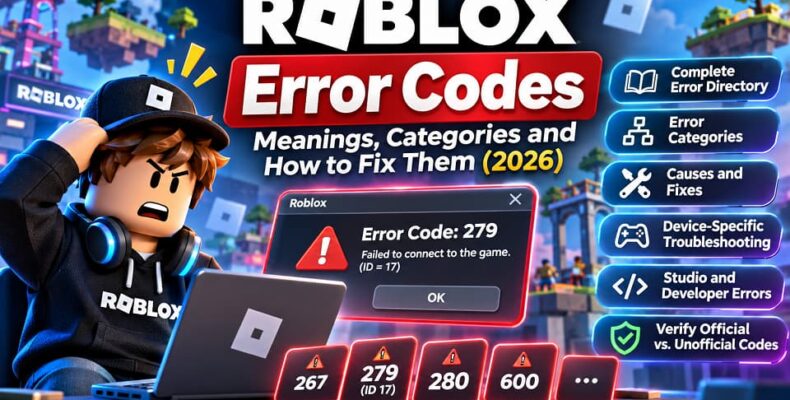
Roblox Error Codes: Meanings, Categories and How to Fix Them (2026)
Introduction to Roblox Error Codes
Roblox error codes help players identify problems that prevent them from signing in, joining experiences, or using the platform. These errors can appear on the Roblox website, desktop application, mobile devices, gaming consoles, or Roblox Studio.
Roblox error codes help identify the problems behind these interruptions. Some codes indicate connection failures or server issues, while others relate to account restrictions, application updates, permissions, or game-specific problems. Developers may also encounter separate errors while creating experiences, running scripts, publishing projects, or using Roblox Studio services.
Not every Roblox error comes with a numerical code. Some appear as plain-text messages, browser HTTP status codes, warning notifications, or application alerts. Their meanings can also vary depending on the device, platform, and situation in which they occur.
Understanding these errors makes troubleshooting easier. Instead of trying random solutions, players can identify the type of problem and choose the appropriate steps to resolve it. Developers can also use error messages to investigate scripts, server connections, APIs, and other technical issues.
In this guide, we explore the different types and categories of Roblox errors, explain commonly encountered error codes, and provide a comprehensive reference covering website, client-side, Roblox Studio, and play experience errors. We also examine platform-specific problems, including Xbox and PlayStation restrictions, account and age-related issues, legacy error messages, and commonly reported codes that may not have official verification.
Whether you are a Roblox player trying to fix a connection problem or a developer troubleshooting an experience, this guide will help you understand what different Roblox errors mean and where to look for solutions.
What Are Roblox Errors?
Roblox errors are messages or notifications that appear when something goes wrong while using the Roblox platform. They can interrupt gameplay, prevent players from joining experiences, or stop certain features from working correctly. These problems may occur on the Roblox website, desktop application, mobile devices, gaming consoles, or Roblox Studio.
Some Roblox errors appear with a numerical code, while others display a short description explaining the problem. Each error provides information about a particular issue, although the exact cause may depend on the device, account settings, internet connection, or Roblox service involved.
Roblox errors are not limited to players. Developers can also encounter errors while creating experiences, running scripts, publishing projects, accessing APIs, or collaborating through Roblox Studio.
Understanding the different types of errors is the first step toward finding the right solution. Let’s look at what Roblox error codes mean, why they appear, and how they help identify technical problems.
What Is a Roblox Error Code?
A Roblox error code is a numerical identifier associated with a particular error or technical problem. When Roblox encounters certain issues, it may display a code alongside an error message to help users understand what went wrong.
For example, Error Code 267 indicates an experience-specific ban, while Error Code 279 is associated with a failure to connect to an experience. Error Code 524 indicates that a player does not have permission to join a particular experience or server.
These numbers help distinguish one problem from another. Instead of displaying a general message such as “Something went wrong,” Roblox can provide a more specific error description and, in some cases, a corresponding numerical identifier.
However, error codes do not always reveal the exact underlying cause. The same error may have several possible causes, depending on the player’s device, network conditions, account permissions, or the experience they are trying to access.
Why Does Roblox Display Error Messages?
Roblox displays error messages when an application, service, or experience cannot complete an operation successfully. These problems can originate from the player’s device, internet connection, Roblox infrastructure, account settings, or an individual experience.
Some common reasons include:
- Network interruptions: Unstable internet connections, firewall restrictions, or communication failures can prevent Roblox from connecting to its servers.
- Server problems: Temporary service disruptions or unavailable game servers can prevent players from accessing experiences.
- Account restrictions: Age settings, parental controls, account permissions, or moderation actions can restrict certain activities.
- Application problems: Outdated versions, damaged installation files, missing libraries, or software conflicts can affect Roblox.
- Experience restrictions: Game creators may restrict access to specific players, private servers, or certain experiences.
- Device compatibility: Unsupported operating systems, insufficient memory, or hardware limitations can interfere with Roblox.
- Development errors: Incorrect scripts, unavailable APIs, publishing problems, and configuration issues can interrupt development activities in Roblox Studio.
Not every error indicates a serious problem. Some disappear after restarting the application or restoring an internet connection. Others require changes to account settings, application updates, or assistance from Roblox Support.
Identifying where the error originates helps determine which troubleshooting method is appropriate.
How Do Roblox Error Codes Help Identify Problems?
Roblox error codes make it easier to recognize and investigate specific problems. Each documented code or error message provides a starting point for understanding what happened and determining the next troubleshooting step.
For example, consider three commonly encountered Roblox errors:
- Error Code 267: Indicates that a player has been banned from a particular experience. The restriction generally comes from the experience’s creator rather than a platform-wide Roblox account suspension.
- Error Code 279: Indicates that Roblox could not establish a connection with the selected experience. Network settings, connectivity problems, or other connection-related issues may contribute.
- Error Code 524: Indicates that the player does not have permission to join a particular experience or server. Private server settings and access permissions may be involved.
These examples show why identifying the correct error matters. Restarting a router might help with a connection problem, but it will not automatically remove an experience-specific ban or grant access to a restricted private server.
Before attempting a fix, note the complete error message, numerical code, and situation in which it appears. Also check whether the problem affects one experience, multiple experiences, or the entire Roblox application.
This information makes troubleshooting more focused and reduces the risk of applying solutions that do not address the actual problem.
Are All Roblox Errors Associated With a Number?
No. Not every Roblox error comes with a numerical code. Some problems appear as plain-text messages, browser notifications, HTTP status codes, application warnings, or development-related error descriptions.
For example, players may encounter messages such as:
- Roblox Failed to Load Library.
- Roblox Authentication Failed.
- Roblox Unable to Download Files.
- Roblox Update Failed.
- Roblox Stuck on Loading Screen.
- Roblox Experience Failed to Load.
These messages describe problems without necessarily displaying a dedicated Roblox error number.
Website errors can also display standard HTTP status codes. Examples include HTTP 403 (Forbidden), HTTP 404 (Not Found), and HTTP 500 (Internal Server Error). These are general web status codes rather than unique Roblox error codes.
Developers working in Roblox Studio may encounter another type of error. Luau script errors, DataStore failures, API request problems, and publishing notifications can provide descriptive messages or their own numerical identifiers.
Therefore, a complete Roblox error reference should cover more than numbered codes. It should also explain text-based errors, website status messages, application problems, and development-related failures.
Understanding this distinction will help players and developers identify errors even when no numerical code appears on the screen.
Understanding the Different Types of Roblox Errors
Roblox errors can occur in different parts of the platform. A problem with the Roblox website may prevent users from signing in or accessing their accounts. A client-side error can stop the application from launching, while a Roblox Studio error may interrupt development work. Players can also encounter errors when joining or playing individual experiences.
Understanding where an error occurs makes it easier to identify its possible cause. For this guide, we divide Roblox errors into four main types: website errors, client-side errors, Roblox Studio errors, and play experience errors. Each category covers a different part of the Roblox ecosystem, although some problems can affect more than one category.
Website Errors
Roblox website errors occur when users experience problems while accessing or using the official Roblox website through a web browser. These errors can affect account login, profile pages, avatar customization, marketplace browsing, Robux purchases, and other website features.
Some website problems originate from Roblox services, while others relate to browser settings, network restrictions, expired sessions, or standard HTTP request failures.
For example, an HTTP 403 error indicates that access to a requested resource has been denied. An HTTP 404 error means that the requested page or resource could not be found. These are standard HTTP status codes that can appear when accessing websites, including Roblox.
Common Roblox website problems include:
- Login and authentication errors: Users cannot sign in or access their Roblox accounts.
- Profile loading errors: Player profiles, account information, or avatar details fail to load.
- Marketplace errors: Users experience problems browsing, purchasing, or loading marketplace items.
- Robux and payment errors: Transactions fail or purchased Robux do not appear as expected.
- Website access errors: Browser requests are blocked or return HTTP error responses.
- Server and service errors: Roblox website features become temporarily unavailable.
- Browser-related errors: Cookies, cached data, extensions, or browser compatibility interfere with website functionality.
Website errors do not necessarily indicate that the Roblox application or game servers are experiencing problems. A user may be unable to access a particular website feature while Roblox experiences continue working normally.
Client-Side Errors
Client-side errors occur within the Roblox application installed on a player’s device. The Roblox client is the software responsible for launching experiences, displaying game content, processing player input, and communicating with Roblox services.
These errors can affect Windows computers, Mac devices, Android phones, iPhones, iPads, and supported gaming consoles.
A client-side error may appear before Roblox launches, during the loading process, or while a player is using the application. Problems can originate from outdated software, corrupted installation files, insufficient device resources, incompatible system settings, or network communication failures.
Common client-side Roblox errors include:
- Launcher errors: The Roblox launcher fails to start or open an experience.
- Installation errors: Roblox cannot install correctly or complete its setup process.
- Update errors: The application cannot download or install the required version.
- Version errors: The installed Roblox client is outdated or incompatible with the required version.
- File and library errors: Roblox cannot locate or load files required for normal operation.
- Memory errors: The device does not have sufficient available memory to run Roblox properly.
- Graphics errors: Rendering problems, driver conflicts, or unsupported graphics configurations affect gameplay.
- Application crashes: Roblox unexpectedly closes during startup or gameplay.
- Security software conflicts: Firewall or antivirus settings interfere with the application.
Examples of numbered errors associated with client or application problems include Error Code 268 and Error Code 280. Other problems may appear as descriptive messages, such as Failed to Load Library or Roblox Update Failed.
It is important to distinguish client-side errors from experience-specific problems. If Roblox itself cannot launch, the issue may involve the installed application. If Roblox opens normally but one particular experience fails, the problem may belong to the experience or its server instead.
Roblox Studio Errors
Roblox Studio errors affect developers who use Roblox Studio to create, edit, test, and publish interactive experiences. Unlike ordinary player errors, these problems can involve scripting, development tools, collaborative editing, asset management, APIs, and game configuration.
Roblox Studio includes several development systems that work together. An error in one system can interrupt a specific task without necessarily affecting the entire Studio application.
For example, a developer may successfully open a project but encounter a script execution error when testing it. Another developer may experience a publishing failure or lose access to a collaborative Team Create session.
Common Roblox Studio error types include:
- Studio startup errors: Roblox Studio fails to open or crashes during startup.
- Luau scripting errors: Incorrect code, invalid syntax, or runtime problems prevent scripts from working properly.
- Script compilation errors: The development environment cannot compile a script successfully.
- Team Create errors: Developers lose their connection to a shared project or experience collaboration session.
- Publishing errors: Roblox Studio cannot publish or update an experience.
- Asset upload errors: Images, audio, models, or other development assets fail to upload.
- DataStore errors: Problems occur while saving, retrieving, updating, or deleting stored game data.
- HTTP service errors: Scripts cannot successfully communicate with external services or make supported HTTP requests.
- Plugin errors: Third-party or built-in plugins fail to load or operate correctly.
- Rendering and physics errors: Problems affect object rendering, physics behavior, or the Studio testing environment.
Roblox Studio also reports errors through the Output window, where developers can inspect script messages, warnings, and runtime failures.
Some Studio errors have numerical identifiers. For example, Roblox documents DataStore-specific error codes that are separate from the numbered error codes players encounter when joining experiences.
Developers should therefore identify which system generated an error before searching for its meaning. A DataStore error, an HTTP status response, and a Roblox Player connection error may use similar numbers but represent completely different problems.
Play Experience Errors
Play experience errors occur when players attempt to join, load, or interact with individual Roblox experiences. These problems can appear after launching a game, while connecting to a server, during gameplay, or when moving between different places within an experience.
Unlike general website or application errors, play experience errors are often associated with a particular game, server, access restriction, or connection session.
For example, a player may successfully sign in to Roblox and open the application but fail to join a specific experience. Another player may enter a game successfully but lose connection several minutes later.
Common play experience error types include:
- Game joining errors: Roblox cannot connect the player to the selected experience.
- Connection errors: The player cannot establish or maintain communication with a game server.
- Server errors: The selected server is unavailable, full, or experiencing technical problems.
- Teleportation errors: Roblox cannot transfer the player from one place to another within an experience.
- Permission errors: The player does not have the required permission to enter an experience or private server.
- Experience ban errors: The experience creator has restricted the player’s access.
- Game loading errors: The experience fails to load required assets, scripts, or game content.
- Disconnection errors: The player unexpectedly loses connection during gameplay.
- Experience shutdown errors: A game server or experience session becomes unavailable.
- Gameplay script errors: Problems with the experience’s scripts or configuration affect particular game features.
Several commonly searched Roblox error codes belong to this category. Error Code 267 is associated with experience-specific bans, Error Code 277 indicates a lost connection to a game server, Error Code 279 relates to connection failures, and Error Code 524 involves permission to join an experience or server.
Teleportation-related errors also deserve attention. Roblox developers can encounter errors when moving players between different places within an experience. These problems may involve unavailable destinations, server capacity, or access permissions.
Play experience errors do not always originate from the player’s device. Sometimes the problem lies with the game creator’s configuration, the destination server, or Roblox’s infrastructure.
Therefore, identifying whether an error affects one experience or multiple experiences is an important part of troubleshooting.
Understanding Roblox Error Code Categories
Roblox errors can also be grouped by the part of the platform they affect. The detailed sections later in this guide cover network and server problems, account access and authentication, application and device compatibility, Roblox Studio and development services, payments, chat, moderation, and HTTP responses.
These categories can overlap. For example, a player may have a connection problem caused by a game server, or an access restriction caused by account or parental-control settings. Use the error directory to identify a numbered code, then follow the dedicated section for the affected feature or device.
HTTP and website status errors occur when a browser or application sends a request to a web server and receives an HTTP response indicating that the request could not be completed normally.
These status codes are part of the general HTTP standard. They are not necessarily unique Roblox error codes, even when they appear while accessing Roblox services.
Common HTTP status codes include:
- HTTP 400 – Bad Request: The server cannot process the request because it considers the request invalid.
- HTTP 401 – Unauthorized: The request requires valid authentication.
- HTTP 403 – Forbidden: The server refuses access to the requested resource.
- HTTP 404 – Not Found: The requested resource cannot be found.
- HTTP 429 – Too Many Requests: The server is limiting requests because too many have been received.
- HTTP 500 – Internal Server Error: The server encountered an unexpected condition.
- HTTP 502 – Bad Gateway: A gateway or proxy received an invalid response from an upstream server.
- HTTP 503 – Service Unavailable: The server is temporarily unable to handle the request.
- HTTP 504 – Gateway Timeout: A gateway or proxy did not receive a timely response from an upstream server.
These errors can appear while accessing Roblox website pages or services that use HTTP communication.
An HTTP status code should not be confused with a Roblox Player error code or a Roblox Studio DataStore identifier. Although the numbers may overlap, their meanings and technical contexts are different.
Understanding these categories helps narrow down the source of a Roblox problem. Once users identify whether an error involves connectivity, account access, the application, a game server, or a development tool, they can move on to the relevant error-code explanation and troubleshooting instructions.
Roblox Error Codes and Their Meanings
This section serves as the central reference directory of the article. It will explain identifiable Roblox error codes, their associated messages, what they mean, why they occur, and which parts of the platform they affect.
Roblox Error Codes 1–99
Roblox error codes in the 1–99 range include launcher-related problems, connection identifiers, and certain device-specific errors. Some are associated with older Roblox client behavior, while others appear in current support documentation under a different error-code format.
Not every number in this range represents a separately documented Roblox error. The following entries cover identifiable codes and explain their documentation status.
ConnectionError 6 – InvalidPassword
The Roblox engine ConnectionError enumeration identifies value 6 as InvalidPassword. This is a connection-level identifier, not a confirmed player-facing launcher timeout.
Do not automatically interpret this identifier as an incorrect Roblox account password. It belongs to the engine’s connection-error system and must be read in the context of the complete message.
The identifier may appear in technical logs or connection diagnostics rather than as a standard entry in the Roblox Help Center.
When it appears, record the complete message and identify whether it came from Roblox Player, Studio, or another development tool.
- Check the account credentials only if the actual message concerns signing in or account authentication.
- If the error occurs while joining an experience, check the full connection message and whether the issue affects one experience or several.
- Do not reinstall Roblox or reset an account password solely because the number 6 appears.
- Developers should inspect the connection result and surrounding log details.
- The numerical identifier alone does not establish the cause of a failed launch or download.
Treat this as an engine-level connection identifier, not as a general launcher timeout definition.
Documentation status: The community-maintained Roblox API reference maps ConnectionError.InvalidPassword to value 6. This is an engine-level mapping, not a separate player-facing entry in Roblox’s public Error Codes Help Center.
ID 17 – Connection Failure (Associated with Error Code 279)
ID 17 is the connection-failure identifier displayed alongside Error Code 279. Roblox’s official documentation identifies this message alongside Error Code 279.
The associated error is commonly displayed as:
“Failed to connect to the Game” or an “ID=17 Failure” message.
This problem occurs when the Roblox client cannot establish a network connection with the selected experience.
Possible causes include:
- An unstable or slow internet connection.
- Firewall restrictions blocking Roblox communication.
- Antivirus or internet security software interfering with the connection.
- Router or network configuration problems.
- Temporary communication problems between the Roblox client and game servers.
- Problems with the selected experience or its server.
Players may encounter this error when attempting to join an experience or when Roblox cannot complete the connection process.
ID 17 is not a separate player-facing error from Error Code 279. Roblox officially documents them together as Error Code 279 / ID 17.
Documentation status: Roblox officially lists this as Error Code 279 / ID 17.
Error Code 292 – Low Memory Warning on iOS
Roblox Error Code 292 is a low-memory warning associated with the Roblox mobile application on iOS devices.
This warning can appear when an iPhone or iPad has insufficient available memory to continue running Roblox smoothly. It may occur during gameplay, particularly when an experience requires substantial device resources.
Possible contributing factors include:
- Too many applications running in the background.
- Limited available device memory.
- Resource-intensive Roblox experiences.
- Device performance limitations.
- Other applications competing for available system resources.
The warning indicates that the device may struggle to maintain normal gameplay. Closing unnecessary applications and restarting the device may help free up resources.
Players should also consider whether their device meets Roblox’s current system requirements.
Documentation status: Roblox officially documents Error Code 292 in its iOS technical support resources. It is a device-specific warning rather than a general connection or server error.
Are There Other Roblox Error Codes Between 1 and 99?
Roblox does not publish a complete numerical catalogue containing every error number ever used by its platform. Its current official Error Codes index lists selected codes, and it directs users to contact support when their particular error is not listed.
Some third-party references mention older launcher messages, initialization errors, and other historical identifiers. However, these should not automatically be treated as active Roblox error codes.
For this numerical range, the documented entries above provide a useful starting point. Additional codes should only be added when their exact messages, meanings, and sources can be verified.
Roblox Error Codes 100–199
Roblox error codes in the 100–199 range include certain experience-access problems and developer-related error identifiers. Some codes are associated with the Xbox version of Roblox, while others belong to separate systems used by Roblox developers.
One notable example is Error Code 103, which has been reported when Xbox players attempt to access an experience that is unavailable to them. Developers also encounter a separate DataStore error numbered 103, but it has a completely different meaning.
Reported Error Code 103 – Xbox Experience Access Problem
Roblox Error Code 103 is associated with an experience that cannot be accessed through the Xbox version of Roblox.
The message commonly reported with this error is:
“The Roblox experience you are trying to join is currently not available. (Error Code: 103)”
This problem has been associated with Xbox players attempting to join experiences that are unavailable on the console or cannot be accessed under the current account settings.
Possible contributing factors include:
- The selected experience does not support Xbox consoles.
- Xbox privacy settings restrict access to user-created content.
- Microsoft Family Safety settings prevent access to certain experiences.
- Roblox account age or eligibility settings restrict access.
- The selected experience or its availability has changed.
The exact cause depends on the situation. If only one experience fails, check whether its creator supports Xbox. If multiple experiences are unavailable, review the Xbox account’s privacy settings, family permissions, and Roblox account restrictions.
Important: Error Code 103 is not included in Roblox’s current official Error Codes index. Its meaning is documented primarily through third-party references and historical reports from Xbox users. It should therefore be labelled as a reported Xbox error rather than an officially documented current Roblox error.
Are There Other Roblox Error Codes Between 100 and 199?
There are additional numerical identifiers in this range, but not all belong to the player-facing Roblox error system.
For example, Roblox Creator Hub documents a separate DataStore error numbered 103:
DataStore Error 103 – ValueNotAllowed
This error occurs when an update function returns a value type that Roblox DataStore does not allow.
It is relevant to developers working with Roblox Studio and DataStore services, not ordinary players trying to join an Xbox experience.
The distinction is important:
- Player-facing Error Code 103: Reported Xbox experience availability or access problem.
- DataStore Error 103: A developer-side error indicating an unsupported value returned by a DataStore update function.
Roblox’s official player-facing error-code index does not provide a complete list of every number between 100 and 199. Therefore, we should not invent additional entries or assume that every unused number represents an actual Roblox error.
Roblox Error Codes 200–299
Roblox error codes in the 200–299 range cover several types of problems. These include network communication failures, connection timeouts, account session conflicts, experience restrictions, server shutdowns, and application-related issues.
Some codes in this range have dedicated Roblox Support articles. Others are commonly reported in older Roblox clients, community documentation, and third-party troubleshooting guides.
The following explanations distinguish officially documented codes from additional reported errors.
Reported Error Code 260 – Data Reception Problem
Some third-party Roblox references associate Error Code 260 with a data-reception problem during gameplay. This message is not listed as a separate entry in Roblox’s current public Error Codes index. Separately, the current Roblox ConnectionError enumeration maps value 260 to DisconnectReceivePacketError. That engine-level mapping should not be treated as proof that every historical player-facing message using 260 came from the same subsystem.
The commonly reported message is:
“There was a problem receiving data, please reconnect. (Error Code: 260)”
This error can occur when the Roblox client cannot receive the information required to continue an active game session.
Possible causes include:
- Temporary network interruptions.
- Unstable internet connectivity.
- Problems transmitting data between the client and server.
- Roblox server communication failures.
- Firewall or network security restrictions.
Players may encounter this error during gameplay when the application cannot receive the required server data.
Documentation status: Commonly documented by third-party Roblox references. It does not have a dedicated entry in Roblox’s current official Error Codes index.
Reported Error Code 261 – Data Reception or Streaming Problem
Some third-party Roblox references associate Error Code 261 with receiving or streaming data during an experience. Roblox’s current public Error Codes index does not list it as a separate player-facing entry. Separately, the ConnectionError enumeration maps value 261 to DisconnectReceivePacketStreamError. This is an engine-level identifier; the historical player-facing wording is not independently verified by the public Help Center.
Commonly reported messages include:
“Error while receiving data, please reconnect. (Error Code: 261)”
“There was a problem streaming data, please reconnect. (Error Code: 261)”
This error indicates that the game client is having difficulty receiving the information sent by the server.
Possible causes include:
- Unstable internet connections.
- Interrupted data transmission.
- Temporary Roblox server problems.
- High network latency.
- Communication failures between the game client and server.
The exact cause can vary depending on the connection and server conditions.
Documentation status: Reported in third-party Roblox error references. No dedicated current Roblox Support article was identified.
Reported Error Code 262 – Data Transmission Problem
Some third-party Roblox references associate Error Code 262 with a problem sending data between the client and server. Roblox’s current public Error Codes index does not list it as a separate player-facing entry. Separately, the ConnectionError enumeration maps value 262 to DisconnectSendPacketError. This engine-level mapping should not be treated as independent confirmation of every historical player-facing message reported with this number.
Commonly reported messages include:
“There was a problem sending data, please reconnect. (Error Code: 262)”
“Error while sending data, please reconnect. (Error Code: 262)”
This error is generally associated with interrupted or unsuccessful data transmission.
Possible causes include:
- Unstable internet connectivity.
- Network interruptions.
- Firewall restrictions.
- Problems sending information to the game server.
- Temporary communication failures.
Players may encounter this error when the game cannot successfully transmit the information required to continue an experience.
Documentation status: Third-party documented and community reported. It is not listed as a separate code in Roblox’s current official error-code index.
Engine identifier reference: Roblox API ConnectionError reference
Error Code 264 – Same Account Launched Experience From Different Devices
Roblox Error Code 264 appears when the same account attempts to launch an experience from different devices while another session is already active.
A commonly displayed message is:
“Same account launched experience from different devices. Reconnect if you prefer to use this device. (Error Code: 264)”
For example, a player may be playing Roblox on a desktop computer and then attempt to launch an experience using the same account on another device.
Roblox detects the overlapping session and displays the error.
Possible causes include:
- An active Roblox session on another device.
- Another person using the same account.
- An earlier session that has not closed properly.
- Attempting to reconnect while another session is still active.
Players should close Roblox on the other device before attempting to reconnect.
If the player does not recognize the other session, reviewing account security and changing the password may be appropriate.
Documentation status: Officially documented by Roblox.
Error Code 266 – Connection Timed Out
Roblox Error Code 266 indicates that the connection between the player and the Roblox server has timed out.
The official error message is:
“Your connection timed out. Check your internet connection and try again. (Error Code: 266)”
This problem occurs when the connection does not respond within the required time.
Possible causes include:
- Slow or unstable internet connections.
- High network latency.
- Interrupted Wi-Fi connections.
- Network congestion.
- Firewall or antivirus interference.
- Temporary communication problems with the game server.
Players may experience this error when joining an experience or maintaining an active connection.
Documentation status: Officially documented by Roblox.
Error Code 267 – Banned From an Experience
Roblox Error Code 267 indicates that a player has been banned from a particular Roblox experience.
A commonly displayed message is:
“You were kicked from this experience: You have been banned from this experience. (Error Code: 267)”
This restriction is generally imposed by the experience creator or its moderation system.
Unlike a Roblox platform-wide account ban, an experience-specific ban normally affects access to that particular game. The player may still be able to access other Roblox experiences.
Possible reasons include:
- Violating the experience’s rules.
- Triggering the game’s anti-cheat system.
- Being restricted by the experience’s moderation system.
- Receiving a ban from the experience creator.
The exact reason depends on the experience and the message displayed.
Players should review the experience’s rules and contact its creator if they believe the restriction was applied incorrectly.
Documentation status: Officially documented by Roblox.
Official Roblox source: Roblox Error Code 267 Support article
Error Code 268 – Kicked Due to Unexpected Client Behavior
Roblox Error Code 268 appears when the platform detects unexpected client behavior and removes the player from an experience.
The official error message is:
“You have been kicked due to unexpected client behavior. (Error Code: 268)”
This error relates to how the Roblox client behaves while communicating with the platform.
Possible contributing factors include:
- Conflicts involving third-party software.
- Unauthorized modifications to the Roblox client.
- Interference from certain background applications.
- Network or client communication problems.
Players should avoid unauthorized modifications and investigate whether third-party applications are interfering with Roblox.
This error does not automatically mean that the player’s Roblox account has been permanently banned.
Documentation status: Officially documented by Roblox.
Error Code 270 – Lost Connection to Team Create
Roblox Error Code 270 affects developers using Team Create in Roblox Studio.
The official error message is:
“Lost connection to Team Create. Please reconnect.”
Team Create allows multiple developers to collaborate on the same Roblox Studio project. The feature synchronizes changes so that team members can work together.
Error Code 270 appears when Roblox Studio loses its connection to the collaborative editing session.
Possible causes include:
- Unstable internet connectivity.
- Temporary Roblox Studio communication problems.
- Network interruptions.
- Problems with the collaborative editing session.
- Temporary service disruptions.
Developers may need to reconnect to Team Create before continuing their work.
Documentation status: Officially documented by Roblox. This is primarily a Roblox Studio error rather than an ordinary player-facing gameplay error.
ConnectionError 273 – DisconnectEvicted
The Roblox engine ConnectionError enumeration maps value 273 to DisconnectEvicted. It identifies a disconnection in which the client is evicted from the session.
This is an engine-level connection identifier. It should not automatically be described as a second-device login, an account compromise, or a platform-wide account ban.
The exact reason for the eviction depends on the server or experience context and the message displayed to the player.
When investigating this identifier, check:
- The complete disconnection message.
- Whether the issue affects one experience or several.
- Whether other players were disconnected at the same time.
- Whether the experience developer has posted a maintenance or moderation notice.
Do not infer an account security breach from this number alone.
Documentation status: The engine API reference identifies 273 as DisconnectEvicted. This is not a separate entry in Roblox’s public player-facing Error Codes index.
ConnectionError 274 – DisconnectDevMaintenance
The Roblox engine ConnectionError enumeration maps value 274 to DisconnectDevMaintenance. It identifies a disconnection associated with maintenance or an action initiated by the experience developer.
This is different from ConnectionError 275, which is mapped to DisconnectRobloxMaintenance and refers to Roblox-side maintenance. Do not treat the two identifiers as interchangeable.
If this message appears, check whether the experience developer has announced maintenance or a server shutdown. If the problem affects multiple unrelated experiences, check the Roblox Status page as well.
Documentation status: The engine API reference maps 274 to DisconnectDevMaintenance. It is not a separate entry in Roblox’s public player-facing Error Codes index.
ConnectionError 275 – DisconnectRobloxMaintenance
The Roblox engine ConnectionError enumeration maps value 275 to DisconnectRobloxMaintenance. It is associated with a disconnection caused by Roblox maintenance.
This identifier should be distinguished from a custom message created by an individual experience.
A maintenance-related disconnection may interrupt an active session. Players may need to wait until the affected service is available and then rejoin.
It does not mean that every occurrence of a server shutdown is caused by Roblox-wide maintenance.
What to check:
- The Roblox Status page for an active incident.
- Whether other experiences or services are affected.
- Whether the experience developer has announced a separate server shutdown.
- The full error message and the component that generated it.
If the issue is limited to one experience, contact its developer or try another server after a short wait.
Documentation status: The engine API reference maps 275 to DisconnectRobloxMaintenance. It is not a separate entry in Roblox’s public player-facing Error Codes index.
Error Code 277 – Lost Connection to the Game Server
Roblox Error Code 277 indicates that the player has lost connection to the game server.
The official error message is:
“Lost connection to the game server, please reconnect. (Error Code: 277)”
This error can occur after a player has successfully joined an experience but subsequently loses communication with its server.
Possible causes include:
- Unstable internet connectivity.
- Wi-Fi disconnections.
- Network interruptions.
- Changes in network configuration.
- Firewall restrictions.
- Problems maintaining communication with the game server.
The error may appear suddenly during gameplay, returning the player to the Roblox interface.
Documentation status: Officially documented by Roblox.
ConnectionError 278 – DisconnectIdle
The Roblox engine ConnectionError enumeration maps value 278 to DisconnectIdle. It is associated with a disconnection after a player remains inactive.
The exact wording can vary by client and experience.
An idle disconnection normally means the player must rejoin the experience if they want to continue.
Experiences and platform systems may disconnect inactive sessions to manage server resources.
Do not confuse this engine identifier with a universal, fixed inactivity timer for every Roblox experience.
If you encounter it:
- Return to the experience and try joining again.
- Check whether the experience has its own inactivity rules.
- Check whether the message appeared after a long period without input.
- If it happens immediately or repeatedly, record the full message and report it to the experience developer.
A normal idle disconnection does not, by itself, indicate an account ban.
Documentation status: The community-maintained Roblox API reference maps 278 to DisconnectIdle. This is an engine-level identifier, not a separate entry in Roblox’s public player-facing Error Codes index.
Error Code 279 – Failed to Connect to the Game
Roblox Error Code 279 appears when the client cannot establish a connection with the selected experience.
The official error message is:
“Failed to connect to the Game. (ID = 17: Connection attempt failed.) (Error Code: 279)”
This error commonly occurs when Roblox cannot complete the connection process required to join an experience.
Possible causes include:
- Unstable internet connections.
- Firewall restrictions.
- Antivirus software interference.
- Network configuration problems.
- Blocked communication between the client and server.
- Temporary problems with the selected game server.
Players may encounter this error while attempting to join an experience or reconnect to a server.
It is important to understand that ID 17 is associated with Error Code 279. It should not be counted as an entirely separate error.
Documentation status: Officially documented by Roblox.
For step-by-step troubleshooting, see our guide: How to Fix Roblox Error Code 279 (ID 17)
Error Code 280 – Roblox Version May Be Outdated
Roblox Error Code 280 appears when the installed Roblox application has a version-related problem.
The official error message is:
“Your version of Roblox may be out of date. Please update Roblox and try again. (Error Code: 280)”
This error indicates that the installed client may not meet the version requirements needed to connect and operate correctly.
Possible causes include:
- An outdated Roblox installation.
- An incomplete application update.
- Problems downloading the latest client version.
- Corrupted application files.
- Update or installation interruptions.
Players should check whether Roblox has an available update and ensure that the application is installed correctly.
Documentation status: Officially documented by Roblox.
Official Roblox source: Roblox Error Code 280 Support article
Are There Other Roblox Error Codes Between 200 and 299?
Several additional numbers appear in third-party Roblox error lists and historical community documentation. However, not all have dedicated Roblox Support articles or consistently verified meanings.
The engine ConnectionError reference maps 274 to DisconnectDevMaintenance. This is a developer-maintenance disconnection identifier and should not be described as an undocumented custom shutdown code. It is distinct from 275, which maps to DisconnectRobloxMaintenance.
Other numbers in this range should be researched individually before inclusion. We should not assume that an undocumented number represents a current Roblox error.
There is also an important distinction between player-facing error codes and developer-side identifiers. An error number used by Roblox Studio or an API may have a completely different meaning from the same number displayed in a game.
For accuracy, the official Roblox error-code documentation should remain our primary reference. Third-party and historical references can help identify additional codes, but their status and exact messages must be clearly labelled.
Roblox Error Codes 300–399
Roblox error codes in the 300–399 range are particularly relevant to developers working with Roblox Studio and DataStore services. Unlike common player-facing errors, several documented codes in this range indicate that Roblox has dropped DataStore requests because the request queues have reached their limits.
DataStores allow Roblox experiences to save and retrieve information such as player progress, inventory, game settings, and other persistent data. When developers send too many requests within a short period, Roblox may throttle those requests to protect service performance.
Roblox officially documents six numbered DataStore error codes in this range, from 301 to 306. These codes identify the type of DataStore operation that could not be processed.
Error Code 300 – DataStore Request Limit Reference
The number 300 appears in Roblox’s DataStore documentation as part of certain request-limit calculations. However, it is not listed as a standalone DataStore error code.
For example, Roblox calculates some experience-level DataStore request limits using formulas that begin with 300 and increase according to the number of concurrent users.
This number represents part of a request quota calculation, not an error that players or developers receive when a DataStore operation fails.
Documentation status: Officially documented as part of DataStore request-limit calculations, but not as a standalone Roblox error code.
Error Code 301 – GetAsync Request Dropped
Roblox DataStore Error Code 301 indicates that a GetAsync request has been dropped because the request queue is full.
GetAsync() is a DataStore function developers use to retrieve previously saved information. For example, a game may use it to load a player’s progress, coins, inventory, or saved settings.
When too many requests are made, Roblox may throttle them. If the request queue reaches its maximum capacity, additional requests can fail with Error Code 301.
The documented error message is:
“GetAsync request dropped. Request was throttled but queue was full.”
Possible causes include:
- Too many GetAsync requests within a short period.
- Multiple scripts requesting the same player data.
- Excessive DataStore reads during player joining.
- Poorly optimized data-loading systems.
- High request traffic across multiple game servers.
Developers should reduce unnecessary DataStore reads, avoid repeatedly requesting the same information, and manage request frequency carefully.
Documentation status: Officially documented by Roblox Creator Hub.
Error Code 302 – SetAsync Request Dropped
Roblox DataStore Error Code 302 occurs when a SetAsync request is dropped because the DataStore request queue is full.
SetAsync() allows developers to save information to a DataStore. A Roblox experience may use this function to save player progress, game statistics, inventory information, or other persistent data.
When the number of requests exceeds the available processing capacity, Roblox throttles incoming operations. If the queue becomes full, additional SetAsync requests may be dropped.
The documented error message is:
“SetAsync request dropped. Request was throttled but queue was full.”
Possible causes include:
- Too many save requests within a short period.
- Saving player data too frequently.
- Multiple scripts attempting to save the same information.
- Poorly designed automatic saving systems.
- High DataStore write traffic.
Developers should avoid unnecessary repeated saves and design efficient saving systems. They should also handle failed requests carefully to reduce the risk of losing player progress.
Documentation status: Officially documented by Roblox Creator Hub.
Error Code 303 – IncrementAsync Request Dropped
Roblox DataStore Error Code 303 indicates that an IncrementAsync request has been dropped because the request queue is full.
IncrementAsync() is used to increase or decrease a numerical value stored in a DataStore. Developers may use it for counters, player statistics, currency totals, or other numerical game information.
When too many increment operations are submitted, Roblox may throttle the requests. If the queue reaches its maximum capacity, additional operations can fail with Error Code 303.
The documented error message is:
“IncrementAsync request dropped. Request was throttled but queue was full.”
Possible causes include:
- Excessive IncrementAsync requests.
- Frequent updates to the same numerical value.
- Multiple scripts modifying the same DataStore entries.
- High player activity generating repeated updates.
- Poorly optimized game statistics or counter systems.
Developers should reduce unnecessary increment operations and avoid sending repeated requests when a single well-managed update can achieve the same result.
Documentation status: Officially documented by Roblox Creator Hub.
Error Code 304 – UpdateAsync Request Dropped
Roblox DataStore Error Code 304 occurs when an UpdateAsync request is dropped because the request queue is full.
UpdateAsync() allows developers to retrieve existing data, modify it, and save the updated value. It is commonly used when several game operations may modify the same player’s stored information.
For example, a game may use UpdateAsync() to update player currency, progress, inventory, or other saved information while accounting for concurrent changes.
When too many update requests are submitted, Roblox may throttle them. If the queue becomes full, additional requests can be dropped.
The documented error message is:
“UpdateAsync request dropped. Request was throttled but queue was full.”
Possible causes include:
- Excessive UpdateAsync calls.
- Frequent updates to the same DataStore key.
- Multiple scripts updating player information.
- High write traffic across game servers.
- Inefficient data-saving logic.
Developers should optimize their update operations, reduce unnecessary requests, and use appropriate request-handling methods.
Roblox also lists the name TransformThrottle under Error Code 304. It refers to the same UpdateAsync throttling condition rather than a separate numbered error.
Documentation status: Officially documented by Roblox Creator Hub.
Error Code 305 – GetSortedAsync Request Dropped
Roblox DataStore Error Code 305 indicates that a GetSortedAsync request has been dropped because the request queue is full.
GetSortedAsync() is associated with OrderedDataStores, which developers commonly use to retrieve numerical values in sorted order.
For example, a Roblox experience may use an OrderedDataStore to display player rankings, high scores, competitive statistics, or leaderboard positions.
When too many sorted-data requests are submitted, Roblox may throttle them. If the request queue reaches its maximum capacity, additional requests can fail with Error Code 305.
The documented error message is:
“GetSorted request dropped. Request was throttled but queue was full.”
Possible causes include:
- Too many leaderboard requests.
- Frequent refreshes of sorted player rankings.
- Multiple scripts requesting sorted data simultaneously.
- Excessive OrderedDataStore queries.
- Poorly optimized leaderboard systems.
Developers should avoid refreshing leaderboards unnecessarily and consider caching results when appropriate.
Documentation status: Officially documented by Roblox Creator Hub.
Error Code 306 – RemoveAsync Request Dropped
Roblox DataStore Error Code 306 occurs when a RemoveAsync request is dropped because the request queue is full.
RemoveAsync() allows developers to delete a particular entry from a DataStore.
A Roblox experience may use this function to remove outdated player records, reset saved information, delete temporary data, or clear entries that are no longer required.
When too many removal requests are submitted, Roblox may throttle them. If the queue becomes full, additional requests can fail with Error Code 306.
The documented error message is:
“RemoveAsync request dropped. Request was throttled but queue was full.”
Possible causes include:
- Too many RemoveAsync requests.
- Multiple scripts deleting DataStore entries simultaneously.
- Excessive data cleanup operations.
- Poorly optimized deletion systems.
- High request traffic involving the same DataStore.
Developers should schedule cleanup operations carefully and avoid sending unnecessary deletion requests.
Documentation status: Officially documented by Roblox Creator Hub.
Are There Other Roblox Error Codes Between 300 and 399?
Roblox’s official DataStore documentation identifies six numbered error codes in this range: 301, 302, 303, 304, 305, and 306.
The meanings are:
| Error code | DataStore error name | Meaning |
| 301 | GetAsyncThrottle | GetAsync request dropped |
| 302 | SetAsyncThrottle | SetAsync request dropped |
| 303 | IncreAsyncThrottle | IncrementAsync request dropped |
| 304 | UpdateAsyncThrottle | UpdateAsync request dropped |
| 305 | GetSortedThrottle | GetSortedAsync request dropped |
| 306 | RemoveAsyncThrottle | RemoveAsync request dropped |
All six indicate that a request was throttled and the relevant queue was full.
These are developer-side DataStore errors, not ordinary player-facing Roblox connection or gameplay errors. Players will generally not see these identifiers directly. Instead, they may experience secondary problems, such as delayed saving, missing leaderboard updates, or unsuccessful data operations, depending on how the experience handles failed requests.
Roblox does not document additional numbered DataStore error codes between 307 and 399 in the current reference. We should therefore avoid adding unverified numbers to this section.
Roblox Error Codes 400–499
The 400–499 range contains several verified Roblox error identifiers. However, these codes do not all belong to the same error system.
Some appear in the Roblox Player application. Others belong to Roblox Studio, DataStore services, or Open Cloud API responses. Their meanings depend on where the error occurs.
Error Code 403 – Access Denied
Roblox Error Code 403 can appear when the Roblox client fails to initialize correctly after launching from the website. Roblox also documents this error in connection with access being denied to www.roblox.com.
The cause can vary. It may involve damaged application files, cached data, browser problems, VPN connections, or network restrictions.
What to try:
- Close Roblox and restart your computer.
- Clear the Roblox application data or reinstall the client.
- Clear your browser’s temporary files and cookies.
- Disable browser extensions or VPN connections temporarily.
- Try a different internet connection.
If the error occurs while accessing a Roblox website page, check whether the browser or network is blocking the request. If it occurs when launching the desktop application, focus on the client installation and its local files.
Roblox also uses the number 403 in its developer services. For example, a DataStore error with this number means Studio API access is not enabled. This is a separate developer-side issue, not the same as the player-facing access error.
Error Codes 401–404 – Roblox DataStore Errors
Roblox Creator Hub documents four DataStore error codes in this range. These errors are mainly relevant to developers working with Roblox Studio and experience data.
They should not be confused with ordinary Roblox Player connection errors.
Error Code 401 – DataModelNoAccess
This error occurs when a DataStore request is made while the experience is shutting down. The DataModel is no longer accessible or has not been initialized.
Developers should avoid starting new DataStore operations during shutdown and handle failed requests safely.
Error Code 402 – LuaWebSrvsNoAccess
This error occurs when the LuaWebService is inaccessible while the experience is shutting down.
It is a developer-side service availability issue. It does not normally require action from a player.
Error Code 403 – StudioAccessToApisNotAllowed
This DataStore error appears when a developer tries to access a DataStore from Roblox Studio without enabling API access.
To address it:
- Open the experience in Roblox Studio.
- Open File → Game Settings.
- Find the Security
- Enable Allow Studio Access to API Services.
- Save the settings and test the experience again.
Only enable this setting when appropriate for the experience and testing environment.
Error Code 404 – InternalError
In the Roblox DataStore error reference, this code indicates that the requested OrderedDataStore could not be found.
Developers should check whether they are requesting the correct OrderedDataStore and whether the associated data is available. Roblox’s documentation also notes that this error may indicate data corruption.
Other Verified 4xx Responses in Roblox Cloud APIs
Roblox Open Cloud APIs also return standard HTTP status codes. These responses describe the result of an API request. They are not necessarily standalone Roblox Player error codes.
The Roblox Creator Hub documents the following responses:
| HTTP status | Meaning |
| 400 – Bad Request | The request contains an invalid argument, missing header, or incorrect request data |
| 403 – Forbidden | The request does not have sufficient permissions or access scopes |
| 404 – Not Found | The requested resource cannot be found |
| 409 – Conflict | The operation was aborted because of a conflict |
| 429 – Too Many Requests | The request exceeded the available quota or rate limit |
| 499 – Client Closed Request | The request was terminated, commonly because of a client-side timeout |
These responses are particularly relevant to developers using Roblox Open Cloud APIs. For example, an API request may return HTTP 403 when its access token does not have the required permissions. A 429 response may indicate that the application is sending requests too frequently.
Do not confuse these HTTP responses with the similarly numbered DataStore error identifiers. Their meanings and troubleshooting steps depend on the service that returned them.
Important: The numbers in this range do not represent one unified Roblox error list. Always check whether the code came from the Roblox Player, Studio DataStore services, or an Open Cloud API response.
Roblox Error Codes 500–599
Roblox error identifiers in the 500–599 range cover different types of problems. Some involve joining experiences or accessing servers. Others indicate problems with Roblox services or developer requests.
The following entries distinguish player-facing errors from developer-side DataStore errors and HTTP responses. The numbered DataStore entries are documented in Roblox Creator Hub; the ConnectionError names are engine-enum mappings from the community-maintained Roblox API reference and are not separate player-facing Help Center errors.
Error Code 501 – DataStore Internal Error
Error Code 501 is a developer-side Roblox DataStore error.
Roblox identifies this error as an internal problem that occurs when the service cannot parse a response. The response may contain corrupted or unexpected data.
This error is relevant to developers working with experience data. It is not a typical Roblox Player error.
Developers should handle the failed request safely, check whether the problem persists, and retry when appropriate. A failed DataStore operation does not always confirm whether the underlying write succeeded.
Error Code 502 – DataStore Request Rejected
Error Code 502 indicates that Roblox API Services rejected a DataStore request.
The error message may include additional information about the problem encountered while processing the request on Roblox’s servers.
Developers should inspect the complete error message, check the request and its data, and retry later if the issue appears temporary.
Avoid repeatedly sending the same request without handling failures. Use appropriate error handling and controlled retry logic.
Error Code 503 – DataStore Key Not Found
Error Code 503 is a Roblox DataStore error indicating that a request succeeded, but the requested key could not be found.
For example, a developer may try to retrieve a player record that has not been created or is no longer available.
Developers should check whether the key exists and whether the correct DataStore and key names are being used. They should also handle missing records in their scripts rather than assuming every player already has stored data.
Error Code 504 – DataStore Response Formatting Error
Error Code 504 occurs when a DataStore request succeeds, but the returned response is not formatted correctly.
Roblox identifies this as an internal error that may indicate data corruption.
This is a developer-side issue. Players generally cannot resolve it through local troubleshooting.
Developers should handle the failed request, check whether the problem continues, and investigate the affected data if repeated failures occur.
Error Code 505 – OrderedDataStore Response Formatting Error
Error Code 505 is similar to Error Code 504, but it specifically concerns an OrderedDataStore request.
The request may succeed, but Roblox cannot process the response because its formatting is incorrect.
Developers should check the affected OrderedDataStore operation and handle the error safely. If the problem continues, it may require investigation of the stored data or Roblox service behavior.
Error Code 509 – DataStore Operation Not Allowed
Error Code 509 indicates that DataStore operations are blocked when an experience runs on a Personal RCC.
Roblox restricts these operations in that environment to prevent possible data corruption.
This is a specialized developer-side error. It does not normally affect players using the standard Roblox application.
Error Code 511 – Attribute Size Too Large
Error Code 511 indicates that the serialized metadata attribute size exceeds the allowed limit.
Developers may encounter this when submitting metadata that contains too much information.
To resolve the issue, reduce the metadata size and check the limits associated with the relevant DataStore operation.
Error Code 512 – User ID Limit Exceeded
Error Code 512 occurs when the user ID array supplied to a Roblox DataStore operation exceeds the permitted size.
Developers should check the number of user IDs being submitted and reduce the array to meet the applicable limit.
Error Code 513 – Attribute Format Error
Error Code 513 indicates that an attribute contains data in an invalid format.
Roblox documents two examples:
- A supplied user ID is not a number.
- The metadata value is not a table.
Developers should validate the user ID and metadata before submitting the request.
Important: Codes 501–505, 509, and 511–513 are documented Roblox DataStore identifiers. They should not be presented as ordinary player-facing connection errors.
Roblox also uses standard HTTP status codes in its Open Cloud APIs. For example, HTTP 500 indicates an internal server error, HTTP 501 indicates an unsupported API method, and HTTP 503 indicates that a service is unavailable. These are API response statuses, not additional player-facing Roblox error codes.
ConnectionError 517 – PlacelaunchGameEnded
The Roblox engine ConnectionError enumeration maps value 517 to PlacelaunchGameEnded. It indicates that the destination game or server has ended during the launch or joining process.
This is an engine-level place-launch identifier, not a general statement that the entire Roblox platform is unavailable.
What to try:
- Return to the experience page and try joining again.
- Select another available server if the experience offers that option.
- Wait briefly if the destination server has just shut down.
- Check whether the experience is still available.
- Check Roblox Status if several experiences or services are affected.
If the same destination repeatedly ends during launch, report the issue to the experience developer.
Error Code 524 – You Do Not Have Permission to Join This Game
Roblox Error Code 524 appears when a player does not have permission to join a particular experience or private server.
This commonly happens when the experience uses private-server restrictions or when the server owner has not added the player to the allowed list.
Account privacy settings can also prevent access. For younger users, Roblox applies additional private-server restrictions.
How to fix Error Code 524:
- Open your Roblox account settings.
- Go to Privacy and content restrictions.
- Open Visibility & private servers.
- Review the private-server permissions.
- Check whether the server owner has added your account.
- If the experience is group-restricted, confirm that you belong to the required group.
If you still cannot join, restart Roblox and try again. The server may also be temporarily unavailable.
Unlike a general connection error, Error 524 usually points to an access or permission problem. Reinstalling Roblox is unlikely to solve a restriction imposed by the experience or account settings.
ConnectionError 529 – PlacelaunchHttpError
The Roblox engine ConnectionError enumeration maps value 529 to PlacelaunchHttpError. It identifies an HTTP-related failure during the place-launch process.
The identifier does not mean that the server returned HTTP 529. It is a Roblox connection-error enum value, not an HTTP status code.
The underlying HTTP or service failure may vary. The number alone does not establish that Roblox is experiencing a general outage.
What to try:
- Check the Roblox Status page.
- Try joining again after a short wait.
- Check whether the issue affects one experience or several.
- Restart Roblox if the launch process appears stuck.
- If the error persists, record the full message and report it to Roblox Support or the experience developer, depending on where it occurs.
Do not treat ConnectionError 529 as interchangeable with HTTP 503 Service Unavailable.
Additional place-launch identifiers are also present in the engine reference:
ConnectionError 542 – PlacelaunchAgeVerificationRequired
This identifier indicates that the place launch requires an age check. It is an engine-level identifier, not a separate entry in Roblox’s public Help Center error-code list.
ConnectionError 543 – PlacelaunchParentalApprovalRequired
This identifier indicates that parental approval is required for the place launch. It is not a separate entry in Roblox’s public Help Center error-code list.
Reference note: The ConnectionError names and values above are engine-level identifiers, not the public Help Center’s player-facing error list. See the community-maintained Roblox API ConnectionError reference for the enum mappings. Verify player-facing troubleshooting against Roblox Support.
Roblox Error Codes 600–699
The 600–699 range has one prominent public player-facing entry, Error Code 600, which indicates an experience-level ban. The engine connection-error system also contains specialized place-launch identifiers in this range.
Other numbers sometimes appear in third-party error-code lists. However, not every reported number has a verified meaning in Roblox’s official documentation.
Error Code 600 – Banned from an Experience
Roblox Error Code 600 means that the experience creator has banned your account from accessing that particular experience.
This is an experience-level ban. It is not the same as a Roblox platform-wide account ban or moderation suspension.
You can usually continue using other Roblox experiences and platform features. The restriction applies to the experience where the ban was issued.
Roblox explains that experience creators can issue these bans when users violate the Community Standards within their experiences.
How to resolve Error Code 600:
- Confirm which experience issued the ban.
- Visit the experience page and check whether its creator provides an appeal or support option.
- Contact the experience creator or development team.
- Explain the situation politely and provide relevant details.
- Wait for the creator’s response.
Roblox Support cannot remove an experience-level ban on behalf of its creator. It also cannot contact the creator for you.
Official Roblox source: Roblox Error Code 600 Support article
ConnectionError 601 – PlacelaunchDeviceBlock
The engine reference maps 601 to a device-blocked place launch. It is an engine-level restriction identifier and should not be described as a general Roblox account ban.
ConnectionError 610 – PlacelaunchCustomMessage
The Roblox engine ConnectionError enumeration maps value 610 to PlacelaunchCustomMessage. It is an identifier for a place-launch failure that uses a custom message.
The displayed message may depend on the launch context or experience. The number does not establish one universal cause.
This identifier is different from an undocumented or fabricated number. However, it is not a separate player-facing entry in Roblox’s public Error Codes Help Center.
If you encounter it, record the complete message and identify which experience or Roblox component produced it.
If the message appears in an official Roblox application and remains unclear, contact Roblox Support. If it is specific to one experience, contact its developer.
ConnectionError 611 – PlacelaunchOtherError
The engine reference maps 611 to a general other-error result during place launch. The number alone does not identify the underlying cause; use the complete message and launch context.
Are There Other Documented Identifiers Between 600 and 699?
Roblox’s public player-facing Help Center lists Error Code 600 as an experience ban. The engine ConnectionError reference also lists 601 (PlacelaunchDeviceBlock), 610 (PlacelaunchCustomMessage), and 611 (PlacelaunchOtherError).
These additional identifiers belong to the engine’s place-launch system. They should not be presented as separate public Help Center errors, and their exact meaning depends on the associated message and launch context.
Important: Do not confuse an experience-specific ban with a platform-wide Roblox account ban. Error Code 600 restricts access to the experience whose creator issued the ban.
Roblox Error Codes 700–799
Roblox Error Codes in the 700–799 range are associated with teleportation and place-transition problems.
Many Roblox experiences contain multiple places. For example, a game may have a lobby, matchmaking area, and several gameplay maps. When Roblox moves a player between these locations, it uses its TeleportService.
If the destination is unavailable, full, restricted, or cannot be found, the teleport operation may fail. Roblox uses several error identifiers to describe these situations.
Error Code 769 – Teleport Failed
Roblox Error Code 769 indicates a general teleportation failure.
It appears when Roblox cannot complete a request to move a player to another place or server. The error may occur because of an unexpected problem during the teleport process.
Possible situations include:
- The destination server cannot be reached.
- The teleport request fails unexpectedly.
- The experience encounters a problem while moving players.
- A reconnect attempt cannot be completed.
How to fix Error Code 769:
- Leave the current experience.
- Return to the Roblox experience page.
- Join the experience again.
- Check whether the same problem occurs in another experience.
- If the error continues in one particular game, report it to the experience developer.
A temporary failure may disappear when you join again. However, repeated failures during the same transition may indicate a problem with the experience’s teleport system.
Error Code 770 – Destination Place Not Found
Roblox Error Code 770 indicates that the destination place cannot be found or is not active.
A Roblox experience can contain several places connected through teleportation. If the experience tries to send a player to a deleted, inactive, or unavailable destination, the teleport may fail.
This problem is often related to the experience’s configuration rather than the player’s internet connection.
How to fix Error Code 770:
- Leave the experience and try joining again.
- Check whether the destination area is still available.
- Try another game mode or server if the experience offers one.
- Report the problem to the experience developer if it happens repeatedly.
Players generally cannot repair a missing or inactive destination place. The developer must check the experience configuration and publish or restore the required place.
Error Code 771 – Destination Server No Longer Available
Roblox Error Code 771 means that the server selected for the teleport is no longer available.
This can happen when the destination server shuts down or becomes unavailable before the player arrives.
For example, a game may attempt to move a player into a match that has already ended. By the time the teleport request reaches the destination, the server may no longer exist.
How to fix Error Code 771:
- Return to the experience’s main page.
- Join the experience again.
- Try entering a different server or match.
- Wait briefly if the experience is undergoing maintenance.
- Contact the developer if the same destination repeatedly fails.
This error usually requires the experience to provide another available server. Reinstalling Roblox is unlikely to solve a destination server that has already closed.
Error Code 772 – Destination Server Is Full
Roblox Error Code 772 appears when the destination server does not have enough available player slots.
The experience may be working correctly, but the server has already reached its player limit.
This can happen during popular events, matchmaking, or transitions into crowded game sessions.
How to fix Error Code 772:
- Wait briefly and try again.
- Join another available server.
- Return to the lobby and start matchmaking again.
- Try a different game mode if one is available.
Players usually do not need to change their device or network settings for this error. The experience needs to direct them to a server with available capacity.
Error Code 773 – Teleport Destination Is Restricted
Roblox Error Code 773 indicates that the player is not authorized to enter the destination place.
The destination may be restricted, unavailable for public access, or not approved for the attempted transition.
This can happen when an experience attempts to teleport players to a place that they are not permitted to access.
How to fix Error Code 773:
- Leave the experience and try joining again.
- Check whether the destination requires special access.
- Review the experience’s private-server or access restrictions.
- Confirm that the experience is available to your account.
- Contact the developer if you believe the restriction is incorrect.
Players cannot bypass a restriction imposed by the experience or destination. The developer must check the destination’s permissions and teleport configuration.
Other Verified Codes in the 700–799 Range
Roblox’s connection-error reference identifies additional teleport-related codes in this range.
Error Code 774 – Teleport Requests Flooded
This code is associated with excessive teleport requests. It indicates that the experience has sent too many teleport requests within the permitted limits.
Players should wait briefly before trying again. Developers should review their teleport scripts and prevent repeated or unnecessary requests.
Error Code 775 – Teleport Already in Progress
This code indicates that another teleport operation is already underway for the player.
The experience should avoid starting overlapping teleport requests. Players can wait for the current transition to finish before attempting another action.
Important: Error Codes 769–775 are part of Roblox’s teleport-related error family. Their presence does not automatically indicate a problem with the player’s device or internet connection. Some failures originate from the experience’s destination, server availability, permissions, or teleport scripts.
Roblox Error Codes 800–899
The 800–899 range has very limited verified public documentation. Roblox’s current official error-code index does not list any player-facing error codes in this range.
Some third-party websites mention Error Code 805. However, its meaning has not been confirmed in Roblox’s official support or Creator Hub documentation.
Error Code 805 – Unverified Roblox Error
Error Code 805 appears in some third-party Roblox error-code lists. These sources commonly associate it with an unavailable or inaccessible experience.
However, Roblox does not currently document Error Code 805 in its official public error-code index. Its exact meaning, cause, and troubleshooting procedure therefore remain unverified.
If you encounter this number while using Roblox, do not assume that the experience has been deleted or permanently restricted.
Instead, try these general diagnostic steps:
- Record the complete error message and take a screenshot.
- Check whether the experience is still available on Roblox.
- Try joining another experience.
- Restart Roblox and attempt to join again.
- Check whether Roblox is experiencing a service disruption.
- Contact Roblox Support if the message continues to appear.
If the error occurs only in one experience, contact its developer as well. The problem may be related to that experience rather than your Roblox account or application.
These steps are general troubleshooting suggestions. They do not represent an officially confirmed fix for Error Code 805.
Are There Other Verified Roblox Error Codes in the 800–899 Range?
Roblox’s current public error-code index does not identify additional player-facing codes in this range.
The current Creator Hub references also do not establish additional numbered Roblox error identifiers between 800 and 899.
This does not rule out internal or undocumented service identifiers. It means there are no additional codes in this range that can currently be presented as verified public Roblox error codes.
Important: Do not confuse third-party error-code lists with Roblox’s official documentation. A number appearing on another website does not automatically make it an officially recognized Roblox error.
Roblox Error Codes 900–999
The 900–999 range contains relatively few publicly documented Roblox error codes. One important entry is Error Code 901, which Roblox specifically documents for Xbox users.
Other numbers, including Error Code 999, appear in some third-party discussions. However, they should not be treated as confirmed Roblox errors without reliable documentation.
Error Code 901 – Xbox Account or Sign-In Problem
Roblox Error Code 901 is an Xbox-specific error that can occur while creating a Roblox account, signing in, or linking an Xbox Gamertag to a Roblox account.
Roblox identifies several possible causes. These include an invalid username during account creation and problems involving the Roblox account connected to the Xbox Gamertag.
An account that has been moderated may also prevent successful sign-in or account linking.
How to fix Xbox Error Code 901:
- Check your Roblox username if you are creating a new account.
- Make sure it follows Roblox’s username requirements.
- Try signing in to your Roblox account using a computer or mobile device connected to the same home network as your Xbox.
- After successfully signing in on that device, try signing in again on your Xbox.
- Check whether your Roblox account has an active moderation restriction.
- Contact Roblox Support if the account remains inaccessible.
Roblox’s username requirements include:
- A minimum of 3 characters and a maximum of 20 characters.
- Only letters and numbers.
- No more than one underscore.
- An underscore cannot appear at the beginning or end.
- Usernames must not contain inappropriate words or personally identifiable information.
If your account has been moderated, review the moderation notice and use Roblox’s appeal process when appropriate.
Important: Error Code 901 is not simply a general Xbox network error. It can involve account creation, sign-in, Gamertag linking, or account moderation.
Error Code 999 – Unverified Roblox Error Code
Error Code 999 appears in some third-party Roblox error-code discussions. However, Roblox does not currently list this number in its official public error-code reference.
There is no sufficiently reliable official documentation establishing a specific cause, message, or troubleshooting procedure for this code.
If you encounter Error Code 999, first identify where it appears. Check whether it comes from Roblox Player, the Roblox website, Xbox, or a third-party application.
You can then try these general diagnostic steps:
- Record the complete error message.
- Restart Roblox or the affected device.
- Check whether Roblox services are operating normally.
- Try accessing another experience.
- Contact Roblox Support if the error appears in an official Roblox application.
These are general troubleshooting steps, not an officially confirmed solution for Error Code 999.
Are There Other Verified Roblox Error Codes in the 900–999 Range?
Roblox’s current public error-code index includes Error Code 901 in this range. Its current DataStore and Open Cloud references do not establish additional numbered public Roblox error identifiers between 900 and 999.
Some internal systems may use identifiers that are not included in public documentation. However, these should not be presented as confirmed player-facing Roblox errors.
Important: Xbox Error Code 901 should be kept separate from ordinary Xbox connectivity problems. Error Code 999 should remain labelled unverified unless Roblox publishes documentation confirming its meaning.
Roblox Error Codes 1000 and Above
Roblox error numbers above 1000 require careful verification. Some have circulated through social media, gaming forums, and third-party websites without confirmation from Roblox.
The best-known example is Error Code 1001. It is associated with a viral warning that claims Roblox has detected another device inside the player’s home.
This message is a hoax. It is not an authentic Roblox security alert.
Error Code 1001 – Fake Roblox Raid Warning
Roblox Error Code 1001 is a widely circulated internet hoax. It is not a genuine Roblox error code or an official warning about activity inside your home.
The fake message commonly claims that Roblox has detected another device nearby. It may tell players that they are not alone and should seek help or contact emergency services.
This message has spread through TikTok videos, social media posts, and Roblox-related discussions. Some videos use edited screenshots or custom-made pop-ups to make the warning appear genuine.
Can Roblox detect another device inside your house?
No. Roblox does not use Error Code 1001 to detect whether another person or device is inside your home.
The platform cannot use this supposed error message to determine whether someone is physically nearby or whether your home is being monitored.
What should you do if you see Error Code 1001?
- Do not panic or treat the message as a genuine emergency warning.
- Do not call emergency services because of this Roblox message alone.
- Avoid sharing personal information with websites or users claiming they can investigate the warning.
- Close the experience if it displays a suspicious custom-made message.
- Report the experience if it uses misleading or frightening content.
Some Roblox experiences can display custom messages that imitate system warnings. A message appearing inside an experience does not automatically mean Roblox generated it.
If you have a genuine safety concern unrelated to the fake message, respond to the real-world situation rather than relying on a Roblox pop-up.
Are There Other Verified Roblox Error Codes Above 1000?
Roblox’s current public error-code index does not list Error Code 1001 or other player-facing numbered errors above 1000.
The official DataStore error reference also does not establish a numbered error series above 1000.
This means there are currently no additional codes in this range that can be confidently included as verified public Roblox error codes based on these official references.
However, Roblox services may use internal identifiers or specialized error messages that are not part of the public player-facing error list. These should not be confused with documented Roblox Player errors.
Important: Do not assume that a number above 1000 is a genuine Roblox error simply because it appears in a video, screenshot, or third-party list. Verify the complete message and its source before treating it as authentic.
Roblox Website Errors and Their Explanations
Roblox website errors can prevent users from signing in, viewing profiles, accessing the Avatar Editor, browsing the Marketplace, or purchasing virtual items.
Unlike many Roblox Player errors, website errors often use standard HTTP status codes. These codes describe how a web server handled a browser request.
Some problems originate from the browser or internet connection. Others happen when Roblox services experience technical difficulties or temporary outages.
Understanding the HTTP status code can help you identify the problem and choose the right troubleshooting method.
Roblox HTTP 400 – Bad Request
HTTP 400 means the server cannot process a request because it considers the request invalid or incorrectly formatted.
You may encounter this response when accessing a Roblox webpage, submitting a form, or performing an account-related action.
Possible causes include:
- Invalid or incomplete request data.
- Expired or corrupted browser cookies.
- Incorrect information submitted through a webpage.
- Browser extensions interfering with website requests.
- Temporary problems with the website.
How to fix HTTP 400 on Roblox:
- Refresh the Roblox webpage.
- Sign out and sign in again.
- Clear your browser cache and cookies.
- Disable browser extensions temporarily.
- Try accessing Roblox using another supported browser.
- Check whether the same page works on another device.
If the error appears only on one page, the problem may involve that particular request or website feature.
Roblox HTTP 401 – Unauthorized
HTTP 401 means a website request requires valid authentication, but the server has not received acceptable authentication credentials.
On Roblox, this type of response may appear when a login session expires or a browser request cannot be authenticated.
Possible causes include:
- An expired Roblox login session.
- Invalid authentication information.
- Missing or expired session cookies.
- A sign-in process that did not complete correctly.
- Browser settings blocking required cookies.
How to fix HTTP 401:
- Open the Roblox website.
- Sign out of your account if possible.
- Close the browser tab.
- Clear Roblox-related cookies.
- Open the website again.
- Sign in using your correct account credentials.
If the login page does not work, try another browser or a private browsing window.
Never share your password or authentication codes with websites claiming to repair a Roblox login error.
Roblox HTTP 403 – Forbidden
HTTP 403 means the server understood the request but refused to allow access.
On Roblox, this response can occur when a website request is denied. It may involve account permissions, access restrictions, network filtering, or problems with the Roblox client.
Roblox also documents a specific Error Code 403 involving access to www.roblox.com. On Windows computers, it can occur when the Roblox client launched from the website fails to initialize properly.
How to fix Roblox HTTP 403:
- Refresh the webpage.
- Sign out and sign in again.
- Clear browser cookies and temporary files.
- Disable VPN or proxy connections temporarily.
- Check whether browser extensions are interfering.
- Try a different internet connection.
- Reinstall the Roblox desktop application if the specific client-launch error occurs.
If the error appears while accessing a restricted resource, changing browser settings may not help. You may need the appropriate account permissions.
Roblox HTTP 404 – Page Not Found
HTTP 404 means the requested webpage or resource could not be found.
On Roblox, this can happen when you open an outdated experience link, visit a removed item page, or access a resource that is no longer available.
Possible causes include:
- An incorrect or incomplete URL.
- A deleted or unavailable experience.
- A removed Marketplace item.
- A webpage that has moved.
- A resource that is no longer accessible to your account.
How to fix HTTP 404:
- Check the webpage address for typing mistakes.
- Return to the Roblox homepage.
- Search for the experience, user, or item again.
- Open the result from its current Roblox page.
- Check whether the creator has removed or made the resource unavailable.
A 404 response does not always mean Roblox is experiencing an outage. The specific page or resource may simply no longer exist.
Roblox HTTP 429 – Too Many Requests
HTTP 429 means the server has received too many requests within a particular period.
This is a rate-limiting response. It helps prevent excessive requests from overwhelming a website or service.
You may encounter this response when repeatedly refreshing a page, submitting requests, or using automated tools that access Roblox services too frequently.
Possible causes include:
- Repeatedly refreshing the same page.
- Sending too many requests within a short period.
- Automated browser activity.
- Third-party applications making frequent requests.
- Temporary rate limits applied to your connection or account.
How to fix HTTP 429:
- Stop refreshing the page repeatedly.
- Wait before sending another request.
- Close unnecessary Roblox tabs.
- Disable browser automation or third-party tools.
- Restart your browser after waiting.
- Follow any retry information provided by the server.
Avoid trying to bypass rate limits with repeated IP changes or automated requests. Wait for the restriction to expire and use Roblox normally.
Roblox HTTP 500 – Internal Server Error
HTTP 500 indicates that the server encountered an unexpected problem while processing a request.
If this response appears on Roblox, the problem may originate from the website or one of its services rather than your computer.
It can affect several website features, including account pages, Marketplace pages, avatar customization, and other platform functions.
Possible causes include:
- Temporary server-side failures.
- Problems with a Roblox website service.
- Backend application errors.
- Unexpected database or service responses.
- Temporary infrastructure problems.
How to fix Roblox HTTP 500:
- Refresh the webpage after a short wait.
- Open another Roblox page to check whether the problem is widespread.
- Check the official Roblox Status page.
- Try accessing Roblox using another browser.
- Wait for Roblox to resolve the service issue if it affects multiple users.
If the server itself is returning an internal error, clearing your browser cache may not solve it. The underlying service needs to recover.
Roblox HTTP 502 – Bad Gateway
HTTP 502 means a gateway or proxy server received an invalid response from another server.
Websites often use multiple servers and infrastructure components to process requests. If one component cannot communicate properly with another, a 502 response may appear.
On Roblox, this can happen when a website request cannot be completed because of a temporary server communication problem.
Possible causes include:
- Temporary backend server problems.
- Communication failures between website services.
- Proxy or gateway issues.
- Network interruptions.
- Temporary infrastructure disruptions.
How to fix Roblox HTTP 502:
- Refresh the webpage after a short wait.
- Open the Roblox homepage again.
- Check the Roblox Status page.
- Try a different browser or network.
- Wait if the problem affects multiple Roblox services.
If Roblox is experiencing a backend disruption, the error may disappear after its technical team restores normal service.
Roblox HTTP 503 – Service Unavailable
HTTP 503 means the server is temporarily unable to handle a request.
This response commonly appears during service disruptions, maintenance periods, or unusually high demand.
On Roblox, a 503 response may prevent users from accessing website pages, account features, or other platform services.
Possible causes include:
- Scheduled maintenance.
- Temporary service outages.
- Overloaded servers.
- Backend service interruptions.
- Temporary infrastructure problems.
How to fix Roblox HTTP 503:
- Check the official Roblox Status page.
- Wait for the affected service to recover.
- Refresh the page after a few minutes.
- Avoid repeatedly submitting the same request.
- Try again when Roblox reports that the affected service is operational.
If the error occurs during scheduled maintenance, there may be nothing to repair on your device.
Roblox HTTP 504 – Gateway Timeout
HTTP 504 means a gateway or proxy server did not receive a timely response from another server.
In simple terms, one part of the website waited too long for another service to respond.
You may see this error when opening Roblox pages or using website features during a temporary service disruption.
Possible causes include:
- Slow backend responses.
- Temporary server overload.
- Communication delays between services.
- Network interruptions.
- A service taking too long to complete a request.
How to fix Roblox HTTP 504:
- Wait briefly before refreshing the page.
- Check whether other Roblox pages load correctly.
- Visit the official Roblox Status page.
- Restart your browser.
- Test the website using another network.
- Try again after the service recovers.
A 504 error does not automatically mean your internet connection is faulty. The delayed response may come from Roblox’s infrastructure or an intermediate gateway.
Roblox Website Login and Authentication Errors
Roblox login problems can prevent users from accessing their accounts even when the website itself loads correctly.
Some login failures display an HTTP status code. Others appear as ordinary messages, CAPTCHA problems, or repeated redirects to the sign-in page.
Common symptoms include:
- Incorrect username or password messages.
- Login pages that keep refreshing.
- CAPTCHA verification that does not load.
- Authentication sessions that expire unexpectedly.
- Repeated sign-outs.
- Login buttons that do not respond.
How to troubleshoot Roblox login problems:
First, confirm that you are entering the correct username and password. Check your browser’s saved credentials if necessary.
Next, try these steps:
- Open Roblox in a new browser tab.
- Clear Roblox-related cookies and cache.
- Disable extensions that may interfere with authentication.
- Check that your device’s date and time are correct.
- Allow the CAPTCHA verification services required by Roblox.
- Try another supported browser.
- Reset your password if you cannot access your account.
Roblox specifically recommends checking browser cookies, extensions, CAPTCHA access, and device clock settings when browser login problems continue.
If you suspect unauthorized account access, secure your email account and use Roblox’s official account-recovery process.
Roblox Marketplace and Avatar Loading Errors
The Roblox Marketplace and Avatar Editor depend on several platform services. Temporary problems with these services can prevent users from browsing items, loading avatars, or viewing their inventories.
Common messages include:
- Catalog temporarily unavailable.
- The avatar page is temporarily unavailable.
- Failed to load items.
- Internal Server Error 500.
- Marketplace pages that remain blank.
These problems may affect accessories, clothing, avatar bundles, inventory pages, and other catalog-related features.
Possible causes include:
- Temporary Roblox Marketplace disruptions.
- Avatar service problems.
- Browser cache or cookie issues.
- Network filtering or unstable connectivity.
- Temporary failures involving asset delivery.
How to fix Marketplace and avatar loading errors:
- Refresh the Marketplace or Avatar Editor page.
- Open another Roblox page to check whether the problem is limited to avatar features.
- Clear browser cache and cookies.
- Disable extensions that may block website requests.
- Try another browser or device.
- Check the Roblox Status page for Marketplace and Avatar service updates.
- Wait if Roblox confirms a service disruption.
If the same problem occurs across several devices and browsers, the issue may be on Roblox’s side. Changing your device settings repeatedly is unlikely to help during a platform-wide service problem.
Roblox Website Maintenance and Service Availability Errors
Roblox periodically performs maintenance and may experience unexpected service disruptions.
During these periods, some website features may stop working even when other parts of the platform remain available.
For example, users may be able to open the Roblox homepage but experience problems with login, Marketplace browsing, avatar loading, or joining experiences.
Common symptoms include:
- Maintenance notices.
- Website pages that do not load.
- Repeated server errors.
- Delayed purchases or virtual item delivery.
- Login and authentication failures.
- Slow website performance.
How to check whether Roblox is down:
The best place to check is the official Roblox Status page:
It provides service information for several Roblox components, including:
- Mobile App.
- Xbox App.
- Creator services.
- Data Store.
- Game Join.
Check the affected component rather than assuming the entire Roblox platform is offline.
What should you do during maintenance?
Wait for the affected service to return to normal. Avoid repeatedly refreshing pages or submitting purchases.
Roblox explains that service disruptions can delay purchases, prevent users from joining experiences, and cause website or application performance problems. Completed purchases are generally applied after the service recovers.
If the Status page shows normal operation but your problem continues, follow Roblox’s website and connection troubleshooting guidance.
Remember: HTTP errors identify the type of web request failure. They do not always reveal the underlying cause. Check the affected Roblox service before making changes to your browser, account, or device.
Roblox Client-Side Errors and Their Explanations
Roblox client-side errors occur when the Roblox application cannot operate correctly on a device. These problems can affect startup, installation, updates, graphics, performance, and connections to game servers.
Some errors appear before Roblox opens. Others occur while joining an experience or during gameplay.
The cause may involve corrupted application files, outdated drivers, insufficient system resources, incompatible software, or network restrictions.
Understanding where the failure occurs makes troubleshooting easier. You should not reinstall Roblox immediately when a simple browser, driver, or permission problem may be responsible.
Roblox Player Startup Errors
Roblox Player startup errors occur when the application fails to open or initialize correctly.
You may click the Play button on an experience page, but nothing happens. In other cases, the Roblox window briefly appears and closes without loading the game.
Common symptoms include:
- Roblox does not open after clicking Play.
- The application appears briefly and disappears.
- Roblox remains stuck on its loading screen.
- The browser repeatedly asks you to install Roblox.
- The application opens but cannot initialize an experience.
- A startup message reports that a required component is missing.
Several problems can cause these symptoms. Roblox may have corrupted files, another process may be interfering with startup, or the operating system may not meet the application’s requirements.
How to fix Roblox startup problems:
- Close Roblox and any browser tabs attempting to launch it.
- Open Task Manager and end any Roblox processes that remain stuck.
- Restart your computer.
- Open the Roblox website using a supported browser.
- Try launching an experience again.
- Check whether your security software is blocking Roblox.
- Reinstall Roblox if the application still refuses to start.
On Mac, Roblox also recommends checking whether the application appears in the Applications folder and trying to launch it directly from the Dock.
If Roblox starts but cannot connect to an experience, investigate the network and firewall settings as well.
Roblox Launcher Errors
Roblox launcher errors occur when the browser cannot correctly communicate with the installed Roblox application.
The launcher acts as the connection between the Roblox website and the desktop player. When this process fails, clicking Play may not open the game.
Common launcher problems include:
- The browser cannot find Roblox.
- The installation prompt appears repeatedly.
- Clicking Play does not start the application.
- Roblox launches but immediately closes.
- The browser cannot complete the handoff to Roblox Player.
One common symptom is the endless installation loop. Roblox asks you to install the application even though it is already installed.
This can happen when the browser cannot detect the installed player, installation files are damaged, or an older installation interferes with the launch process.
How to fix Roblox launcher errors:
- Close the browser and Roblox application.
- Restart your computer.
- Update your browser.
- Open Roblox again and select Play on an experience.
- Allow the browser to open the Roblox application when prompted.
- Check whether security software is blocking the launcher.
- Reinstall Roblox if the browser still cannot detect it.
If you use multiple browsers, test the same experience in another supported browser.
Roblox officially recommends checking browser compatibility, firewall permissions, temporary files, and the application installation when desktop launch problems continue.
Roblox Installation Errors
Roblox installation errors occur when the application cannot download, extract, or install the required files.
The installation may stop unexpectedly or repeatedly fail before completion.
Common symptoms include:
- Roblox installation fails.
- The installer closes unexpectedly.
- The application remains stuck during installation.
- Roblox repeatedly requests installation.
- Installation files appear incomplete or corrupted.
- The application does not appear in the installed applications list.
Possible causes include insufficient storage, corrupted temporary files, security software restrictions, outdated operating systems, or another Roblox process running during installation.
How to fix Roblox installation problems:
- Restart your computer.
- Close Roblox and Roblox Studio before installing.
- Check that your device has enough free storage.
- Remove an incomplete Roblox installation.
- Clear the relevant temporary application files.
- Download Roblox again from its official website or supported app store.
- Allow the installer to complete without interruption.
Do not download replacement DLL files or unofficial Roblox installers from third-party websites. These downloads may introduce security risks or create additional installation problems.
Check system compatibility before reinstalling.
Roblox currently lists 64-bit Windows 10 and Windows 11 as supported PC operating systems. Its Mac application supports macOS 10.13 or later. Roblox does not officially support Linux.
ChromeOS users need a supported version of ChromeOS and Google Play Store access to install the Android application.
A computer that does not meet the minimum requirements may continue experiencing problems even after a clean installation.
Roblox Update and Version Errors
Roblox update errors occur when the application cannot download or install the latest version required to run an experience.
You may see an update message, a loading loop, or an error stating that your Roblox version is outdated.
Error Code 280 is an officially documented example. It indicates that the Roblox version running on your device may be outdated.
Common update-related symptoms include:
- Roblox asks you to update before joining an experience.
- The application remains stuck while checking for updates.
- An update repeatedly fails to install.
- Roblox opens an older version of the player.
- The application displays an outdated-version warning.
Possible causes include corrupted update files, interrupted downloads, network problems, or an incomplete installation.
How to fix Roblox update problems:
- Close Roblox completely.
- Restart your computer or mobile device.
- Check your internet connection.
- Open Roblox again and allow the update to complete.
- Check whether your operating system supports the current application.
- Reinstall Roblox if the update continues to fail.
On a Mac, Roblox has documented an older upgrade-failure symptom. Its suggested workaround is to open an experience through a web browser and select Play to install the latest player.
For Error Code 280, follow the dedicated troubleshooting guide rather than treating every update failure as the same problem.
Roblox Application Crashes
Roblox application crashes happen when the player unexpectedly stops running.
A crash may occur during startup, while joining an experience, or after several minutes of gameplay.
Some crashes close Roblox immediately. Others freeze the application before the operating system reports that it is no longer responding.
Common symptoms include:
- Roblox suddenly closes.
- The screen freezes during gameplay.
- Roblox becomes unresponsive.
- The application crashes when joining a particular experience.
- Roblox closes after changing graphics settings.
- The device displays an application error.
Possible causes include:
- Outdated graphics drivers.
- Corrupted Roblox files.
- Insufficient available memory.
- Overheating or unstable hardware.
- Conflicts with overlays or background applications.
- Operating-system compatibility problems.
- A problematic experience or script.
How to fix Roblox crashes:
- Restart your device.
- Close unnecessary background applications.
- Update your operating system.
- Install the latest compatible graphics driver.
- Check whether the problem occurs in every experience.
- Reinstall Roblox if application files appear corrupted.
- Monitor device temperature and available memory.
If Roblox crashes only in one experience, the problem may involve that experience’s scripts, assets, or performance demands.
If the application crashes across multiple experiences, investigate the device, drivers, and Roblox installation.
Mac users can also follow Roblox’s official troubleshooting guidance, which includes restarting the computer, reinstalling the application, and resetting Roblox logs when necessary.
Roblox Graphics and Rendering Errors
Graphics and rendering errors occur when Roblox cannot initialize or display an experience correctly.
You may notice missing textures, distorted images, flickering, unusual colours, or a message stating that graphics failed to initialize.
Common symptoms include:
- Graphics failed to initialize.
- A graphics card is too old to run Roblox.
- Textures appear distorted or missing.
- Objects display unusual colours.
- The game screen becomes black or flickers.
- Roblox crashes when rendering a 3D environment.
Possible causes include unsupported graphics hardware, outdated drivers, incorrect graphics settings, or insufficient DirectX support.
Roblox’s Windows application requires a graphics card with DirectX 10 or higher feature-level support.
How to fix Roblox graphics problems:
- Update your graphics driver.
- Restart your computer.
- Check whether your graphics hardware meets Roblox’s requirements.
- Reset Roblox graphics settings if you can open the application.
- Disable compatibility mode if it has been enabled unnecessarily.
- Test another experience to check whether the problem is game-specific.
You can check your graphics capabilities on Windows using the DirectX Diagnostic Tool.
Press Windows + R, enter dxdiag, and press Enter. Open the Display tab and check the listed feature levels.
If your graphics card does not support the required feature level, a driver update alone will not make unsupported hardware compatible.
Roblox Memory and Performance Errors
Roblox memory and performance problems occur when the device cannot provide enough resources for smooth gameplay.
These problems are more common on older computers, low-memory mobile devices, and systems running several demanding applications simultaneously.
Common symptoms include:
- Roblox freezes during gameplay.
- Experiences take a long time to load.
- The application closes unexpectedly.
- Textures and objects load slowly.
- Gameplay becomes unusually slow.
- The device displays a low-memory warning.
Error Code 292 is a documented Roblox warning associated with insufficient available memory on iOS devices. It tells the player that the device is running low on memory.
This is different from a general internet connection problem. Restarting the router will not solve a device-memory shortage.
How to fix Roblox memory and performance problems:
- Close unused applications.
- Restart your device.
- Close unnecessary browser tabs and background processes.
- Lower the graphics quality in Roblox.
- Make sure your device has sufficient free storage.
- Avoid running several demanding applications simultaneously.
- Update Roblox and your operating system.
On mobile devices, restarting the phone or tablet can release resources used by background applications.
If Error Code 292 appears repeatedly, consider whether your device has enough available memory for the experience you are playing.
Roblox Firewall and Antivirus Errors
Firewall and antivirus errors occur when security software blocks Roblox from communicating with its servers or accessing required application files.
This can prevent players from joining experiences even when their internet connection is working.
Common symptoms include:
- Roblox cannot connect to an experience.
- The loading screen remains stuck.
- Roblox disconnects repeatedly.
- The application cannot communicate with Roblox services.
- Antivirus software reports or quarantines a Roblox file.
Possible causes include:
- Firewall rules blocking Roblox.
- Antivirus software incorrectly flagging application files.
- Network security restrictions.
- Router settings blocking required traffic.
- Third-party applications interfering with the client.
How to fix Roblox firewall and antivirus problems:
- Open your firewall settings.
- Find the application permissions section.
- Check whether Roblox is blocked.
- Allow the legitimate Roblox application through the firewall.
- Check your antivirus quarantine and detection history.
- Update your security software.
- Test Roblox again.
If your antivirus has incorrectly flagged a legitimate Roblox file, follow the security software provider’s instructions for restoring it and adding an appropriate exclusion.
Avoid disabling your firewall or antivirus permanently. If a temporary diagnostic test requires changing a security setting, restore protection immediately afterward.
Roblox also documents a dynamic UDP port range of 49152–65535 for client connections. Network administrators may need to check whether router or firewall rules interfere with the required traffic.
If you use a school, workplace, or managed network, the network administrator may control these restrictions.
Roblox File and Library Loading Errors
Roblox file and library loading errors occur when the application cannot access a required local file or system component.
These problems may prevent Roblox from starting or cause it to close before an experience loads.
One documented example is the Failed to Load Library error.
Roblox explains that this problem can occur when the application cannot access a required Windows DLL file. The file may be missing, corrupted, outdated, or blocked by security software.
Examples of affected files can include MFPlat.dll and urlmon.dll.
Common causes include:
- Corrupted Roblox installation files.
- Missing Windows system components.
- Damaged or outdated DLL files.
- Antivirus software quarantining a required file.
- Incomplete Windows updates.
- Missing media components in certain Windows editions.
How to fix Roblox library loading errors:
- Restart your computer.
- Reinstall Roblox using an official installation source.
- Check your antivirus quarantine for legitimate Roblox files.
- Install available Windows updates.
- Repair Windows system files if the error identifies a missing or damaged component.
- Check whether your Windows edition requires additional media components.
For Windows system-file problems, Microsoft provides the Deployment Image Servicing and Management tool and System File Checker.
Open an administrator Command Prompt or Windows Terminal and run:
DISM /Online /Cleanup-Image /RestoreHealth
After the DISM operation completes, run:
sfc /scannow
Restart Windows after the scans finish.
If you use Windows N or KN editions and the error involves MFPlat.dll, check whether the Media Feature Pack is required for your Windows version.
Do not download individual DLL files from unofficial websites. Replacing system libraries with unverified downloads can damage Windows or expose your device to malware.
Roblox Authentication and Session Errors
Roblox authentication and session errors occur when the application cannot establish or maintain a valid account session.
These problems may prevent you from signing in, joining an experience, or remaining connected to Roblox.
Common symptoms include:
- Roblox repeatedly asks you to sign in.
- The application returns to the login screen.
- Your session expires unexpectedly.
- You cannot authenticate after changing your password.
- Roblox fails to recognize your current account session.
- The application disconnects during an authentication process.
Possible causes include expired login sessions, incorrect credentials, account security restrictions, device time problems, or temporary authentication-service disruptions.
How to fix Roblox authentication and session problems:
- Confirm that you are using the correct Roblox account.
- Check your internet connection.
- Sign out and sign in again.
- Restart Roblox.
- Check that your device’s date and time are correct.
- Update the Roblox application.
- Use the official account-recovery process if you cannot sign in.
If you recently changed your password or secured your account, some existing sessions may no longer work.
Never share your password, one-time verification codes, or account cookies with another person. Roblox Support will not need your password to investigate an ordinary client-side error.
If authentication fails across several devices, check whether Roblox is experiencing a service disruption before repeatedly changing your account settings.
Remember: Client-side errors can have several different causes. Identify whether Roblox fails during startup, installation, updating, rendering, or account authentication before choosing a fix. This approach helps avoid unnecessary reinstalls and changes to your device.
Roblox Studio Errors and Their Explanations
Roblox Studio errors occur when developers encounter problems creating, editing, testing, or publishing experiences.
These problems can affect the Studio application, Luau scripts, Team Create, asset uploads, DataStore services, and external API requests.
Unlike ordinary Roblox Player errors, Studio errors often display detailed technical messages. Some identify a specific script and line number. Others describe permission problems, failed requests, or unavailable services.
Understanding these messages helps developers identify whether the problem comes from their code, project settings, local computer, or Roblox infrastructure.
Roblox Studio Startup Errors
Roblox Studio startup errors occur when the development environment fails to open or initialize correctly.
You may click the Studio icon and see nothing happen. In other cases, Studio opens but displays an empty workspace, blank panels, or an unexpected place.
Common symptoms include:
- Roblox Studio does not open.
- Studio closes immediately after launching.
- The workspace displays an empty skybox.
- An unexpected place named Place1 appears.
- Explorer or Properties panels remain blank.
- Studio repeatedly requests account authentication.
- The application freezes while loading a project.
Several factors can cause these problems. Corrupted installation files, outdated software, proxy settings, incorrect system time, and network restrictions are possible causes.
How to fix Roblox Studio startup problems:
- Restart your computer.
- Close any Roblox Studio processes that remain active.
- Check your internet connection.
- Verify that your computer’s date and time are correct.
- Review proxy settings if Studio cannot connect.
- Update Roblox Studio.
- Reinstall Studio if the application files appear damaged.
If Studio opens but displays an empty or incorrect project, check whether you selected the correct experience and place.
Roblox’s official Studio troubleshooting guide also recommends checking proxy settings and the system clock when login and project-loading problems continue.
Roblox Studio Installation and Update Errors
Roblox Studio installation and update errors occur when the application cannot download, install, or replace its required files.
These problems may prevent developers from opening Studio or accessing the latest development features.
Common symptoms include:
- Studio installation fails.
- The update process stops unexpectedly.
- Studio repeatedly requests an update.
- The application closes during installation.
- Studio cannot download required components.
- The application becomes stuck while updating.
Possible causes include interrupted downloads, corrupted temporary files, insufficient storage, firewall restrictions, or another Roblox process running during installation.
How to fix Studio installation and update problems:
- Close Roblox Studio and Roblox Player.
- Restart your computer.
- Check your available storage.
- Temporarily investigate whether security software is blocking the installer.
- Download Studio from the official Roblox Creator website.
- Run the installer again.
- Allow the installation to finish before opening Studio.
Avoid running multiple installers simultaneously. Close other Roblox applications before updating.
If the installation repeatedly fails, remove the damaged installation and perform a clean reinstall using Roblox’s official installer.
Luau Script and Runtime Errors
Luau script errors occur when a script contains invalid operations, incorrect assumptions, or problems accessing objects and values.
Luau is the scripting language used in Roblox experiences. Developers use it to control gameplay, player interactions, animations, user interfaces, data storage, and other game systems.
A script may work correctly in one situation but fail when a particular event or condition occurs.
Common runtime errors include:
- Attempt to index nil with a property or method.
- Attempt to call a nil value.
- Attempt to perform arithmetic on an incompatible value.
- Attempt to concatenate incompatible data types.
- Attempt to access an object that no longer exists.
- Infinite yield possible while waiting for an object.
- Errors involving unavailable services or instances.
For example, consider this script:
local player = game.Players.LocalPlayerprint(player.Character.Humanoid.Health)
The script assumes that the player’s character and Humanoid are already available. If the character has not loaded, the script may attempt to access a property of a missing value.
A safer approach is to wait for the character and required object:
local Players = game:GetService(“Players”)local player = Players.LocalPlayer local character = player.Character or player.CharacterAdded:Wait()local humanoid = character:WaitForChild(“Humanoid”) print(humanoid.Health)
How to troubleshoot Luau runtime errors:
- Open the affected script in Studio.
- Open the Output window.
- Find the first relevant error message.
- Check the script name and line number.
- Inspect the variables and objects used on that line.
- Check whether the required objects exist before accessing them.
- Test the corrected script again.
The first error in a sequence is often the most useful starting point. Later errors may occur because an earlier operation failed.
Developers can also use breakpoints, variable inspection, and the built-in debugger to identify problems during playtesting.
Script Compilation Errors
Script compilation errors occur when Studio cannot correctly interpret or validate the code before execution.
These errors often involve invalid syntax, incorrect expressions, unmatched brackets, or incompatible type annotations.
Common examples include:
- Unexpected symbol or token.
- Expected an expression.
- Missing end.
- Invalid function declaration.
- Incorrect type annotation.
- Invalid assignment.
- Unexpected end of file.
For example, this code contains a syntax error:
local score = 100 if score > 50 then print(“High score”)
The if statement is missing its closing end.
The corrected version is:
local score = 100 if score > 50 then print(“High score”)end
Luau also supports gradual typing. When developers use type annotations, Studio can identify incompatible values before the script runs.
For example:
local score: number = “100”
This produces a type error because the assigned value is a string rather than a number.
How to fix script compilation errors:
- Open the script showing the error.
- Check the highlighted line.
- Look for missing brackets, quotation marks, commas, or end
- Verify variable declarations and function definitions.
- Check type annotations and assigned values.
- Use Script Analysis to identify additional issues.
- Run the script again after correcting the problem.
Fix compilation errors before investigating runtime problems. A script that cannot compile will not execute normally.
Team Create Connection Errors
Team Create allows multiple developers to work on the same Roblox experience.
It supports collaborative editing, shared project access, and synchronization between team members.
Connection errors occur when Studio loses communication with the collaborative editing session.
One documented example is Error Code 270, which Roblox identifies as a lost connection to Team Create.
Common symptoms include:
- Team Create disconnects unexpectedly.
- Collaborators disappear from the session.
- Changes stop synchronizing.
- The project becomes temporarily unavailable.
- Studio displays a connection warning.
- The editing session becomes desynchronized.
Possible causes include unstable internet connections, temporary Roblox service disruptions, corrupted local application data, or problems with the collaborative session.
How to fix Team Create connection problems:
- Check your internet connection.
- Confirm that Roblox services are operational.
- Reopen the collaborative experience.
- Sign in again if Studio requests authentication.
- Check whether other collaborators can access the project.
- Reinstall Studio if the problem continues across sessions.
- Review the project’s collaboration settings and permissions.
Before attempting major recovery steps, protect any unsaved local work. Do not assume that every recent change has reached the cloud.
Roblox Studio supports automatic cloud saving during collaborative sessions. However, developers should still verify important changes and use version history when recovering from synchronization problems.
Roblox Studio Publishing Errors
Publishing errors occur when Studio cannot save or upload an experience to Roblox.
This can happen when creating a new experience, updating an existing place, or publishing changes made in Studio.
Common symptoms include:
- Failed to publish to Roblox.
- Publishing remains stuck.
- Studio cannot save the place.
- The experience does not display the latest changes.
- The developer receives a permission-related message.
- Publishing fails after a connection interruption.
Possible causes include:
- Missing publishing permissions.
- Network interruptions.
- Incorrect account or group ownership.
- Temporary Roblox service problems.
- Invalid project content.
- An interrupted upload.
How to fix Roblox Studio publishing errors:
- Confirm that you are signed in to the correct Roblox account.
- Check whether you own the experience or have permission to publish it.
- Verify your internet connection.
- Save a local copy of the project when possible.
- Try publishing again.
- Check the Roblox Status page for service disruptions.
- Confirm that the correct experience and place are selected.
If the experience belongs to a group, make sure your group role has the necessary permissions.
Do not repeatedly overwrite a published project when you are unsure whether an earlier upload succeeded. Check the current published version first.
Asset Upload and Permission Errors
Asset upload errors occur when Roblox Studio cannot upload or publish a model, image, audio file, mesh, animation, or other development asset.
These problems may involve technical validation, ownership restrictions, moderation, or incorrect asset metadata.
Common symptoms include:
- Asset upload fails.
- The asset cannot be published.
- Studio reports an ownership problem.
- An uploaded asset remains unavailable.
- A model fails validation.
- An asset cannot be used in an experience.
- The developer receives a permission-related message.
Possible causes include:
- The asset belongs to another creator or group.
- The account lacks permission to use the asset.
- The asset contains unsupported technical properties.
- The file exceeds applicable limits.
- The asset is awaiting moderation.
- The name or description contains prohibited text.
- The uploaded content fails Roblox validation.
How to fix asset upload problems:
- Check the asset type and technical requirements.
- Confirm that the file uses a supported format.
- Verify asset ownership and permissions.
- Check whether the asset is still undergoing moderation.
- Review the error details in Studio.
- Correct invalid metadata or technical properties.
- Upload the asset again.
If an asset belongs to a group, confirm that you are using the correct group and have the required permissions.
For Marketplace items, Roblox may reject an upload because of technical validation, ownership conflicts, or inappropriate metadata. The original published item generally remains unchanged if an update is not approved.
DataStore Errors and Error Codes
DataStore errors occur when Roblox Studio or a running experience cannot correctly save, retrieve, update, or remove stored information.
DataStores allow developers to save persistent information between player sessions. Examples include player progress, inventory, currency, achievements, and game settings.
Roblox provides specific numbered error identifiers for DataStore operations. These identifiers are different from ordinary player-facing Roblox error codes.
The same number can also have different meanings in different systems. For example, DataStore Error Code 103 is not the same as a reported Xbox player-facing Error Code 103.
DataStore Error Codes 101–107
These codes usually indicate problems with the key, stored value, or parameters supplied to a DataStore operation.
| Code | Error name | Meaning |
| 101 | KeyNameEmpty | The DataStore key is empty. |
| 102 | KeyNameLimit | The key exceeds the 50-character limit. |
| 103 | ValueNotAllowed | An UpdateAsync function returned a disallowed value type. |
| 104 | CantStoreValue | The returned value could not be serialized. |
| 105 | ValueTooLarge | The serialized value exceeds the permitted size. |
| 106 | MaxValueInvalid / MinValueInvalid / PageSizeGreater / PageSizeLesser | GetSortedAsync validation: MaxValue and MinValue must be integers; OrderedDataStore page size must be between 1 and 100. |
| 107 | MinMaxOrderInvalid | The maximum value is smaller than the minimum value. |
Developers should validate their keys, values, and request parameters before sending DataStore operations.
For example, Error Code 101 can occur when a script passes an empty string as a key. Error Code 105 can occur when the stored value is larger than the permitted serialized size.
DataStore Error Codes 301–306
These errors indicate that DataStore requests have been dropped because their request queues are full.
| Code | Error name | Meaning |
| 301 | GetAsyncThrottle | A GetAsync request was dropped. |
| 302 | SetAsyncThrottle | A SetAsync request was dropped. |
| 303 | IncreAsyncThrottle | An IncrementAsync request was dropped. |
| 304 | UpdateAsyncThrottle | An UpdateAsync request was dropped. |
| 305 | GetSortedThrottle | A GetSortedAsync request was dropped. |
| 306 | RemoveAsyncThrottle | A RemoveAsync request was dropped. |
Roblox documents a queue limit of 30 requests for each queue. When a queue reaches its limit, additional requests can fail.
How to reduce DataStore throttling:
- Avoid sending unnecessary requests.
- Do not save player data every frame.
- Combine related updates when appropriate.
- Cache frequently requested information.
- Use controlled retry logic.
- Avoid sending repeated requests for the same key.
- Monitor DataStore usage and request limits.
Developers should also use pcall() to handle failed DataStore requests instead of allowing an unhandled failure to stop a script.
DataStore Error Codes 401–404
These codes relate to service access, shutdown conditions, and OrderedDataStore operations.
| Code | Error name | Meaning |
| 401 | DataModelNoAccess | The DataModel is inaccessible while the experience is shutting down. |
| 402 | LuaWebSrvsNoAccess | LuaWebService is inaccessible while the experience is shutting down. |
| 403 | StudioAccessToApisNotAllowed | Studio API access is not enabled for DataStore operations. |
| 404 | InternalError | The requested OrderedDataStore was not found. |
For Error Code 403, open Studio and navigate to:
File → Experience Settings → Security
Enable Enable Studio Access to API Services when you need DataStore access during Studio testing.
For safety, Roblox recommends enabling this access for a separate test version rather than exposing live production data to development tests.
DataStore Error Codes 501–513
Roblox also documents several additional DataStore errors in this range.
| Code | Error name | Meaning |
| 501 | InternalError | Roblox could not parse the response, possibly because data is corrupted. |
| 502 | RequestRejected | API Services rejected the request. |
| 503 | InternalError | The requested DataStore key was not found. |
| 504 | InternalError | The response was not formatted correctly. |
| 505 | InternalError | An OrderedDataStore response was not formatted correctly. |
| 509 | OperationNotAllowed | DataStore operations are blocked on a Personal RCC. |
| 511 | AttributeSizeTooLarge | Metadata attribute size exceeds the permitted limit. |
| 512 | UserIdLimitExceeded | The supplied user ID array exceeds its permitted limit. |
| 513 | AttributeFormatError | A user ID or metadata value has an invalid format. |
These identifiers are mainly useful when investigating backend data operations. They are not ordinary errors that players can fix by reinstalling Roblox.
Important: A failed DataStore write does not always prove that the backend write did not happen. Roblox warns that the final write state may be unknown until the developer checks the data again. Avoid blindly repeating operations that could create duplicate transactions or overwrite newer information.
For the complete numerical explanations, see the earlier sections covering Roblox Error Codes 100–199, 300–399, 400–499, and 500–599.
HTTP Service and API Errors
Roblox Studio provides HttpService for sending HTTP requests to external web services and supported Open Cloud endpoints.
Developers use it for integrations such as analytics, external data storage, error reporting, and communication with third-party applications.
HTTP-related problems occur when a request cannot be sent, an external server does not respond, or the receiving service rejects the request.
Common symptoms include:
- HTTP requests are not allowed.
- Request failed.
- Connection failed.
- Request timed out.
- The external server returned an error.
- The API rejected the request.
- The response contains invalid data.
One common cause is that HTTP requests have not been enabled for the experience.
How to enable HTTP requests:
- Open the experience in Roblox Studio.
- Select File → Experience Settings.
- Open the Security
- Enable Allow HTTP Requests.
- Save the settings.
- Test the request again.
The GetAsync(), PostAsync(), and RequestAsync() methods are not enabled by default.
Developers should also check the external service’s URL, authentication requirements, request headers, response format, and availability.
A basic request can use pcall() to handle failures safely:
local HttpService = game:GetService(“HttpService”) local success, response = pcall(function() return HttpService:GetAsync(“https://example.com”)end) if success then print(response)else warn(“HTTP request failed:”, response)end
This example demonstrates error handling. The external endpoint must be valid and available for the request to succeed.
Roblox also applies security and permission controls to plugin HTTP requests. A plugin may ask the user for permission to communicate with a particular website.
Do not assume every HTTP failure originates in Studio. The external API may be unavailable, reject the request, or return data that the script cannot process.
Plugin and Extension Errors
Roblox Studio plugins extend the development environment with additional tools and features.
Developers use plugins for building, modelling, scripting, importing assets, managing interfaces, and automating repetitive tasks.
Plugin errors occur when an extension fails to load, execute, or interact correctly with Studio.
Common symptoms include:
- A plugin does not appear in Studio.
- A plugin button does not respond.
- Studio freezes after enabling a plugin.
- A plugin displays a script error.
- Plugin settings fail to load.
- Two plugins interfere with each other.
- A plugin cannot access an external service.
Possible causes include outdated plugins, programming errors, permission restrictions, corrupted plugin data, or incompatibility with a Studio update.
How to troubleshoot plugin errors:
- Open Studio’s Plugin Management window.
- Identify the plugin associated with the problem.
- Disable the plugin temporarily.
- Restart Studio.
- Check whether the problem disappears.
- Update or reinstall the plugin if necessary.
- Contact the plugin developer if the error continues.
If several plugins are installed, disable them one at a time to identify the source.
Only install plugins from sources you trust. A plugin can execute code within Studio, so an untrusted extension may put your projects or account at risk.
If a plugin requests access to an external website, review the permission request before allowing it.
Terrain, Physics and Rendering Errors
Terrain, physics, and rendering problems occur when Studio cannot correctly display or simulate parts of an experience.
These problems can affect the 3D viewport, terrain editor, collision detection, object movement, lighting, and playtesting.
Common symptoms include:
- Terrain does not display correctly.
- Objects fall through the ground.
- Parts have unexpected collisions.
- Physics simulation becomes slow.
- The viewport flickers or displays missing objects.
- Studio performance drops when editing large maps.
- Rendering becomes unusually slow.
Possible causes include complex geometry, incorrect collision settings, high object density, graphics driver problems, excessive physics calculations, or inefficient terrain and asset design.
How to troubleshoot terrain and physics problems:
- Restart Studio and reopen the affected place.
- Check whether the problem occurs in the editor or during playtesting.
- Inspect the affected parts and their collision settings.
- Review terrain and object complexity.
- Update graphics drivers if rendering is affected.
- Test the experience on different hardware.
- Use Studio’s performance tools to identify expensive operations.
Developers can use the MicroProfiler to investigate frame-time problems. Performance statistics can also help identify high memory usage, slow scripts, and excessive physics computation.
For complex environments, review the number of simulated objects and their collision fidelity. Unnecessary physics calculations can reduce performance.
If the problem occurs only in one project, inspect its terrain, meshes, scripts, and physics configuration before reinstalling Studio.
Roblox Studio Collaboration and Synchronization Errors
Collaboration and synchronization errors occur when developers cannot reliably share or update project changes.
Roblox Studio supports collaborative editing through Team Create. It also supports Script Sync, which synchronizes Luau scripts between Studio and local files.
Problems can occur when collaborators edit the same scripts, lose their connection, or have conflicting changes on different devices.
Common symptoms include:
- Collaborators cannot join a session.
- Changes do not appear for other developers.
- Script Sync reports file conflicts.
- A script is modified by multiple collaborators.
- Studio displays synchronization warnings.
- Local and cloud versions contain different changes.
- Changes appear to be missing after reopening a project.
Possible causes include unstable connections, simultaneous editing, file-system naming conflicts, insufficient permissions, or differences between local and cloud project versions.
How to fix collaboration and synchronization problems:
- Check your internet connection.
- Confirm that collaborators have the correct project permissions.
- Reopen the Team Create session if synchronization stops.
- Check whether another developer is editing the same script.
- Review Script Sync conflict messages.
- Compare the local and Studio versions before choosing which changes to keep.
- Use version history when recovering earlier project changes.
Script Sync requires compatible file and folder names. Duplicate names and unsupported characters can prevent synchronization from starting or resuming.
Avoid having multiple developers edit the same synced script simultaneously. Although synchronization may continue, one collaborator can overwrite another person’s changes.
Before reverting a project or restoring an older version, confirm that other collaborators are not actively editing it. Their changes may still synchronize and overwrite the restored version.
Remember: Roblox Studio errors are not always application failures. Many originate from scripts, project permissions, external APIs, or development settings. Use the Output window, Script Analysis, logs, and performance tools to identify the actual source before changing or reinstalling Studio.
Roblox Play Experience Errors and Their Explanations
Roblox play experience errors occur when players cannot join, load, or continue playing an experience.
These problems may involve internet connectivity, game servers, teleportation, account permissions, private-server restrictions, or issues within the experience itself.
Some errors affect the entire Roblox platform. Others occur only in one experience or server.
Understanding the difference helps players choose the right troubleshooting steps. It also prevents unnecessary changes to their devices when the actual problem comes from an experience or Roblox service.
Roblox Game Joining Errors
Game joining errors occur when Roblox cannot successfully place a player inside an experience.
You may select Play, see the loading screen, and then receive an error. Sometimes the application returns to the experience page without displaying a useful explanation.
Common symptoms include:
- Roblox remains stuck on the joining screen.
- The experience fails to open.
- The loading screen disappears unexpectedly.
- Roblox displays a connection error.
- The application returns to the homepage.
- You can browse experiences but cannot enter them.
Several factors can cause joining failures, including unstable internet connections, unavailable servers, firewall restrictions, outdated application files, and experience access settings.
Common Roblox error codes associated with joining problems include:
- Error Code 266: Connection timed out.
- Error Code 279 / ID 17: The client cannot establish a connection to the experience.
- Error Code 280: The installed Roblox version may be outdated.
- Error Code 524: You do not have permission to join the experience or private server.
These errors have different causes. A timeout requires a different approach from a permission restriction.
How to fix Roblox game joining errors:
- Check your internet connection.
- Close Roblox and restart the application.
- Try joining another experience.
- Check whether the experience is available.
- Restart your router if other internet services are also unstable.
- Update Roblox to the latest version.
- Check the official Roblox Status page.
If only one experience fails, the issue may involve its server or access settings. If several experiences fail, investigate your connection and Roblox service availability.
Roblox Connection and Disconnection Errors
Connection errors occur when Roblox cannot maintain reliable communication between your device and the game server.
A player may enter an experience successfully but disconnect after a few minutes. Other players may experience lag, delayed actions, or repeated reconnection attempts.
Common symptoms include:
- Lost connection to the game server.
- Connection timed out.
- Unexpected disconnection.
- High ping during gameplay.
- Repeated connection failures.
- Gameplay freezes before disconnecting.
Important Roblox connection error codes include:
- Error Code 266: Connection timed out.
- Error Code 268: Kicked due to unexpected client behavior.
- Error Code 277: Lost connection to the game server.
- Error Code 279 / ID 17: Failed to establish a connection to the game.
The causes vary. Error 277 is associated with a lost network connection, while Error 268 can also involve conflicts with other applications that interfere with Roblox.
How to fix Roblox connection problems:
- Restart your router and device.
- Use a stable internet connection.
- Avoid downloading large files while playing.
- Close applications that consume significant bandwidth.
- Check firewall and antivirus permissions.
- Update Roblox.
- Try another network to identify whether the connection is responsible.
If possible, compare your connection on Wi-Fi and a wired network. A more stable connection can reduce interruptions.
If the problem continues across several devices and networks, check Roblox’s service status before making additional changes.
Roblox Game Server Errors
Game server errors occur when the server hosting an experience becomes unavailable or cannot handle a player’s request.
Roblox experiences run on servers that manage player sessions, gameplay events, and communication between connected users.
A server problem can prevent players from joining or interrupt an active session.
Common symptoms include:
- The experience suddenly closes.
- Roblox cannot find an available server.
- Players disconnect at the same time.
- The game becomes unresponsive.
- A server shuts down during gameplay.
- Joining fails even though the internet connection works.
Possible causes include server shutdowns, temporary infrastructure problems, overloaded sessions, or errors within the experience.
How to troubleshoot game server errors:
- Leave the affected experience.
- Try joining another server.
- Wait briefly before reconnecting.
- Check whether other players report the same problem.
- Visit the Roblox Status page.
- Try another experience to determine whether the issue is game-specific.
If several players disconnect simultaneously, the problem may originate from the experience’s server rather than individual devices.
Players generally cannot repair a server-side problem themselves. The experience developer or Roblox service needs to resolve the underlying issue.
Roblox Teleportation Errors
Roblox teleportation errors occur when an experience cannot move a player from one place or server to another.
Many experiences contain multiple locations. A game may have a lobby, matchmaking area, gameplay map, trading location, and special event areas.
Developers use Roblox’s TeleportService to move players between these locations.
A teleport may fail when the destination is unavailable, the server is full, or the player does not have the required access.
Common teleport-related error codes include:
| Error code | Meaning |
| 769 | General teleportation failure |
| 770 | Destination place not found |
| 771 | Destination game or server ended |
| 772 | Destination server is full |
| 773 | Teleport destination is unauthorized |
| 774 | Too many teleport requests |
| 775 | Another teleport is already in progress |
These identifiers are particularly useful to developers diagnosing TeleportService problems. The actual message and failure reason can vary depending on the teleport operation.
How to fix Roblox teleportation errors:
- Return to the experience’s main lobby.
- Try entering the destination again.
- Select another available server or match.
- Check whether the destination requires special access.
- Wait if the server is full or temporarily unavailable.
- Restart Roblox if the teleport process remains stuck.
If the same teleport repeatedly fails, report the problem to the experience developer.
Players cannot repair a missing destination, incorrect teleport configuration, or server-side permission problem.
Developers should inspect the TeleportService error result and handle failed teleports safely. Roblox provides the TeleportInitFailed event for detecting failures that occur after a teleport request begins.
Roblox Experience Permission Errors
Experience permission errors occur when an account does not meet the access requirements for a particular Roblox experience or destination.
An experience may be restricted to certain users, group members, private-server participants, or accounts that meet specific eligibility requirements.
Common symptoms include:
- You cannot join an experience.
- Roblox reports that you do not have permission.
- A private server rejects your account.
- A restricted destination refuses access.
- The Join button is unavailable.
- An experience is inaccessible because of account settings.
Possible causes include private-server restrictions, experience access settings, group membership requirements, age eligibility, or account privacy controls.
How to fix experience permission errors:
- Confirm that the experience is available to your account.
- Check its age and content eligibility requirements.
- Review your Roblox privacy settings.
- Confirm that you belong to any required group.
- Ask the experience owner to verify your access.
- Check whether the destination is restricted.
For private servers, the owner may need to add your account to the permitted list.
For age-restricted experiences, review the account’s age and content settings. Changing unrelated network or installation settings will not remove an eligibility restriction.
Roblox Experience Ban Errors
An experience ban occurs when the creator or moderation system of an individual experience prevents an account from entering it.
This is different from a Roblox platform-wide moderation action.
Error Code 267 is an officially documented example of an experience ban. Roblox explains that the experience creator has banned the account for violating Community Standards within that experience.
Error Code 600 is also documented as an experience-specific ban.
When an experience ban is active, you may encounter:
- A message stating that you are banned.
- Error Code 267.
- Error Code 600.
- A custom message explaining the restriction.
- A message indicating that you cannot enter the experience.
How to resolve an experience ban:
- Identify which experience issued the ban.
- Read the complete ban message.
- Check whether the creator provides an appeal process.
- Contact the experience developer.
- Explain why you believe the ban should be reviewed.
- Wait for the creator’s decision.
Roblox Support cannot remove a ban issued directly by an experience creator.
You may still be able to access other Roblox experiences and platform features. An experience-level ban does not automatically mean your entire Roblox account has been suspended.
Roblox Private Server Errors
Private server errors occur when a player cannot enter a server created for selected users.
Private servers allow experience owners to control who can join a particular session. Some are free, while others require a subscription or Robux payment.
Common symptoms include:
- You cannot join a private server.
- Roblox says you do not have permission.
- The server link does not work.
- The server owner cannot add your account.
- The private server is unavailable.
- Joining fails even though public servers work.
Possible causes include:
- The owner has not added your username.
- Private-server permissions are restricted.
- Your account settings prevent private-server access.
- The server is inactive or unavailable.
- The invitation link is incorrect or outdated.
- The experience has changed its server settings.
Error Code 524 is a commonly documented permission-related error associated with private-server access and joining restrictions.
How to fix private-server errors:
- Confirm that the invitation link is correct.
- Ask the server owner to check the allowed-user list.
- Review your private-server privacy settings.
- Confirm that your account meets the experience’s eligibility requirements.
- Try joining a public server.
- Ask the owner to send a new invitation if necessary.
If the server owner has restricted access, you cannot bypass that restriction through device or network troubleshooting.
For younger accounts, Roblox’s privacy and parental-control settings may affect private-server access.
Roblox Game Loading Errors
Game loading errors occur when Roblox cannot download or initialize the resources needed to start an experience.
A player may reach the loading screen but remain there for an unusually long time. Some experiences load partially and display missing objects or textures.
Common symptoms include:
- Roblox remains stuck on loading.
- The loading bar does not progress.
- Textures fail to appear.
- The game displays an empty environment.
- Objects load slowly.
- The experience closes before loading finishes.
Possible causes include slow internet connections, large experience files, asset-delivery problems, device memory limitations, or temporary server issues.
Roblox explains that slow connections and large experiences can take longer to download. Firewall restrictions may also interfere with the loading process.
How to fix Roblox game loading problems:
- Wait briefly for the experience to finish loading.
- Check your internet connection.
- Close unnecessary background applications.
- Restart Roblox.
- Try another experience.
- Update the application.
- Check the Roblox Status page for Game Join or Asset Delivery disruptions.
If only one experience has loading problems, its assets or scripts may be responsible.
If every experience remains stuck, investigate the Roblox application, network, and device performance.
Roblox Gameplay and Script Errors
Gameplay and script errors occur when an experience’s code or internal systems do not behave as expected.
These problems can affect individual players or everyone inside the same server.
Unlike application installation errors, gameplay problems often originate from the experience itself.
Common symptoms include:
- Doors or buttons do not work.
- Characters become stuck.
- Items disappear unexpectedly.
- Rewards fail to appear.
- Quests do not complete.
- The game stops responding to player actions.
- Certain areas fail to load.
- The experience displays a custom error message.
Possible causes include script bugs, missing assets, incorrect game configuration, DataStore failures, and problems with RemoteEvents or other game systems.
How to troubleshoot gameplay errors:
- Leave and rejoin the experience.
- Try another server.
- Check whether other players experience the same problem.
- Restart Roblox if the game becomes unresponsive.
- Report the problem to the experience developer.
- Include the experience name and a description of what happened.
If a gameplay feature fails consistently across multiple servers, the developer may need to investigate the experience’s scripts.
Developers can use the Output window, Script Analysis, Developer Console, and MicroProfiler to identify problems.
Players generally cannot repair faulty experience scripts themselves. Reinstalling Roblox is unlikely to fix a bug that affects everyone playing the same experience.
Roblox Experience Shutdown Errors
Experience shutdown errors occur when a game server or an entire experience becomes unavailable.
A shutdown may be intentional or unexpected.
Developers sometimes close servers to publish updates, repair bugs, perform maintenance, or move players to newer server instances.
Unexpected shutdowns may result from server failures, application errors, or infrastructure disruptions.
Common symptoms include:
- The experience suddenly closes.
- Players are removed from a server.
- Roblox displays a server-shutdown message.
- The game stops responding.
- A teleport to another server fails.
- Players cannot reconnect immediately.
Possible causes include:
- Developer-initiated server shutdowns.
- Experience updates.
- Temporary Roblox service disruptions.
- Server crashes.
- Unexpected script or infrastructure failures.
How to handle experience shutdown errors:
- Return to the Roblox experience page.
- Wait briefly before joining again.
- Try another available server.
- Check whether the developer announced maintenance.
- Check the Roblox Status page if multiple experiences are affected.
- Contact the developer if the experience remains unavailable.
If the shutdown happens during a game update, the developer may need to restart servers or publish a corrected version.
Players should avoid repeatedly attempting to join an unavailable server. Waiting for a new server instance is often the simplest solution.
Remember: A failed game session does not always mean your Roblox account or device has a problem. Identify whether the issue involves joining, connectivity, server availability, teleportation, permissions, or the experience’s own scripts before troubleshooting further.
Platform-Specific Roblox Errors
Roblox runs on several platforms, including Windows computers, Mac computers, smartphones, tablets, gaming consoles, Chromebooks, and virtual reality headsets.
However, each platform has different hardware requirements, operating-system restrictions, installation methods, and account settings.
Some Roblox errors are specific to a particular device. Others occur because of parental controls, unsupported hardware, outdated software, or network restrictions.
Before troubleshooting, confirm that your device meets Roblox’s current system requirements. An application update cannot fix a device that no longer meets the minimum requirements.
Roblox Errors on Windows 10 and Windows 11
Windows computers support the Roblox desktop application and Roblox Studio. However, problems with Windows components, graphics drivers, application files, and security software can prevent Roblox from working correctly.
Common Windows-related symptoms include:
- Roblox does not open after clicking Play.
- The application closes unexpectedly.
- Roblox becomes stuck on the loading screen.
- The installer repeatedly asks you to install Roblox.
- Graphics fail to initialize.
- The application displays a missing DLL error.
- Roblox crashes because of incompatible software.
- Windows Firewall blocks the application.
Possible causes include corrupted installation files, outdated graphics drivers, missing Windows components, incompatible background software, and antivirus interference.
Common Windows troubleshooting steps:
- Restart your computer.
- Install available Windows updates.
- Update your graphics drivers.
- Close unnecessary background applications.
- Check Windows Security for quarantined Roblox files.
- Allow Roblox through Windows Firewall.
- Reinstall Roblox if its installation files are damaged.
Failed to Load Library on Windows
One documented Windows problem is the Failed to Load Library error.
It occurs when Roblox cannot access a required Windows system library. Examples include MFPlat.dll and urlmon.dll.
If the error mentions MFPlat.dll, check whether you are using a Windows N or KN edition. These editions may require the Media Feature Pack.
You can also repair damaged Windows system files using Microsoft’s built-in tools.
Open Windows Terminal or Command Prompt as an administrator and run:
DISM /Online /Cleanup-Image /RestoreHealth
After the operation completes, run:
sfc /scannow
Restart your computer and test Roblox again.
Incompatible Software and Anti-Cheat Errors
Roblox may also stop running when it detects software that conflicts with its security or anti-cheat requirements.
The error message may identify the incompatible program or file.
Close the identified application and try launching Roblox again. If the problem continues, follow Roblox’s official troubleshooting instructions for the specific anti-cheat message.
Do not disable security protections or remove system files simply to bypass an anti-cheat warning.
Windows compatibility requirements: Roblox supports 64-bit Windows 10 and Windows 11. Its Windows application requires graphics hardware with DirectX 10 or higher feature-level support.
Roblox Errors on macOS
Roblox supports Mac computers, but outdated macOS versions, damaged application files, browser problems, and graphics issues can interfere with gameplay.
Common Mac-related symptoms include:
- Roblox fails to open.
- The application closes during startup.
- Experiences remain stuck while loading.
- Roblox displays an unexpected error.
- The application repeatedly requests an update.
- Login problems occur inside the desktop application.
- The game becomes unresponsive.
Possible causes include an outdated macOS version, corrupted application files, incorrect system settings, or network restrictions.
How to fix Roblox problems on macOS:
- Restart your Mac.
- Check for available macOS updates.
- Close Roblox and reopen it.
- Try launching an experience through a supported browser.
- Check whether your firewall or security software is blocking Roblox.
- Remove and reinstall the Roblox application if necessary.
- Confirm that your Mac meets the graphics and operating-system requirements.
Roblox Update Problems on Mac
If Roblox repeatedly requests an update, the installed application may not have been updated correctly.
Close Roblox completely and try opening an experience through the Roblox website. Follow the installation prompt to download the current application.
If the problem continues, reinstall Roblox from the official website.
Roblox Crashes on Mac
Crashes can occur because of damaged application files, incompatible software, graphics problems, or insufficient system resources.
Restart your Mac and test another experience. If Roblox crashes only in one particular experience, the problem may be related to that game’s assets or scripts.
Roblox officially supports macOS 10.13 High Sierra and later. Check the current system requirements before attempting an installation on an older Mac.
Roblox Errors on Android
Android users may encounter Roblox errors because of outdated operating systems, insufficient device resources, damaged application data, or compatibility limitations.
Common symptoms include:
- Roblox crashes immediately after opening.
- Experiences remain stuck on loading.
- The application closes during gameplay.
- Roblox displays a compatibility warning.
- The game runs slowly or freezes.
- Login sessions repeatedly expire.
- Purchases do not appear in the correct account.
Possible causes include outdated Android software, insufficient memory, corrupted application data, unstable internet connections, and unsupported graphics hardware.
How to fix Roblox errors on Android:
- Update Android if an update is available.
- Open Settings and find the Roblox application.
- Select Force Stop.
- Restart your device.
- Clear Roblox’s application cache.
- Check your internet connection.
- Update Roblox through Google Play.
- Reinstall the application if the problem continues.
If the problem involves damaged application data, clearing the app’s data may help. However, you may need to sign in again afterward.
Android Compatibility Errors
Roblox requires Android OS 8.0 or later. The device must also support OpenGL ES 3.0.
Not every Android device will run every experience smoothly, even when it meets the minimum requirements.
Some older devices may display a warning that they are not powerful enough. Others may be unable to enter experiences because they do not meet the minimum hardware requirements.
If your device displays an unsupported-device message, check its processor, graphics chipset, and Android version.
Roblox Errors on iPhone and iPad
Roblox runs on supported iPhone and iPad models. However, older devices may experience performance, memory, installation, or compatibility problems.
Common symptoms include:
- Roblox closes unexpectedly.
- The application freezes during gameplay.
- The screen remains stuck while loading.
- Roblox displays a low-memory warning.
- The application enters an update loop.
- The game becomes slow after extended use.
- Login or network messages appear unexpectedly.
Possible causes include insufficient available memory, outdated iOS or iPadOS versions, corrupted application data, and unstable connectivity.
How to fix Roblox problems on iPhone and iPad:
- Force-close Roblox.
- Restart your device.
- Update iOS or iPadOS.
- Check for a Roblox application update.
- Verify that your internet connection is stable.
- Reinstall Roblox if the application continues to crash.
- Check your device’s available storage.
Error Code 292 – Low Memory Warning
Roblox Error Code 292 is an official iOS warning that indicates the device is running low on available memory.
It may appear when an experience uses more resources than the device can comfortably provide.
To address this warning:
- Close unnecessary applications.
- Restart your iPhone or iPad.
- Avoid running several demanding applications simultaneously.
- Try a less demanding experience.
- Check whether your device has enough available resources.
This warning does not automatically indicate a Roblox server problem. It relates to the device’s available memory.
iPhone and iPad compatibility: Roblox requires iOS 14 or iPadOS 14 and later. Check the official supported-device list because not every older Apple device can run the current application.
Roblox Errors on Xbox One and Xbox Series X|S
Roblox is available on Xbox consoles, including Xbox One and Xbox Series X|S.
However, Xbox players may experience problems involving account linking, age eligibility, family settings, multiplayer permissions, and network connectivity.
Common symptoms include:
- Roblox does not open.
- The console cannot sign in to a Roblox account.
- The application displays an account-linking error.
- An experience is unavailable.
- Multiplayer access is blocked.
- The console reports an age restriction.
- Roblox Error Code 901 appears.
Before troubleshooting, check that the Xbox account and Roblox account have compatible age settings.
Roblox Xbox Age Restriction Errors
Roblox is available to users aged 10 and older on Xbox. However, account eligibility and Xbox content restrictions must also be considered.
Roblox specifically advises users to make sure their Xbox age settings match the age recorded on their Roblox account.
If these settings differ, account creation, sign-in, or linking may fail.
How to check Xbox and Roblox age settings:
- Sign in to your Roblox account through a browser.
- Open Roblox Settings.
- Select the Personal section.
- Check the birthday recorded on your Roblox account.
- Review the age associated with your Xbox profile.
- Ask a parent or guardian to help if the Xbox account is managed through a family group.
Do not change a genuine date of birth simply to bypass an age restriction. Correct inaccurate account information through the appropriate official support process.
Xbox Parental Control and Family Safety Restrictions
Xbox family settings can prevent younger players from accessing online multiplayer experiences or user-created content.
This can happen even when Roblox is installed correctly and the internet connection works.
Microsoft family settings may restrict:
- Joining multiplayer experiences.
- Accessing user-created content.
- Communicating with other players.
- Playing games with certain content ratings.
How to review Xbox family restrictions:
- Sign in using the Microsoft account that manages the family group.
- Open the child’s Xbox privacy and online safety settings.
- Select the relevant child account.
- Review Communication & multiplayer settings.
- Check whether multiplayer access is allowed.
- Review content-access settings.
- Save any changes approved by the parent or guardian.
Roblox’s Xbox support guidance specifically identifies multiplayer and user-created content permissions as important settings.
A parent should review these settings rather than disabling family protections unnecessarily.
Roblox Xbox Account Linking Errors
Roblox requires an account to be linked correctly with the Xbox Gamertag.
A linking problem may occur when:
- The Roblox account is already linked to another Gamertag.
- The Xbox account has incorrect age information.
- The Roblox account is under moderation.
- The sign-in process does not complete.
- Account credentials are incorrect.
Roblox allows an account to be linked to only one Xbox Gamertag.
How to fix Xbox account linking problems:
- Confirm that you are using the correct Roblox account.
- Check the age settings on both accounts.
- Sign in to Roblox on a computer or phone connected to the same home network as the Xbox.
- Confirm that the account can access Roblox normally.
- Return to Xbox and try signing in again.
- Contact Roblox Support if linking continues to fail.
If the Roblox account has an active moderation restriction, review the moderation notice and follow the official appeal process.
Roblox Xbox Error Code 901
Roblox Error Code 901 is an officially documented Xbox error.
It may occur while creating a Roblox account, signing in, or linking a Gamertag.
Roblox identifies two important situations:
- The username does not meet Roblox’s account-creation requirements.
- The Roblox account associated with the Gamertag has been moderated or cannot complete the linking process.
How to fix Error Code 901:
- Check that your username meets Roblox’s requirements.
- Confirm that it does not contain inappropriate words or personally identifiable information.
- Make sure it contains between 3 and 20 characters.
- Check the age information on your Roblox and Xbox accounts.
- Try signing in to Roblox on another device connected to the same home network.
- Return to Xbox and attempt the sign-in again.
- Check the Roblox account’s moderation status.
If the account is moderated, use Roblox’s official appeal process.
Do not create repeated accounts to bypass an account restriction.
Roblox Xbox Multiplayer and Privacy Errors
Xbox multiplayer errors can occur when the console prevents a player from joining online sessions.
The Roblox application may open normally, but individual experiences may remain unavailable.
Possible causes include:
- Multiplayer permissions are disabled.
- Family settings restrict online play.
- User-created content is blocked.
- Communication settings are restricted.
- Xbox network services are unavailable.
- The console has an unstable connection.
How to troubleshoot Xbox multiplayer problems:
- Check Xbox network connectivity.
- Review the console’s multiplayer permissions.
- Ask the family organizer to check account restrictions.
- Confirm that user-created content is allowed where appropriate.
- Restart the Xbox console.
- Check whether Xbox services are experiencing an outage.
- Try another Roblox experience.
A multiplayer restriction imposed by a parent or family organizer cannot be fixed by reinstalling Roblox.
Roblox Errors on PlayStation 4 and PlayStation 5
Roblox is available on PlayStation 4 and PlayStation 5 in supported countries.
However, PlayStation users may encounter problems involving account linking, age eligibility, console restrictions, PlayStation Network connectivity, and application installation.
Common symptoms include:
- Roblox does not start.
- The application displays a login error.
- The Roblox account cannot be linked.
- An experience is unavailable.
- PlayStation displays a content restriction.
- The game cannot connect to Roblox services.
- The console cannot access the PlayStation Store.
Before troubleshooting, confirm that Roblox is available in your region and that your PlayStation account meets the required eligibility settings.
PlayStation Age Restrictions
Roblox on PlayStation is rated Teen and recommended for users aged 13 and older.
A player may therefore be unable to access Roblox through PlayStation if the account does not meet the applicable age requirements.
Roblox advises users to check the age recorded on their Roblox account and the age settings associated with their PlayStation account.
How to check PlayStation age eligibility:
- Open your Roblox account settings.
- Select the Personal section.
- Check the birthday associated with your Roblox account.
- Review the PlayStation account’s age eligibility.
- Contact PlayStation Support if the console account information needs correction.
For younger users, a parent or guardian should review the relevant account and family settings.
Do not attempt to bypass age restrictions by creating accounts with inaccurate personal information.
PlayStation Parental Control Errors
PlayStation parental controls can restrict access to games, online features, communication, and purchases.
These restrictions may prevent Roblox from launching or limit what a child can do inside the application.
Possible restrictions include:
- Age-based game access.
- Online communication.
- Multiplayer features.
- Screen-time limits.
- Spending and purchase permissions.
- User-generated content access.
How to review PlayStation parental controls:
- Open the PlayStation family management settings.
- Select the child account.
- Review the allowed game and application age level.
- Check communication and multiplayer permissions.
- Review screen-time restrictions.
- Check purchase and spending controls.
- Ask the family manager to approve any necessary changes.
PlayStation 4 and PlayStation 5 provide family-management features. Roblox also has its own account and parental controls.
Both systems may affect the experience, so check the appropriate settings rather than assuming the problem comes from Roblox.
Roblox PlayStation Account and Login Problems
Roblox account-linking problems occur when the application cannot authenticate or connect the correct Roblox account to a PlayStation Network account.
Common causes include:
- Incorrect Roblox login credentials.
- An existing account link.
- An account that has been linked to another PlayStation Network account.
- A password problem.
- A temporary authentication issue.
Roblox allows only one active Roblox account to be linked to a PlayStation Network account at a time.
There is also a 90-day restriction when linking a Roblox account to a different PlayStation Network account after the initial linking period begins. The original PlayStation Network account can be relinked during that period.
How to troubleshoot PlayStation account linking:
- Confirm your Roblox username and password.
- Try the Quick Login option using a computer or phone.
- Check whether another Roblox account is already linked.
- Review the account’s Security settings if you need to disconnect an existing link.
- Confirm that you are using the correct PlayStation Network account.
- Contact Roblox Support if the linking restriction remains unclear.
Facebook Connect is not supported for PlayStation sign-in. Use your Roblox account credentials or the supported Quick Login method.
PlayStation Network Connection Problems
PlayStation Network connection problems can prevent Roblox from signing in or joining experiences.
The console may be connected to the internet but still experience problems accessing PlayStation Network or Roblox services.
Common symptoms include:
- Roblox cannot sign in.
- The application fails to connect.
- The PlayStation Store does not load.
- Multiplayer sessions fail to start.
- The application displays a network-related error.
- Roblox disconnects during gameplay.
How to fix PlayStation connection problems:
- Check your PlayStation internet connection.
- Confirm that PlayStation Network services are available.
- Check the Roblox Status page.
- Restart your console.
- Restart your router if other network services are also affected.
- Install available PlayStation system updates.
- Try opening another online game to identify whether the problem is specific to Roblox.
If other online games also fail, investigate the console’s network connection or PlayStation Network availability.
If other games work but Roblox does not, check Roblox service status and contact Roblox Support if the problem continues.
Roblox Errors on Chromebook
Roblox is available on supported Chromebooks through the Google Play Store.
The Chromebook application uses the Android version of Roblox rather than the Windows desktop client.
This means compatibility and troubleshooting depend on ChromeOS, Google Play availability, and Android application support.
Common symptoms include:
- Roblox does not appear in Google Play.
- The application fails to install.
- Roblox crashes after opening.
- Experiences remain stuck while loading.
- The game runs slowly.
- The application does not respond to a Bluetooth mouse.
How to fix Roblox Chromebook problems:
- Update ChromeOS.
- Confirm that Google Play Store is enabled.
- Restart the Chromebook.
- Close and reopen Roblox.
- Reinstall the application from Google Play.
- Check that the device’s date and time are correct.
- Test Roblox using the built-in touchpad or touchscreen.
Roblox specifically notes that its Chromebook application does not work with Bluetooth mice or other Bluetooth pointing devices.
If you continue experiencing problems, record your Chromebook model, ChromeOS version, and the complete error message before contacting Roblox Support.
Roblox Errors on VR Headsets
Roblox supports virtual reality through compatible standalone headsets and PC-connected VR systems.
VR errors can involve headset compatibility, software versions, controller configuration, OpenXR settings, or graphics performance.
Common symptoms include:
- Roblox does not detect the headset.
- VR mode does not activate.
- The headset displays a blank screen.
- Controllers do not respond correctly.
- The experience runs with poor performance.
- The game opens in desktop mode instead of VR.
How to troubleshoot Roblox VR problems:
- Confirm that your headset is supported.
- Update the headset’s operating system.
- Install the required VR application.
- Check that the headset is connected correctly.
- Verify the OpenXR runtime configuration for PC VR.
- Enable VR mode in Roblox when required.
- Restart Roblox and the headset.
- Test another VR-compatible experience.
Meta Quest Compatibility
Roblox supports Meta Quest 2, Meta Quest Pro, and Meta Quest 3.
Roblox does not support the original Meta Quest 1.
The Quest software must also meet Roblox’s current version requirements. Users should install Roblox through the Quest Store and sign in using Quick Login on a computer or phone.
Roblox currently does not support creating an account or entering a password directly on the Meta Quest headset.
PC-Connected VR
Roblox also supports compatible PC VR devices, including:
- Oculus Rift.
- Meta Quest devices connected through Link.
- HTC Vive.
- Valve Index.
PC-connected VR requires the appropriate headset software and a correctly configured OpenXR environment.
If Roblox does not detect the headset, check the VR application first. Confirm that the headset is connected and its status indicates that it is ready.
Other VR devices may work through SteamVR, but Roblox does not officially support every headset model.
Roblox Compatibility and Unsupported Device Errors
Compatibility errors occur when a device does not meet Roblox’s minimum hardware, operating-system, or software requirements.
The application may display an unsupported-device message, fail to install, or prevent the player from entering experiences.
Common causes include:
- An outdated operating system.
- Unsupported graphics hardware.
- Insufficient memory.
- An unsupported processor architecture.
- Missing Google Play Store support.
- An incompatible VR headset.
- An unsupported platform.
Check these minimum platform requirements:
| Platform | Official requirement |
| Windows | 64-bit Windows 10 or Windows 11 |
| macOS | macOS 10.13 or later |
| Android | Android 8.0 or later, with OpenGL ES 3.0 support |
| iPhone/iPad | iOS 14 or iPadOS 14 or later |
| Chromebook | ChromeOS 53 or later, with Google Play Store enabled |
| Meta Quest | Quest 2, Quest Pro, or Quest 3 |
Roblox does not officially support Linux. A workaround or unofficial compatibility layer should not be presented as a supported installation method.
How to resolve compatibility errors:
- Check your device model.
- Find the current operating-system version.
- Compare it with Roblox’s official requirements.
- Install supported operating-system updates.
- Update graphics drivers where applicable.
- Install Roblox from the official store or website.
- Replace unsupported hardware if the device cannot meet the minimum requirements.
If a device is below the minimum requirements, changing application settings may not solve the problem.
Remember: Platform-specific Roblox errors often involve more than the application itself. Account eligibility, console family settings, operating-system support, hardware compatibility, and network services can all affect access. Identify the platform and the exact restriction before attempting a fix.
Roblox Account, Authentication and Security Problems
Roblox account errors occur when players cannot sign in, verify their identity, recover their passwords, or maintain secure access to their accounts.
These problems may involve incorrect login details, expired sessions, missing verification codes, suspicious login activity, or account restrictions.
Roblox uses several security features to protect accounts. These include verified email addresses, phone numbers, two-step verification, passkeys, and age checks.
Understanding these features helps players recover access without putting their accounts at additional risk.
Roblox Login Failed Errors
Roblox login errors occur when the platform cannot authenticate your account.
You may enter the correct username and password but still fail to sign in. Sometimes the login page refreshes repeatedly or displays an unexpected authentication message.
Common symptoms include:
- Incorrect username or password messages.
- Login attempts that return to the sign-in page.
- CAPTCHA verification that does not load.
- A login button that does not respond.
- Repeated authentication requests.
- An account that works on one device but not another.
Possible causes include incorrect credentials, expired browser cookies, blocked CAPTCHA services, incorrect device time, or temporary authentication problems.
How to fix Roblox login errors:
- Confirm that your username and password are correct.
- Check whether Caps Lock or keyboard settings are affecting your password.
- Try signing in with your username instead of your email address.
- Clear your browser’s cookies and temporary files.
- Check that your device’s date and time are correct.
- Disable browser extensions that interfere with login pages.
- Try another supported browser or device.
If CAPTCHA verification does not load, check whether your browser or network is blocking the required verification services.
Roblox identifies arkoselabs.com and funcaptcha.com among the domains that may need to be allowed for browser CAPTCHA verification.
If your account uses a verified email address, you may also be able to sign in with that email. However, if the same email is associated with multiple Roblox usernames, Roblox may require you to use your username instead.
Roblox Password Reset Problems
Password reset problems occur when players cannot receive or use the recovery instructions needed to access their accounts.
This commonly happens when the account has an outdated email address, an unverified phone number, or incorrect recovery information.
Common symptoms include:
- Password reset emails never arrive.
- The recovery page does not recognize your email address.
- The reset link does not work.
- The verification code is rejected.
- You cannot identify the email associated with your account.
- Your password was changed without your permission.
How to reset your Roblox password:
- Open the Roblox login page.
- Select Forgot Password or Username?
- Enter the verified email address associated with your account.
- Select Submit.
- Open the password reset email.
- Follow the Reset Password link.
- Create a new, unique password.
If you use a phone number for recovery, select the Phone option and follow the verification instructions.
What if the reset email does not arrive?
Check your Spam, Junk, and Promotions folders. Make sure you entered the same email address associated with your Roblox account.
If you have several email addresses, check each one carefully.
If the account does not have a verified email address or phone number, the automated recovery process may not work. In that situation, contact Roblox Support and provide the information requested to establish account ownership.
If someone changed your password or recovery email without permission, use Roblox’s compromised-account recovery guidance.
Never use a password reset website outside Roblox’s official domain.
Roblox Two-Step Verification Errors
Roblox Two-Step Verification (2SV) adds another security layer to your account.
When enabled, it requires an additional verification step during supported login attempts. This helps prevent unauthorized access even when someone knows your password.
Roblox supports several verification and login methods, including:
- Email verification codes.
- Authenticator applications.
- Security keys.
- Approval through another logged-in device.
- Backup recovery codes.
The available methods depend on your account settings and security configuration.
Common two-step verification problems include:
- Verification emails do not arrive.
- An authenticator code is rejected.
- The second-device approval request expires.
- You lose access to your authenticator application.
- Backup codes are unavailable.
- Roblox repeatedly requests verification.
How to fix two-step verification problems:
- Confirm that you are checking the correct verified email address.
- Check Spam, Junk, and Promotions folders.
- Use the Resend Code or Start Over option.
- Enter a current authenticator code.
- Try another verification method configured on your account.
- Use a saved backup code if necessary.
- Contact Roblox Support if you cannot access any available method.
Roblox email verification codes expire after 15 minutes. A code may also stop working after an incorrect attempt, so request a new one when necessary.
If you receive a second-device login approval request that you did not initiate, deny it. Change your password immediately because someone may have obtained your existing credentials.
Protect your recovery options.
Roblox recommends maintaining backup recovery methods. These can include a verified phone number, a passkey, and saved backup codes.
Each backup code can be used only once. Store them somewhere secure rather than sharing them with another person.
Roblox’s Enhanced Protection feature can change how verification works. For example, traditional email and authenticator codes may not be available for certain verification challenges when Enhanced Protection is enabled. Follow the recovery methods shown in your account.
Roblox Account Verification Errors
Roblox account verification errors occur when the platform cannot confirm that you control the email address or phone number associated with your account.
Email and phone verification help protect accounts and support password recovery.
Common symptoms include:
- Verification emails do not arrive.
- The verification link does not work.
- The phone number is rejected.
- The one-time code is incorrect.
- The account continues showing an unverified status.
- Roblox does not recognize the submitted contact information.
How to verify your email address:
- Sign in to Roblox.
- Open Settings.
- Select Account Info.
- Choose Add Email.
- Enter your email address.
- Open the verification message.
- Follow the instructions to complete verification.
If the email does not arrive, check your Spam or Junk folder. Roblox also recommends adding email_validate@roblox.com to your contacts.
How to verify your phone number:
- Open Roblox Settings.
- Select Account Info.
- Choose Add Phone.
- Enter your phone number.
- Select the correct country code.
- Request the verification code.
- Enter the code sent through the supported delivery method.
Phone verification is available to users aged 13 and older in supported countries. The option may not appear in every region.
For users under 13, a parent can add a verified parental recovery email to help with account recovery.
Roblox Session Expiration Errors
A Roblox session allows the platform to recognize that you have already signed in.
Session expiration occurs when Roblox no longer accepts the existing login session. You may need to authenticate again before using your account.
Common symptoms include:
- Roblox suddenly asks you to sign in.
- The website returns to the login page.
- The mobile application logs you out.
- Account settings stop loading.
- You need to authenticate again after changing your password.
- A login session becomes unavailable on another device.
Possible causes include:
- An expired or invalid session.
- A password or security change.
- A browser cookie problem.
- A manual sign-out from another device.
- Security checks requiring fresh authentication.
- Temporary account authentication problems.
How to fix Roblox session problems:
- Sign out of Roblox.
- Close the browser or application.
- Restart the device if necessary.
- Open Roblox again.
- Sign in using your current credentials.
- Complete any required verification steps.
If the problem occurs only in a browser, clear Roblox-related cookies and try again.
If the session expires repeatedly across several devices, review your account security settings and check for unfamiliar login activity.
Manage your active sessions:
Roblox provides a Where you’re logged in section under Settings → Security.
You can use it to review active sessions, including available device and approximate location information.
If you notice a session you do not recognize, select it and log out. You can also use Log Out of All Other Sessions to end other active sessions while keeping your current one.
Some older sessions may display incomplete information or an Unknown label. Do not assume every unfamiliar-looking entry represents unauthorized access without checking its details.
Roblox Suspicious Login and Security Restrictions
Roblox monitors account activity to help protect users from unauthorized access.
When the platform detects suspicious activity, it may request additional verification or ask you to change your password.
Common security-related symptoms include:
- A warning asking you to change your password.
- An unfamiliar login approval request.
- A new-device verification challenge.
- Unexpected account sign-outs.
- Changes to account information that you did not make.
- Unrecognized active sessions.
- An account that appears to have been compromised.
Roblox may display a password-change banner if it detects suspicious activity or believes your password may have been exposed through another service.
How to secure a suspicious Roblox account:
- Change your password to a strong, unique one.
- Verify your email address and phone number.
- Enable two-step verification or an available passkey.
- Review the Where you’re logged in section.
- Sign out of unfamiliar sessions.
- Remove suspicious browser extensions.
- Scan your computer for malware.
- Check whether your email account has also been compromised.
If you downloaded unofficial Roblox software or browser extensions, remove them before recovering your account. Otherwise, the same malicious software may capture your new credentials.
If you cannot regain access, contact Roblox Support through its official recovery process.
Roblox may ask for information to help establish account ownership. Its compromised-account guidance identifies the first email address added to the account or the billing email used for the first payment as useful verification information.
Providing these details does not guarantee account recovery. Roblox reviews account information before making changes.
Roblox Account Linking Problems
Roblox account linking problems occur when you try to connect your Roblox account with another platform, device, or parent account.
Linking allows certain features to work across services. However, different types of account linking have different rules.
For example, Xbox and PlayStation linking connects a Roblox account to a console account. Parent linking allows a parent to manage selected settings for a child’s Roblox account.
Common symptoms include:
- Roblox cannot link to an Xbox Gamertag.
- A PlayStation account is already linked.
- The wrong Roblox account appears on a console.
- A parent cannot connect to a child’s account.
- The linking process fails during verification.
- An account cannot be disconnected or relinked immediately.
How to troubleshoot account linking problems:
- Confirm that you are using the correct Roblox account.
- Check whether another account is already connected.
- Verify the email address and account details.
- Complete any required age or identity checks.
- Review the linking restrictions for the specific platform.
- Contact Roblox Support if the account remains linked incorrectly.
Xbox account linking
Roblox allows one Roblox account to be linked to one Xbox Gamertag.
If the account has a linking or age-related problem, follow the Xbox-specific instructions in the earlier platform section.
PlayStation account linking
Roblox supports linking a Roblox account to a PlayStation Network account.
For the PlayStation account-linking restriction and relinking instructions, see the PlayStation-specific guidance in the platform section above.
Use the official Roblox account-linking instructions before attempting to disconnect or reconnect accounts.
Parent account linking
Parents can link their Roblox accounts to their children’s accounts to manage parental controls and review selected account activity.
The linking process requires the parent to verify their age and complete the approval steps.
If the parent cannot access the child’s settings, check whether the accounts are still linked under Roblox’s Parental Controls section.
Roblox Age Verification Problems
Roblox age verification problems occur when the platform cannot confirm a user’s age or assigns an incorrect age group.
Age checks help Roblox provide age-appropriate experiences, communication features, and account settings.
Roblox currently supports two main age-check methods:
- Facial age estimation.
- Government-issued ID verification.
The available method depends on the user’s age, region, and account eligibility.
Common symptoms include:
- The age-check process does not complete.
- The camera cannot be accessed.
- The submitted ID is rejected.
- Facial age estimation returns an unexpected result.
- The account displays an incorrect age group.
- Age-restricted experiences remain unavailable.
- Chat or other communication features remain restricted.
How to complete Roblox age verification:
- Sign in to your Roblox account.
- Open Settings.
- Select Account Info.
- Find the Age Group section.
- Choose Continue with Selfie or Continue with ID, depending on eligibility.
- Follow the on-screen instructions.
- Wait for the verification result.
Facial age estimation problems
Roblox uses a selfie-style video to estimate a user’s age.
If the process does not complete, try the following:
- Use your device’s physical camera.
- Close virtual-camera applications.
- Disable camera effects or streaming software.
- Allow camera access.
- Try completing the process on a phone or tablet.
If Roblox estimates your age incorrectly, follow the available correction process. Eligible users can verify their age using a government-issued ID.
ID verification problems
Roblox requires users to be at least 13 years old to use the government-issued ID verification option.
Accepted documents may include a passport, driver’s licence, residency card, or another supported government-issued photo ID.
To improve the chance of successful verification:
- Use your own valid document.
- Make sure the document is not expired.
- Capture the entire document.
- Avoid blurry photographs.
- Follow the instructions for scanning both sides when required.
- Use a physical camera rather than a virtual camera.
Roblox may take longer to process some documents, particularly when the captured image is unclear or the document uses non-Roman characters.
What if Roblox assigns the wrong age group?
If facial age estimation places you in an incorrect age group, Roblox provides options to correct the information.
Eligible users can use ID verification. Users under 13 may need to follow the birthday-correction process, while a linked parent may be able to update a child’s birthday under the applicable rules.
Roblox also allows eligible users to undo an incorrect age-checked status. However, this option can only be used once per account.
Do not repeatedly submit different documents or create additional accounts to bypass age checks. Follow the official correction process instead.
Important: Age verification is different from ordinary email or phone verification. An account can have a verified email address but still require an age check to access certain Roblox features.
Roblox Age Restrictions and Parental Control Errors
Roblox uses several layers of age restrictions and parental controls. These settings help ensure that children access age-appropriate games and communication features.
However, not every restriction comes from Roblox itself. Xbox, Microsoft Family Safety, and PlayStation also have independent safety settings.
As a result, you might see a message saying that an experience is unavailable, your account is restricted, or parental permission is required. Understanding which system controls the restriction is the first step toward resolving it.
Why Does Roblox Say My Account Is Restricted by Age?
Roblox may restrict an account when its registered birthday or completed age check does not meet the requirements for a particular game or feature.
The platform uses age information to determine which experiences, communication tools, and other features an account can access.
Several situations can trigger an age-related restriction:
- Incorrect birthday: Your Roblox account may contain an incorrect date of birth.
- Incomplete age check: Some games and features require facial age estimation or ID verification.
- Before completing an age check, users under 9 are placed in Roblox Kids, while users aged 9 and older are placed in Roblox Select with chat turned off. After an age check, the available catalog depends on the assigned age group: users aged 9–15 remain in Roblox Select, users aged 16–17 use the standard Roblox experience but cannot access 18+ content, and users aged 18 or older can access the full catalog. Communication and other features remain subject to parental consent, account settings, and regional requirements.
- Parental restrictions: A linked parent account may have limited the content available to the child.
- Regional requirements: Some features have additional age or parental consent requirements depending on the user’s location.
Roblox Kids is designed for children aged 5–8. Roblox Select serves users aged 9–15. The catalog available to an account can also depend on whether the user has completed an age check.
How to check your Roblox account age:
- Log in to Roblox.
- Open Settings.
- Select Account Info.
- Check the birthday and available age-check information.
- Follow the verification or correction instructions if the information is inaccurate.
If you need to correct your birthday, Roblox may request additional verification or parental consent. Do not enter a false birthday to bypass an age restriction.
Roblox Experience Age Restrictions
Roblox assigns content maturity labels to experiences. These labels help players and parents understand the type of content a game contains.
The available maturity categories include:
- Minimal: Experiences with minimal content concerns.
- Mild: Experiences containing some mild content.
- Moderate: Experiences that may include stronger themes or content.
- Restricted: Experiences intended for age-checked users aged 18 and older.
Some experiences also carry a Content May Vary rating. Access to these experiences depends on the user’s age group and account eligibility.
When a parent sets a content maturity limit, the child can only join experiences that meet the selected level. A restricted experience may still appear in search results, even when the account cannot play it.
To resolve this restriction, check the following:
- Open Roblox parental controls.
- Select the child’s linked account.
- Navigate to Content restrictions.
- Open Content maturity.
- Review the selected maturity level.
- Check whether the experience is blocked or requires additional age verification.
Parents can also manage individual games through the Allowed games and Blocked games settings.
Remember that changing the maturity setting does not override Roblox’s age requirements for Restricted experiences.
Xbox Age Restrictions and Roblox
Roblox on Xbox uses both Roblox account settings and Microsoft account permissions.
A child may be unable to launch Roblox or access certain experiences because the Xbox profile has age restrictions. Multiplayer access and communication settings can also affect gameplay.
Common causes include:
- The Xbox profile has an age limit that blocks the experience.
- Multiplayer access is disabled.
- User-generated content restrictions prevent access to certain experiences.
- The child account requires parental approval.
- The Microsoft family organizer has restricted gaming permissions.
How to check Xbox restrictions:
- Sign in to the Microsoft account used by the Xbox profile.
- Open the Microsoft Family Safety settings.
- Select the child’s account.
- Review the available content and age restrictions.
- Check the Xbox privacy and online safety settings.
- Review multiplayer and communication permissions.
If the restriction comes from the Microsoft family account, the family organizer must review and change the relevant setting.
Also check the Roblox account itself. An Xbox permission cannot override an age restriction imposed by Roblox.
Microsoft Family Safety Restrictions
Microsoft Family Safety allows parents to manage children’s access to games, applications, websites, and devices.
Its age filters can prevent a child from accessing games that exceed the age limit configured for their Microsoft account.
For example, Roblox might be available on the device, but a child may still be unable to launch it because the Microsoft account has a lower permitted age rating.
Screen-time limits can also prevent access after the allocated playing time has been used.
How to check Microsoft Family Safety:
- Open the Microsoft Family Safety website or app.
- Sign in using the family organizer’s Microsoft account.
- Select the child’s profile.
- Open the relevant content restrictions.
- Review the app and game age filters.
- Check screen-time limits and device restrictions.
- Adjust the settings if the restriction is unintended.
Microsoft Family Safety app and game filters apply to Windows and Xbox devices. Make sure the correct family member is signed in.
One additional issue can occur when multiple family members are signed in to an Xbox. Microsoft notes that the youngest child’s age restrictions may apply to games.
PlayStation Parental Controls and Roblox
PlayStation has its own parental control system. It can restrict games based on age ratings, communication permissions, and family account settings.
Roblox is available for users aged 13 and older on PlayStation. A child account that does not meet this requirement may be unable to access Roblox on the console.
Other restrictions can also affect gameplay.
For example:
- The PlayStation child account may not meet the required age rating.
- Game and application restrictions may block Roblox.
- Online communication may be disabled.
- Access to third-party services may be restricted.
- Playtime limits may prevent the child from continuing to play.
How to check PlayStation restrictions:
- Open PlayStation Family Management or the PS Family app.
- Select the child’s account.
- Open Parental Controls.
- Review the age level for games and applications.
- Check communication and user-generated content permissions.
- Review playtime settings and restrictions.
- Allow access if the child is eligible and the restriction was applied unintentionally.
Parents can also review requests to allow specific games through PlayStation’s family management features.
An important distinction applies to communication. Roblox chat permissions are managed independently from PlayStation’s console communication settings. A change to one system does not automatically change the other.
Roblox Parental Permission Errors
Roblox may request parental permission when a child tries to access a restricted feature or change an account setting.
This does not necessarily indicate an account error. It may simply mean that the requested action requires approval from a parent.
Common examples include:
- Changing certain age or account information.
- Accessing selected communication features.
- Requesting access to an experience.
- Changing specific content restrictions.
- Completing certain age-related processes.
Roblox supports linked parent accounts. Parents can use their own Roblox accounts to manage their child’s settings.
Depending on availability, Roblox also offers Parent mode. This allows parents to approve requests and manage many settings directly on the child’s device.
What to do when Roblox requests parental permission:
- Read the permission message carefully.
- Select the available parent approval option.
- Ask the parent or guardian to review the request.
- Complete the approval process using the linked parent account or available Parent mode.
- Restart the experience if access does not update immediately.
Do not attempt to bypass parental approval by changing account details or using another person’s account.
How to Change Roblox Parental Control Settings
Parents can manage several Roblox settings through a linked parent account.
These controls include content maturity, blocked games, allowed games, communication, screen time, and spending-related settings.
Follow these steps:
- Sign in to the parent’s Roblox account.
- Open Settings.
- Select Parental Controls.
- Choose the linked child’s account.
- Open the relevant settings category.
- Review the existing restrictions.
- Make the permitted changes and save them.
The main settings to review include:
| Setting | What it controls |
| Content maturity | Which age-rated experiences the child can join |
| Blocked games | Experiences the child cannot access |
| Allowed games | Specific experiences approved by a parent |
| Communication | Available chat and communication features |
| Screen time | How long the child can use Roblox |
| Spending | Robux spending limits and notifications |
If a child cannot access a particular game, check its maturity rating and the account’s content restrictions first.
If the problem continues, check the Xbox, Microsoft, or PlayStation settings as well. The restriction may come from the device rather than Roblox.
Important: Parental controls should be adjusted by the parent or guardian. They should not be disabled simply to bypass age-appropriate safety requirements.
Roblox Payment, Robux and Marketplace Errors
Roblox payment problems can occur when buying Robux, redeeming gift cards, purchasing avatar items, or managing subscriptions. Sometimes the payment fails. In other cases, the transaction succeeds, but the purchased Robux or item does not appear immediately.
These problems can involve Roblox, a bank, a payment processor, or an app store such as Google Play or Apple’s App Store.
Before attempting another purchase, check your transaction history and payment status. Repeated attempts can sometimes create multiple pending payment authorizations.
Robux Purchase Failed
A failed Robux purchase usually means Roblox or its payment provider could not complete the transaction.
You may see a payment declined message, an unsuccessful transaction notification, or a prompt to try another payment method.
Common reasons include:
- Insufficient funds: Your card or payment account does not have enough available balance.
- Incorrect billing details: The billing address, card number, expiry date, or security code does not match.
- Bank restrictions: Your bank may block online, international, or recurring transactions.
- Unregistered prepaid cards: Some prepaid cards require registration before online purchases.
- Payment provider rejection: The payment processor may decline the transaction for security or verification reasons.
- Temporary service problems: Roblox or the payment provider may experience an outage.
How to fix a failed Robux purchase:
- Check your available card or account balance.
- Verify the billing information.
- Confirm that your payment method supports online transactions.
- Contact your bank if it declined the payment.
- Check whether Roblox is experiencing a service interruption.
- Try another accepted payment method if necessary.
If you use a prepaid card, register the correct billing information with the card provider before purchasing.
Avoid repeatedly submitting the same failed transaction. Roblox warns that unsuccessful prepaid-card purchases can create pending holds that may remain for up to 10 days. These holds can return automatically without Roblox receiving the payment.
Roblox Payment Authorization Errors
Payment authorization errors occur when the payment provider cannot approve a transaction.
Your bank may temporarily reserve the requested amount even when the Roblox purchase does not complete. This can make it look as though Roblox charged you without delivering the Robux.
There are two important situations:
- The payment was declined
The transaction did not receive authorization. Check your card details, available balance, and bank restrictions.
- The payment is pending
Your payment provider may have placed a temporary authorization hold. This does not necessarily mean Roblox received the money or completed the purchase.
How to troubleshoot payment authorization errors:
- Check your bank or payment provider’s transaction history.
- Look for a pending, declined, or completed transaction.
- Check your Roblox purchase history.
- Confirm whether the Robux were added to your account.
- Contact your payment provider if the authorization remains unresolved.
Do not make another purchase while the first transaction is still unclear. You could create additional pending authorizations.
If the payment was completed but Roblox did not deliver the purchase, contact Roblox Support with your receipt and transaction details.
Roblox Gift Card Redemption Errors
Roblox gift cards can fail to redeem when the code is entered incorrectly, has already been used, or is being redeemed on the wrong account.
You should normally redeem a Roblox gift card through a web browser.
How to redeem a Roblox gift card:
- Open a browser and visit https://www.roblox.com/redeem.
- Sign in to the correct Roblox account.
- Enter the gift card PIN.
- Select Redeem.
- Wait for the confirmation message.
After successful redemption, the value is generally added as Roblox Credit. Some cards, including certain Amazon and Party Packs gift cards, provide Robux directly instead of Roblox Credit.
Common gift card errors and solutions:
| Problem | What to check |
| Invalid code | Check every character and similar-looking letters and numbers |
| Code already redeemed | Check the balance and other Roblox accounts you use |
| Redemption page unavailable | Use a web browser instead of a console |
| Credit not visible | Check the Gift Card or Billing Settings page |
| Wrong account | Confirm which account received the credit |
| Missing promotional item | Check the account inventory and contact Support if necessary |
Be careful when entering characters that look similar. For example, zero can look like the letter O, while the number 8 can resemble B.
Roblox Credit is generally visible on the gift card redemption or billing pages. It is not displayed everywhere in the mobile app.
If the code still does not work, contact Roblox Support. Keep your receipt, gift card PIN, serial number, and a clear image of the card.
Roblox generally does not refund gift cards. Check the applicable gift card terms before purchasing one.
Purchased Robux Not Showing in Account
Sometimes a Robux purchase completes successfully, but your account balance does not update immediately.
This can happen because of payment processing delays, temporary Roblox service problems, or a purchase made through a different account.
Start by checking whether you are signed in to the correct Roblox account.
How to check your Robux balance:
- Open Roblox.
- Sign in to the account used for the purchase.
- Select the Robux icon.
- Check the displayed balance.
- Open My Transactions to review your purchase history.
On the website, you can select your Robux balance to open the transaction page. Check the Currency Purchases category for purchased Robux.
If you have Roblox Premium, select Premium Stipends to check your monthly allowance.
What if the Robux still do not appear?
- Check the purchase receipt.
- Confirm the correct Roblox username.
- Check whether the payment was completed or remains pending.
- Refresh the account or sign out and back in.
- Check the Roblox Status page for payment or platform interruptions.
Roblox says completed purchases may take time to appear during service disruptions. In most cases, products are applied within an hour, although delivery can take up to 24 hours.
If the purchase is still missing after that period, contact Roblox Support with your username, purchase date, amount, device, and receipt.
Do not purchase the same Robux package again until you understand what happened to the first transaction.
Roblox Premium Subscription Errors
Roblox Premium is a recurring membership that provides a monthly Robux stipend and other membership benefits.
Subscription problems can involve failed renewals, missing monthly Robux, cancellation difficulties, or unexpected charges.
Important Premium availability update: As of November 2026, Roblox Premium is no longer available for new purchases. Roblox announced that new purchases would stop on April 30, 2026. Existing subscribers may retain their memberships, but users who cancel cannot subscribe again.
Roblox also announced benefit changes effective May 30, 2026. The monthly Robux stipend and trading/reselling benefits remain. The 10% bonus on Robux purchases ends, and the Premium logo is removed. Publishing avatar items and keeping them on sale remains available only to Premium 1000 and Premium 2200 subscribers. See the official notice: Roblox Premium membership notice
Existing Premium subscribers may encounter these problems:
Premium renewal failed
A renewal can fail because of an expired card, insufficient funds, or a payment-provider rejection.
Check the payment method associated with the subscription and update it if necessary.
Premium Robux stipend missing
A successful renewal should deliver the monthly Robux stipend by the end of the renewal day.
To check the payment and stipend:
- Sign in to the account with Premium.
- Open the Robux balance.
- Select My Transactions.
- Choose Premium Stipends.
- Check whether the latest monthly allowance appears.
Premium subscription cancellation problem
Where you manage the subscription depends on where you originally purchased it.
- Roblox website or desktop app: Open Settings, select Subscriptions, and choose Cancel Renewal.
- Apple App Store: Open your Apple account’s subscription settings.
- Google Play: Open Payments and Subscriptions in the Play Store.
- Windows or Amazon app stores: Check the relevant store’s subscription or purchase settings.
Some memberships purchased through Windows and Amazon are one-time purchases rather than recurring subscriptions.
If you cannot find a cancellation option, check whether the subscription has already been cancelled or is managed by an app store.
Roblox Marketplace Purchase Errors
Roblox Marketplace purchases can fail when buying avatar clothing, accessories, animations, packages, and other virtual items.
A purchase may also appear successful while the item takes time to appear in your inventory.
Common causes include:
- Insufficient Robux.
- Temporary Marketplace service problems.
- An item becoming unavailable.
- A purchase not completing correctly.
- Account or transaction restrictions.
- Confusion between Marketplace items and items sold inside individual experiences.
How to troubleshoot a Marketplace purchase:
- Open the Roblox Marketplace.
- Find the item you attempted to purchase.
- Check its current availability and price.
- Confirm that your Robux balance is sufficient.
- Review your purchase history.
- Open your inventory and check the relevant item category.
If the item is sold inside an experience rather than through the Avatar Marketplace, the developer may control how the purchase works.
For example, experience passes are sold through an experience’s Store page. Other virtual items may be sold inside the experience itself.
Roblox provides the platform for these transactions, but the experience developer determines the pricing and functionality of its own in-experience items.
If a purchase does not work as described, contact the experience developer when appropriate.
Missing Avatar Items and Purchases
A missing avatar item does not always mean the purchase failed.
Roblox organizes inventory items into different categories. An accessory, animation, face, package, or clothing item may appear in a different section than you expect.
How to find a missing Marketplace item:
- Sign in to the Roblox account used for the purchase.
- Open your Inventory.
- Check the relevant categories, including accessories, clothing, hair, faces, and animations.
- Open the item details page.
- Confirm whether the account owns the item.
- Check your purchase history.
If the purchase happened inside an experience, check the experience’s interface. Some items are not avatar inventory items and can only be used within that particular game.
If you purchased an item using real money, follow the relevant billing instructions instead of assuming it will appear in the Robux Marketplace inventory.
What if the item is still missing?
First, refresh Roblox and sign in again. On mobile, Roblox recommends logging out, closing the app completely, reopening it, and signing back in.
For Xbox purchases, close and reopen the Roblox app without logging out.
If the item remains missing, contact Roblox Support with:
- Your Roblox username.
- The item name and item link.
- The purchase date.
- The device used.
- Your purchase receipt, if applicable.
- A description of what happened.
Do not delete an item simply because it does not appear where expected. Check its ownership and inventory category first.
Roblox Refund and Billing Problems
Roblox refund requests depend on the type of purchase, the payment method, and the reason for the request.
Roblox generally treats Robux and paid services as final and non-refundable, subject to applicable laws and specific exceptions.
For example, Roblox generally does not refund:
- Unused Robux.
- Accidental avatar item purchases.
- Items purchased inside experiences.
- Gift cards.
- Premium memberships after renewal.
Deleting an avatar item or deciding that you no longer like it does not normally qualify for a Robux refund.
However, unauthorized charges are a separate matter.
How to report unauthorized Roblox charges:
- Open the official Roblox Support website.
- Select the billing or unauthorized charges category.
- Enter the username associated with the account.
- Provide the payment method and transaction details.
- Include the purchase date and amount.
- Attach relevant receipts or payment records.
- Submit the request for review.
If the payment was made through Apple, Microsoft, Google Play, or another third-party provider, the refund process may need to go through that provider.
Roblox specifically advises users to contact its Support team before disputing unauthorized charges made through credit cards, PayPal, or Google Play. A payment dispute can prevent Roblox from issuing a refund through its own process.
What information should you prepare?
- Roblox username.
- Payment method.
- Purchase date and amount.
- Transaction or order ID.
- Device used for the purchase.
- Screenshot of the error or missing purchase.
- Copy of the purchase receipt.
Never send your complete card number, password, or account security codes in a support request.
For billing assistance, use the official Roblox Support page.
If a refund has already been processed, Roblox may remove the related Robux from your account. You may also receive an account notification explaining the adjustment.
Roblox Chat, Voice Chat and Communication Errors
Roblox provides several ways for players to communicate. These include in-game text chat, direct messages, group conversations, and voice chat.
However, communication features have age requirements and safety restrictions. They may also depend on account verification, parental controls, device permissions, and regional availability.
As a result, a player might find that voice chat is missing, the microphone does not work, or text messages cannot be sent.
Understanding the type of restriction helps you identify the correct solution.
Roblox Voice Chat Not Working
Roblox voice chat allows eligible players to communicate with others through their microphones. However, it does not work in every experience.
Voice controls are available to age-checked users aged 13 or older in supported regions.
Common reasons voice chat may not work include:
- The account has not completed an age check.
- The player is under 13.
- Voice chat is unavailable in the player’s region.
- The experience does not support voice chat.
- Voice chat has not been enabled in the experience.
- The microphone is muted.
- The device has an audio or microphone problem.
- The account has a voice chat restriction.
How to fix Roblox voice chat:
- Confirm that your account is eligible for voice chat.
- Complete an accepted age check if required.
- Join an experience that supports voice communication.
- Look for the headphone icon.
- Select the icon to connect to voice.
- Check the microphone icon and make sure you are not muted.
- Check your device’s microphone permissions.
- Restart Roblox if the feature still does not work.
Voice chat is not enabled automatically for every account. Eligible users must opt in through the experience settings or the headphone control.
If the headphone icon does not appear after completing the age check, check the regional availability of the feature.
Roblox Microphone Permission Errors
Roblox may connect to voice chat successfully but fail to capture your microphone audio.
This commonly happens when Windows, macOS, Android, or iOS blocks microphone access.
A muted microphone or incorrect input device can cause the same problem.
Windows 11 microphone permissions:
- Open Windows Settings.
- Select Privacy & security.
- Open Microphone.
- Enable microphone access.
- Enable access for apps and desktop applications where applicable.
- Restart Roblox and test your microphone.
Android microphone permissions:
- Open Settings.
- Select Apps.
- Find Roblox.
- Open Permissions.
- Select Microphone.
- Allow microphone access while using the app.
iPhone and iPad microphone permissions:
- Open Settings.
- Scroll to Apps and select Roblox, or open the Roblox entry directly.
- Find Microphone.
- Enable microphone access if the option is available.
You should also check your device’s physical mute switch, headset controls, and selected audio input.
Roblox requires an age check before users can access supported chat features, including Experience chat, Friends chat, and Voice chat. Voice Chat is available to eligible users aged 13 or older who complete facial age estimation or ID verification, in supported regions and experiences. Phone verification alone does not enable Voice Chat. Completing an age check does not connect the microphone automatically; users must opt in within a supported experience. For age-check methods, eligibility, and correction steps, see the earlier sections on Roblox Age Verification Problems and Roblox Age Restrictions and Parental Control Errors.
Official policy references: How to chat on Roblox | Understanding Age Checks on Roblox | Voice FAQ
Roblox Chat Not Working
Roblox text chat may stop working because of account restrictions, incomplete age checks, privacy settings, or temporary technical problems.
The platform now uses age-based communication controls. Users must complete an age check before enabling supported chat features.
Common reasons include:
- The account has not completed an age check.
- The user does not meet the required age.
- Parental controls have disabled chat.
- The communication settings restrict messages.
- The other player is outside the permitted age group.
- The account has been temporarily restricted from communication.
- The experience does not support the expected chat feature.
- A keyboard or application issue prevents messages from being entered.
How to troubleshoot Roblox text chat:
- Open Roblox Settings.
- Select Privacy & content restrictions.
- Open Communication.
- Review the available chat settings.
- Check whether Experience chat is enabled.
- Review parental controls if the account is managed by a parent.
- Restart Roblox and test chat again.
For younger users, some communication features require parental consent.
If the chat window appears but you cannot type, check your keyboard settings. Roblox documents an issue where some international keyboard layouts interfere with the chat shortcut.
On a computer, try using the backslash key () to open the experience chat. If this does not help, check your keyboard layout and language settings.
Also remember that Roblox automatically filters inappropriate language and personal information. Messages may appear as hashtags when the filtering system blocks their content.
Roblox Communication Restrictions
Roblox uses communication restrictions to protect users and limit unwanted interactions.
These restrictions depend on the account’s age group, completed age check, parental settings, and regional requirements.
For example, a player may be able to chat with friends in one age group but not with users in another.
Communication restrictions can affect:
- Experience chat.
- Direct chat.
- Chat with friends.
- Group conversations.
- Voice chat.
- Voice calls with trusted friends.
- Communication inside specific experiences.
Parents can manage many of these settings through Roblox Parental Controls.
How to check communication restrictions:
- Open Roblox Settings.
- Select Parental Controls.
- Choose the linked child’s account.
- Open Communication.
- Review Experience chat and Chat and party with friends.
- Check the available voice communication settings.
- Adjust the permitted options where appropriate.
The exact options depend on the child’s age group and regional availability.
Roblox also uses age groups for communication. Players generally communicate with users in similar age groups, while trusted-friend features provide additional communication options where available.
If you cannot message a particular player, the issue may be an age-group or privacy restriction rather than a technical error.
Roblox Voice Chat Suspension Errors
Roblox can suspend or remove a player’s access to voice chat when the player violates its communication rules.
This is different from a microphone permission problem or an age verification failure.
Voice communication is subject to Roblox’s Terms of Use and Community Standards. These rules apply to spoken conversations just as they apply to text communication.
Possible reasons for voice chat moderation include:
- Harassment or bullying.
- Threatening or abusive language.
- Discriminatory comments.
- Sexual content or inappropriate conversations.
- Sharing personal information.
- Repeated violations of Roblox communication rules.
Depending on the violation, Roblox may temporarily suspend voice chat, remove access to the feature, or take additional moderation action against the account.
What to do if voice chat is suspended:
- Check your Roblox account notifications.
- Review any moderation message.
- Read the stated reason for the restriction.
- Check whether the suspension has an end date.
- Submit an appeal if you believe the moderation decision was incorrect.
Use the official Roblox Support page for assistance.
Do not create another account to bypass an active suspension. Doing so may lead to further moderation action.
If the suspension is temporary, wait until the restriction period ends. If Roblox has removed voice chat access permanently, follow the appeal instructions provided by the platform.
Roblox Regional Voice Chat Availability
Roblox voice chat is not available in every country or region.
The platform must follow local laws and regulations. These requirements can affect communication features, age verification, and access to voice services.
A player may therefore complete age verification successfully but still not see the voice chat option.
This does not necessarily mean the account is broken.
Roblox’s official Voice FAQ lists supported countries and regions. India is included in the published availability list.
However, availability can change, and eligibility still depends on age checks and other account requirements.
How to check regional voice chat availability:
- Open the official Roblox Voice FAQ.
- Review the supported countries and regions.
- Confirm that your account has completed an age check.
- Check whether the experience supports voice chat.
- Look for the headphone icon inside the experience.
You can also check your account’s detected region under Settings → Account Info → Account Location.
Roblox determines account location automatically using device signals, including IP address. VPN use may affect the accuracy of this information.
If voice chat is unavailable in your region, changing your account location manually is not a supported workaround. Wait for Roblox to expand availability or follow any regional instructions displayed by the platform.
Important: Regional availability, age eligibility, and experience support are separate requirements. All three must be satisfied before voice chat can work.
Roblox Moderation and Account Restriction Errors
Roblox moderation errors occur when the platform restricts an account, removes content, or limits access to certain features.
These restrictions help enforce Roblox’s Community Standards and protect players. Depending on the violation, Roblox may issue a warning, remove content, suspend an account, or permanently terminate access.
However, not every Roblox ban comes from the platform itself. Individual experience developers can also ban players from their games.
Understanding this difference is important. It determines whether you should appeal through Roblox or contact an experience creator.
Roblox Account Warning Messages
A Roblox account warning is a moderation notification that informs users about a Community Standards violation.
Warnings can occur when Roblox identifies inappropriate behavior, uploaded content, or communication that violates its rules.
Examples include:
- Inappropriate messages or chat.
- Harassment or bullying.
- Discriminatory language.
- Inappropriate images or uploaded content.
- Sharing personal information.
- Violations involving usernames, clothing, or other user-generated content.
A warning does not always mean that Roblox has suspended the account. In some cases, Roblox may remove the offending content while allowing the player to continue using the platform.
What to do when Roblox issues a warning:
- Open the moderation notification.
- Read the stated reason carefully.
- Check whether Roblox removed any content.
- Review the relevant Community Standards.
- Avoid repeating the behavior.
- Submit an appeal if you believe the decision was incorrect.
Do not ignore moderation notifications. Repeated violations can result in more serious restrictions.
Roblox considers the severity of a violation and the user’s previous behavior when deciding what action to take.
Roblox Temporary Account Suspensions
A temporary Roblox suspension prevents a user from accessing some or all account features for a limited period.
Unlike an experience-specific ban, an account suspension is issued by Roblox and can affect access across the platform.
The duration depends on the violation and Roblox’s moderation decision. The notification should explain the reason and provide information about the restriction.
Common reasons include:
- Repeated Community Standards violations.
- Harassment or bullying.
- Inappropriate content or communication.
- Misuse of Roblox features.
- Serious violations of platform policies.
Roblox may also apply feature-level restrictions instead of suspending the entire account.
How to check a temporary suspension:
- Try signing in to Roblox.
- Read the moderation notification.
- Check the stated violation.
- Review the suspension duration.
- Follow the appeal instructions if you disagree with the decision.
If the suspension is temporary, access should return when the restriction period ends, unless Roblox applies another moderation action.
Avoid creating alternative accounts to bypass a suspension. This can result in additional moderation action.
Roblox Permanent Account Bans
A permanent Roblox account ban prevents the affected account from accessing the platform.
Roblox may terminate accounts for severe or repeated violations of its Community Standards.
Examples include serious safety violations, repeated harmful behavior, and other major breaches of the platform’s rules.
A permanent ban is different from a temporary suspension. Waiting a few hours or days will not automatically restore access.
What happens after a permanent ban?
- The account may no longer be accessible.
- The user may lose access to experiences and account features.
- Roblox may remove or restrict associated content.
- The user may receive an opportunity to appeal.
Roblox may also take action against other accounts when it has strong evidence connecting them to serious or repeated abuse. However, sharing a household or internet connection alone does not automatically establish a violation.
If you believe your account was banned incorrectly, use the appeal method provided in the moderation notification.
A successful appeal may restore access, but Roblox does not guarantee that every ban will be reversed.
Roblox Experience-Specific Bans
An experience-specific ban prevents a player from joining one particular Roblox experience.
Unlike an account-level suspension, this restriction is issued by the experience creator rather than Roblox’s central moderation team.
For example, a player may be banned from one popular Roblox game but remain able to play other experiences normally.
Experience creators can use their own moderation systems to manage player behavior within their games.
Common reasons include:
- Cheating or exploiting.
- Harassment of other players.
- Abusing in-game systems.
- Breaking the experience’s rules.
- Using prohibited third-party tools.
- Repeated disruptive behavior.
The experience creator determines how its own ban system operates, subject to Roblox’s platform rules.
How to resolve an experience-specific ban:
- Identify the experience where the ban occurred.
- Read the displayed ban message.
- Check the experience’s community rules.
- Find the creator’s official communication channels.
- Submit an appeal through the creator’s supported process.
Roblox Support cannot remove bans issued directly by experience creators or contact them on your behalf.
You must contact the developer or moderation team responsible for that experience.
Roblox Error Code 267 and Experience Bans
Error Code 267 is an experience-specific ban issued by the experience creator or its moderation system. It does not automatically restrict the player’s entire Roblox account.
The detailed meaning, official status, and first troubleshooting steps are covered in the Error Code 267 entry in the main directory above. If you believe the ban is incorrect, review the experience rules and contact its creator through an available official channel. Roblox Support cannot remove an experience-level ban on the creator’s behalf.
Roblox Error Code 600 and Experience Bans
Error Code 600 also indicates an experience-specific ban. Like Error Code 267, it is imposed by the experience creator rather than Roblox’s central account-moderation team.
See the Error Code 600 entry in the main directory above for its meaning and official troubleshooting guidance. Contact the experience creator if you want to request a review. Reinstalling Roblox or changing your network will not normally remove an experience-level ban.
Roblox Voice Chat Moderation
Roblox moderates voice communication to enforce its Community Standards.
Voice chat is not exempt from the platform’s rules. Users must follow the same safety and behavior requirements that apply to text messages and other communication features.
Roblox may use automated systems and human review to identify inappropriate voice communication.
Possible consequences include:
- A warning or moderation notification.
- Temporary removal of voice chat access.
- A voice chat suspension.
- Additional account-level moderation.
- Permanent restrictions in serious cases.
A voice chat restriction does not necessarily mean the entire Roblox account has been banned.
What to do if Roblox suspends your voice chat:
- Check your Roblox notifications.
- Read the reason for the moderation action.
- Review the applicable Community Standards.
- Check whether the restriction has an end date.
- Submit an appeal if the decision was incorrect.
Roblox also provides voice chat reporting and safety tools. If another player violates the rules, you can mute and report them.
Do not assume that a missing microphone option always means moderation has occurred. Age eligibility, regional availability, device permissions, and experience support can cause similar symptoms.
How to Appeal a Roblox Moderation Decision
If you believe Roblox moderated your account or content incorrectly, you can request a review through its official appeals process.
An appeal gives Roblox another opportunity to examine the moderation decision. However, submitting an appeal does not guarantee that the original action will be reversed.
Step 1: Read the moderation notification
Sign in to Roblox and review the notification. Identify the reason for the action and the available appeal method.
Step 2: Open the official appeals page
Visit Appeal Your Content or Account Moderation.
Depending on the violation, Roblox may direct you to its Violations & Appeals page or the Support form.
Step 3: Provide the required information
For an account appeal, prepare:
- Roblox username.
- A valid email address associated with the account.
- A brief explanation of the situation.
- Relevant information about the moderation decision.
For a content appeal, Roblox may also request the asset ID and a link to the affected content.
Step 4: Explain why the decision should be reviewed
Keep your appeal clear and factual.
Explain what happened, why you believe the moderation decision was incorrect, and any relevant context.
Avoid insults, threats, or repeated submissions.
Step 5: Submit the appeal and wait for a response
Use the appeal method shown in your notification. Check your email for updates from Roblox.
Roblox generally requires appeals to be submitted within 30 days of the moderation action. Some regions have longer appeal periods. For example, eligible users in the European Union have six months under the Digital Services Act.
Once Roblox has reviewed a moderation decision, it generally will not review duplicate appeals for the same action.
Important: Account-level appeals and experience-level ban appeals follow different processes. Roblox handles its own moderation decisions. Individual experience creators handle bans imposed within their games.
Legacy, Deprecated and Retired Roblox Errors
Roblox has changed significantly over the years. The platform has introduced new clients, updated its launcher, replaced older communication systems, and retired several development APIs.
As a result, some error messages and troubleshooting instructions found in older Roblox guides are no longer relevant.
These messages are often called legacy or deprecated Roblox errors. They may appear in old forum discussions, archived tutorials, outdated Studio projects, or older error-code lists.
Understanding their status helps you avoid applying outdated fixes to a current Roblox installation.
What Are Legacy Roblox Error Codes?
Legacy Roblox error codes are identifiers or error messages associated with older versions of Roblox, discontinued features, or development systems that have since changed.
Not every historical error code is officially retired. Some older codes remain valid, while others no longer describe a problem in the current Roblox platform.
It is useful to distinguish three categories:
- Legacy errors
These are error messages documented in older Roblox versions or support discussions. They may no longer appear in current versions.
- Deprecated errors and APIs
These are associated with features or development interfaces that Roblox has discouraged developers from using. A deprecated API may continue working temporarily before Roblox removes it.
- Retired errors and systems
These are associated with features or services that Roblox has discontinued. Their original error messages may no longer apply to current users.
For example, Roblox retired its legacy chat system in 2025 and moved experiences toward TextChatService. Developers maintaining older chat scripts may encounter migration problems that do not affect ordinary players.
A legacy error should not automatically be treated as a current Roblox error code. Always check whether Roblox still documents the feature or identifier.
How to Identify Retired Roblox Error Codes
Finding an old Roblox error code online does not prove that it is still active.
Some third-party websites preserve error lists from earlier versions of the platform. These lists may include obsolete messages without explaining their current status.
Use the following checks before treating an error as current:
Check Roblox’s official error-code list.
Roblox maintains a support article listing recognized player-facing error codes. Compare the number and description with that list.
Check the publication date.
An error explanation written several years ago may describe an older client or service.
Look for deprecated or removed features.
If the error refers to an API, launcher, or service that Roblox has retired, the original instructions may no longer work.
Check the exact environment.
A message from Roblox Studio, a DataStore operation, an Open Cloud API, or the Roblox Player may have a different meaning.
Look for current developer documentation.
Roblox Creator Hub and official Developer Forum announcements are useful sources for checking API changes and feature retirements.
A useful rule is to classify each entry as current, historical, deprecated, retired, or unverified. This prevents outdated information from being presented as an active error.
Older Roblox Client and Launcher Errors
Older Roblox client and launcher problems can appear in historical guides, especially those covering installation, updates, browser launching, and compatibility.
The Roblox Player has changed its installation and launching behavior over time. Therefore, instructions written for older clients may not match the current Windows, macOS, or mobile applications.
Examples of historical troubleshooting topics include:
- Older Roblox launcher installation failures.
- Legacy browser-to-player launching problems.
- Outdated client version messages.
- Old compatibility and graphics errors.
- Previous installation folder and file permission problems.
- Older application update and download failures.
Some underlying problems can still occur today. For example, a damaged installation, blocked application, or outdated client can still prevent Roblox from launching.
However, the old error message or fix may no longer be appropriate.
How to troubleshoot an older launcher-related problem:
- Download Roblox only from its official website or supported application store.
- Make sure your operating system meets current requirements.
- Update Roblox to the latest available version.
- Restart the device.
- Check whether antivirus or firewall software is blocking Roblox.
- Reinstall the application if its installation is damaged.
Do not download old Roblox launchers or modified clients from third-party websites. They may contain unwanted software or create account security risks.
Discontinued Roblox Features and Their Error Messages
Some Roblox errors are connected to features that have been replaced or discontinued.
When Roblox retires a feature, its old error messages may remain visible in historical tutorials, archived discussions, and older development projects.
Here are several useful examples.
Legacy Chat System
Roblox announced the retirement of its legacy chat system, with the transition to TextChatService beginning in 2025.
Experiences that still rely on older chat scripts may need updates. Developers should follow the TextChatService migration documentation rather than relying on obsolete chat APIs.
Legacy Data Persistence
Roblox’s older Data Persistence system was deprecated in 2014 and retired in 2021.
It included APIs such as:
- Player:SaveNumber()
- Player:LoadNumber()
- Player:SaveString()
- Player:LoadString()
- Player:SaveBoolean()
- Player:LoadBoolean()
Roblox announced that the retired APIs would no longer access the original backend data. Developers were encouraged to use DataStoreService instead.
If an older experience relies on these APIs, its data-saving system may need a complete migration.
Retired Web API Endpoints
Roblox has also deprecated older web API endpoints, including endpoints under api.roblox.com.
Developers should use supported modern endpoints and Open Cloud APIs where appropriate.
An old API response or authentication error may therefore indicate outdated integration code rather than a problem with the Roblox Player.
These examples show why developers should check current Creator Hub documentation before trying to fix an old error.
Legacy Roblox Studio and Development Errors
Legacy Roblox Studio errors usually affect developers maintaining older experiences, plugins, scripts, and integrations.
They may occur when a project uses deprecated APIs, old service methods, or outdated development workflows.
Common situations include:
- Deprecated Luau or Roblox engine APIs.
- Retired data storage methods.
- Old chat system scripts.
- Discontinued web API endpoints.
- Outdated authentication methods.
- Plugins that no longer work with current Studio versions.
- Older asset and publishing workflows.
A deprecated API does not always produce an immediate error. Some deprecated methods continue to work while Roblox encourages developers to migrate.
However, once Roblox removes an API, scripts that depend on it may stop working.
How to investigate a legacy Studio error:
- Open the experience in the current version of Roblox Studio.
- Check the Output window for the exact error message.
- Identify the script, API, or plugin causing the problem.
- Search the official Creator Hub documentation.
- Check Roblox release notes and Developer Forum announcements.
- Replace retired APIs with supported alternatives.
- Test the experience before publishing the changes.
Developers can also use Roblox’s error-reporting tools to investigate errors occurring in published experiences.
The Error Reporting API provides details such as error messages, stack traces, severity, platform, and the first version in which an error appeared.
This information can help developers determine whether a problem started after a particular update.
Can Legacy Roblox Errors Still Appear?
Yes. Legacy Roblox errors can still appear in certain situations, but their presence does not necessarily mean that the current Roblox platform is using the old system.
For example, an old tutorial may describe a launcher error that no longer appears in the current client. A developer may also see warnings from deprecated APIs inside an older experience.
Legacy messages can remain relevant in these situations:
- An older Roblox Studio project still uses deprecated APIs.
- A game has not been updated after a platform migration.
- A third-party application uses an outdated Roblox endpoint.
- An archived guide describes an earlier version of Roblox.
- A developer is investigating historical logs.
However, ordinary players should use current Roblox support documentation when troubleshooting their applications.
If you encounter an unfamiliar message, record its exact wording and check the current Roblox error-code list. If the message is missing from official documentation, contact Roblox Support rather than assuming an old third-party explanation is correct.
For developers, check Creator Hub documentation and release notes before changing scripts or replacing APIs.
The key point is simple: an error appearing in an old Roblox guide is not necessarily an error in the current Roblox platform.
Unofficial, Fake and Hoax Roblox Error Codes
Not every Roblox error code circulating online is genuine. Some numbers come from real Roblox systems, while others appear in third-party troubleshooting guides, social media posts, and fictional videos.
This creates confusion when players search for an unfamiliar error message. A code may look convincing without having an officially documented meaning.
Roblox Error Code 1001 is a well-known example. It became popular through viral videos claiming that Roblox could detect another device inside a player’s home.
Understanding the difference between official errors, unverified reports, and deliberate hoaxes helps players avoid unnecessary panic and incorrect troubleshooting.
What Are Fake Roblox Error Codes?
Fake Roblox error codes are numbers or messages falsely presented as official Roblox system errors.
They may be created for entertainment, pranks, fictional stories, or social media engagement.
Some imitate the appearance of genuine Roblox notifications. Others use alarming messages to make players believe their accounts or personal safety are at risk.
Fake codes generally fall into three categories:
- Completely fabricated codes
These numbers and their associated messages have no verified connection to Roblox’s official error system.
- Unverified community-reported codes
Some players report unfamiliar numbers in games or online discussions. However, Roblox has not published an official explanation for them.
An undocumented code should not automatically be classified as fake. Its meaning simply remains unverified.
- Modified or misleading error messages
Some videos edit genuine Roblox screens or recreate error notifications using image and video editing tools.
These creations can look convincing, especially when shared without context.
The important distinction is that an error appearing inside a Roblox experience does not automatically mean Roblox generated it. Experience developers can create their own messages, interfaces, and fictional error screens.
Roblox Error Code 1001 – The Viral House Detection Hoax
<badge color=”danger”>Confirmed hoax</badge>
Roblox Error Code 1001 is a viral internet hoax. It is not an officially documented Roblox error that detects people or devices inside your home.
The story became popular through social media videos, particularly TikTok, in 2023.
The fake notification usually appears under a heading such as Possible Raid Warning. It claims that Roblox has detected another device inside the player’s house.
Some versions include a frightening message suggesting that players should seek help or call emergency services if they are alone.
This claim is fabricated.
Roblox does not use Error Code 1001 to monitor whether someone is physically inside your home. The message does not establish that another person is nearby, that your device has been compromised, or that your account is being monitored.
Where did the Error Code 1001 story come from?
The story spread through recreated error screens and social media posts. Some creators claimed that the code was an old Roblox error removed in 2013.
However, there is no reliable official documentation establishing that history.
The claim that Roblox secretly retired a house-detection error is unsupported. The viral message should be treated as a hoax, not a genuine security warning.
What should you do if you see Error Code 1001?
- Do not panic.
- Do not call emergency services because of the fictional Roblox message.
- Do not assume that Roblox has detected someone inside your home.
- Check whether the screen comes from a custom experience or edited video.
- Leave the experience if it makes you uncomfortable.
- Report inappropriate or misleading content when necessary.
If you have an independent, genuine safety concern, assess it separately. Do not use a fictional Roblox notification as evidence of danger.
Error Codes Reported on Social Media
Social media platforms regularly circulate Roblox error codes with explanations that may not be supported by official documentation.
TikTok, YouTube, Reddit, and gaming forums can help users share troubleshooting experiences. However, individual reports do not establish an official error definition.
Some commonly discussed examples include:
| Error code | Verification status |
| 262 | Third-party reported; no official player-facing definition established |
| 273 | Engine ConnectionError identifier: DisconnectEvicted; not a separate public Help Center entry |
| 275 | Engine ConnectionError identifier: DisconnectRobloxMaintenance; not a separate public Help Center entry |
| 278 | Engine ConnectionError identifier: DisconnectIdle; not a separate public Help Center entry |
| 517 | Engine ConnectionError identifier: PlacelaunchGameEnded; not a separate public Help Center entry |
| 529 | Engine ConnectionError identifier: PlacelaunchHttpError; not HTTP 529 and not a public Help Center entry |
| 610 | Engine ConnectionError identifier: PlacelaunchCustomMessage; not a separate public Help Center entry |
| 805 | Unverified community-reported code; no established official meaning |
| 999 | Unverified online reports; no established official player-facing meaning |
| 1001 | Fake viral house-detection warning |
| 542 | Engine ConnectionError identifier: PlacelaunchAgeVerificationRequired |
| 543 | Engine ConnectionError identifier: PlacelaunchParentalApprovalRequired |
| 601 | Engine ConnectionError identifier: PlacelaunchDeviceBlock |
| 611 | Engine ConnectionError identifier: PlacelaunchOtherError |
| 274 | Engine ConnectionError identifier: DisconnectDevMaintenance; not a separate public Help Center entry |
These classifications describe whether a code appears in Roblox’s public Help Center, developer documentation, or engine references. An engine identifier can be documented without being a separately listed player-facing Support error.
For example, ConnectionError 529 is mapped to PlacelaunchHttpError in the engine reference. It should not be described simply as HTTP 503 Service Unavailable or assigned one universal cause.
The same caution applies to other undocumented numbers.
If a code appears in a particular experience, it may also come from the developer’s own scripts rather than Roblox’s platform.
How to Verify Whether a Roblox Error Code Is Genuine
Before following troubleshooting instructions, verify whether Roblox officially documents the error.
A few simple checks can help you avoid fake explanations.
- Check Roblox’s official error-code list
Start with the Roblox Error Codes support page.
Search for the exact number and compare the displayed description with the official explanation.
If the number is not listed, do not assume that it has a confirmed meaning.
- Search Roblox Support
Look for an official support article covering the exact error or message.
Roblox’s Help Center provides troubleshooting instructions for recognized player-facing problems.
If you cannot find the code, Roblox recommends contacting Support when the issue continues.
- Check Roblox Creator Hub
Some numbers belong to development systems rather than the ordinary Roblox Player.
For example, DataStore errors and teleportation identifiers can appear in Studio logs.
An error documented in Creator Hub is not automatically a player-facing error.
- Identify where the message appears
Check whether the message appears:
- During Roblox Player startup.
- When joining an experience.
- Inside an individual game.
- In Roblox Studio.
- On the Roblox website.
- In a social media video or screenshot.
This helps determine whether the message comes from Roblox itself or a custom experience.
- Check the Roblox Status page
Visit status.roblox.com to check for reported platform incidents.
A service interruption may explain an unusual connection problem, but it does not automatically confirm the meaning of an undocumented error code.
- Look for reliable supporting evidence
Prefer official Roblox documentation over copied explanations.
If several websites repeat the same claim without an official source, that does not make the claim reliable.
Why You Should Not Trust Every Roblox Error Code List
Many websites publish long Roblox error-code lists to help players troubleshoot problems.
However, some lists combine official errors, developer identifiers, HTTP status codes, old reports, and fictional codes without explaining the differences.
This can lead to incorrect troubleshooting.
For example, a list might describe a DataStore error as a normal player-facing connection problem. Another might present an unverified number as an officially confirmed Roblox error.
There are several reasons to be careful.
Outdated information
Roblox regularly updates its applications, services, and development systems. Older error explanations may no longer apply.
Copied error definitions
Some websites repeat explanations from other sources without checking whether Roblox supports them.
Confusing different error systems
Roblox Player errors, Studio identifiers, DataStore errors, teleportation errors, and HTTP responses are not interchangeable.
Fake screenshots and videos
Edited screenshots can make fictional messages appear genuine. A video showing an error notification is not enough to establish its authenticity.
Unverified troubleshooting advice
Some websites recommend reinstalling Roblox, changing account settings, or downloading third-party tools for codes that have no confirmed meaning.
Avoid downloading unofficial repair tools or modified Roblox clients.
When you encounter an unfamiliar error, record its exact message, identify where it appears, check official documentation, and contact Roblox Support if necessary.
A reliable Roblox error-code guide should clearly label each entry as official, developer-side, historical, third-party reported, or fake. This gives readers a much better understanding of what they are actually troubleshooting.
Roblox Errors Without Numeric Error Codes
Not every Roblox problem displays a numeric error code. Sometimes the application simply crashes, freezes, fails to launch, or disconnects without showing a specific number.
These problems can affect Windows PCs, Macs, Android devices, iPhones, tablets, and gaming consoles.
The cause may involve corrupted application files, network interruptions, device compatibility, missing system components, or temporary Roblox service problems.
The following sections explain common Roblox problems without numeric error codes and how to troubleshoot them.
Roblox Keeps Crashing
Roblox may crash during startup, while joining an experience, or during gameplay.
A crash can happen because of corrupted application files, outdated graphics drivers, insufficient system resources, or software conflicts.
Common causes include:
- Corrupted Roblox installation files.
- Outdated graphics drivers.
- Insufficient memory.
- Unsupported graphics hardware.
- Antivirus or firewall interference.
- Background applications conflicting with Roblox.
- Damaged Windows system files.
How to fix Roblox crashing on Windows:
- Restart your computer.
- Close unnecessary background applications.
- Check whether Windows and your graphics drivers are up to date.
- Check your antivirus quarantine for blocked Roblox files.
- Make sure your device meets Roblox’s system requirements.
- Reinstall Roblox if the problem continues.
If Roblox crashes with a graphics initialization message, check your graphics hardware and DirectX compatibility.
You can also test Roblox without recording software, overlays, or unnecessary background applications running.
If the application crashes only in one experience, the problem may involve that experience’s scripts or assets rather than your installation.
Roblox Stuck on Loading Screen
Roblox may remain on the loading screen without opening the experience.
Sometimes the loading animation continues indefinitely. In other cases, the screen becomes unresponsive or the avatar never appears.
Common causes include:
- Slow or unstable internet.
- Firewall restrictions.
- Browser extensions blocking Roblox.
- Corrupted temporary files.
- Problems with the Roblox client.
- An unusually large or poorly optimized experience.
- Temporary server-side problems.
How to fix Roblox stuck on loading:
- Wait briefly to determine whether the experience is still downloading.
- Check your internet connection.
- Restart Roblox.
- Restart your router if other online services are also having problems.
- Disable browser extensions temporarily.
- Check whether your firewall blocks Roblox.
- Try another supported browser if you launch Roblox from the website.
- Reinstall Roblox if the problem continues.
If the loading problem occurs only in one experience, try joining another game.
When other experiences work normally, the original experience may have a problem with its map, scripts, or server.
Roblox also notes that some experiences take longer to load because of their size and the speed of the player’s internet connection.
Roblox Failed to Launch
A Roblox launch failure occurs when the application does not open after selecting the Play button.
You may see an endless installation loop, a browser message saying Roblox cannot be found, or nothing at all.
Common causes include:
- An incomplete Roblox installation.
- Corrupted application files.
- Another Roblox process still running.
- Firewall or antivirus interference.
- Browser launch permissions.
- Incorrect application associations.
- Missing Windows system components.
How to fix Roblox failed to launch on Windows:
- Close Roblox and your web browser.
- Open Task Manager.
- End any remaining Roblox processes.
- Restart Windows.
- Open the Roblox website using a supported browser.
- Try launching an experience again.
- Reinstall Roblox if the launcher still fails.
Make sure you download Roblox from its official website or the Microsoft Store.
If the website repeatedly asks you to install Roblox even after installation, check the browser’s permissions and whether it can open the Roblox application.
For persistent problems, Roblox recommends clearing temporary browser files and reinstalling the application.
Roblox Unable to Download Files
Roblox may fail to download the files required to install, update, or launch an experience.
This can happen when the application cannot retrieve data from Roblox’s servers or save the downloaded files correctly.
Possible causes include:
- An unstable internet connection.
- Firewall restrictions.
- Antivirus interference.
- Insufficient disk space.
- Corrupted temporary files.
- An incomplete installation.
- Problems with the Roblox download service.
How to fix Roblox download problems:
- Check your internet connection.
- Make sure your device has enough free storage.
- Restart your device.
- Check whether antivirus software has blocked Roblox.
- Confirm that your firewall allows Roblox to connect.
- Clear temporary files if the installation appears corrupted.
- Reinstall Roblox using an official download source.
On Windows, avoid downloading individual Roblox files or replacement DLLs from unofficial websites.
If a required file is missing, use the official Windows repair process or reinstall Roblox rather than downloading unknown files.
If the problem affects several users at the same time, check the Roblox Status page for service interruptions.
Roblox Failed to Load Library
<badge color=”info”>Officially documented issue</badge>
The Roblox Failed to Load Library message usually appears when Roblox cannot access a required Windows system library.
A library is a collection of system functions that applications use to perform specific tasks. Windows stores many of these components in DLL files.
When a required DLL is missing, corrupted, outdated, or blocked, Roblox may fail to start.
Examples of DLL files associated with this problem include:
- dll
- dll
The exact cause depends on the file named in the error message.
How to fix Roblox Failed to Load Library:
- Reinstall Roblox
Remove the existing Roblox installation and install a fresh copy from the official website or Microsoft Store.
If you use the Microsoft Store version, you can also test the desktop version downloaded from Roblox’s website.
- Repair Windows system files
Open Windows Terminal or Command Prompt as an administrator.
Run:
DISM /Online /Cleanup-Image /RestoreHealth
Wait for the operation to finish. Then run:
sfc /scannow
These Windows tools check and repair damaged system components.
Restart your computer after the scans finish.
- Install the Media Feature Pack
If your computer runs Windows N or KN, it may be missing media-related components.
Open Windows Settings and navigate to:
Settings → Apps → Optional features → View features.
Search for Media Feature Pack and install it if available for your Windows edition.
- Check antivirus protection
Open your antivirus application and review its quarantine or blocked-file history.
If a legitimate Roblox file was incorrectly blocked, follow the security software’s official restoration instructions.
Do not disable antivirus protection permanently.
- Update Windows and drivers
Install available Windows updates and check for graphics driver updates from your hardware manufacturer.
If the problem continues, contact Roblox Support with the exact DLL filename and your Windows version.
Roblox Authentication Failed
Authentication problems occur when Roblox cannot verify your account or establish a valid login session.
You may be unable to sign in, remain stuck on the login screen, or receive repeated authentication prompts.
Common causes include:
- Incorrect username or password.
- Expired login sessions.
- Corrupted browser cookies.
- CAPTCHA verification problems.
- Incorrect device date and time.
- Browser extensions interfering with login.
- Temporary authentication service problems.
- Account security restrictions.
How to fix Roblox authentication problems:
- Confirm that you are using the correct username or email address.
- Check your password.
- Make sure your device’s date and time are correct.
- Clear Roblox-related browser cookies and cache.
- Temporarily disable browser extensions that may interfere with CAPTCHA.
- Try another supported browser.
- Reset your password if necessary.
- Sign in again and complete any requested verification.
If CAPTCHA does not load, Roblox recommends allowing the following domains through your browser or network filters:
- .arkoselabs.com
- .funcaptcha.com
If you suspect someone accessed your account, change your password and review your active sessions.
Do not share verification codes or login links with anyone claiming to be Roblox Support.
Roblox Experience Failed to Load
Sometimes Roblox opens successfully, but a particular experience fails to load.
This problem can affect one game while other experiences continue working normally.
Possible causes include:
- An experience server problem.
- A damaged or incorrectly configured experience.
- Broken scripts or assets.
- Network restrictions.
- An outdated Roblox client.
- Temporary Roblox service interruptions.
- An experience that has been shut down.
How to troubleshoot an experience that will not load:
- Try joining another Roblox experience.
- Check whether Roblox is experiencing a service interruption.
- Restart the Roblox application.
- Check your internet connection.
- Update Roblox if an update is available.
- Try joining the affected experience again.
- Contact the experience creator if other players are experiencing the same problem.
If only one experience fails, reinstalling Roblox may not solve the problem.
The developer may need to repair the experience’s scripts, assets, or server configuration.
Roblox also explains that an experience can load successfully but appear empty if its creator has not added the expected content.
Roblox Keeps Disconnecting
Roblox may disconnect repeatedly during gameplay even when your internet connection appears to be working.
This can happen because of network instability, firewall restrictions, packet loss, or problems communicating with Roblox servers.
Common causes include:
- Unstable Wi-Fi.
- High network latency.
- Packet loss.
- Router or firewall restrictions.
- VPN or proxy interference.
- Network congestion.
- Temporary server interruptions.
- Background downloads using bandwidth.
How to fix repeated Roblox disconnections:
- Restart Roblox.
- Restart your router.
- Move closer to your Wi-Fi router.
- Try a wired connection if available.
- Pause large downloads and streaming activities.
- Temporarily disconnect from a VPN or proxy.
- Check your firewall settings.
- Try another network to determine whether the problem is connection-related.
You can also run a basic network test to check whether your connection is unstable.
On Windows, open Command Prompt and run:
ping 1.1.1.1 -n 20
Look for packet loss and unusually high response times.
This test checks connectivity to Cloudflare’s public DNS address. It does not directly test Roblox’s servers, but it can help identify general network problems.
If your connection is stable but Roblox continues disconnecting, check the official service status page.
Roblox Servers Are Not Responding
A server communication problem occurs when Roblox cannot establish or maintain a connection with the service hosting an experience.
The problem may affect one game server, several experiences, or the wider Roblox platform.
Common causes include:
- Temporary Roblox service outages.
- Experience server shutdowns.
- Network interruptions.
- Firewall restrictions.
- Server overload.
- Routing problems between your internet provider and Roblox.
How to check whether Roblox servers are down:
- Visit roblox.com.
- Check the Games and Game Join components.
- Review any active incident notifications.
- Check whether the problem affects other experiences.
- Try again after the reported incident has been resolved.
If Roblox reports an active outage, changing application settings or reinstalling the client is unlikely to help.
If the status page shows normal service, test another experience and check your network.
Remember that an individual experience can have a server problem even when Roblox’s overall platform status is operational.
Roblox Update Failed
Roblox normally updates its application automatically when a newer version is required.
However, an update can fail if the application cannot download or install the necessary files.
Common causes include:
- Unstable internet.
- Insufficient storage.
- Corrupted application files.
- Antivirus interference.
- An incomplete previous update.
- Operating system compatibility problems.
- App Store or Microsoft Store download issues.
How to fix Roblox update failures:
On Windows:
- Close Roblox completely.
- Restart your computer.
- Check your available storage.
- Open Roblox again.
- Allow the application to download the update.
- Reinstall Roblox if the update continues to fail.
On macOS:
- Quit Roblox.
- Restart your Mac.
- Check for available macOS updates.
- Open Roblox again.
- Reinstall the application if necessary.
On Android and iOS:
- Open Google Play or the Apple App Store.
- Search for Roblox.
- Check whether an update is available.
- Install the latest version.
- Restart the application.
For console versions, check the relevant platform’s update settings and download queue.
Do not download update files from unofficial websites. Use the official Roblox application or the appropriate application store.
Roblox Is Not Working After an Update
Sometimes Roblox works normally before an update but develops problems afterward.
The application may crash, freeze, display unexpected graphics, or fail to join experiences.
This does not automatically mean the update itself is defective. The problem may involve compatibility, damaged cached files, graphics drivers, or a temporary service issue.
Common symptoms include:
- Roblox crashes immediately after launching.
- Experiences remain stuck on loading screens.
- Graphics appear distorted.
- The application closes unexpectedly.
- Login or connection problems begin after updating.
- Some experiences stop working.
How to troubleshoot Roblox after an update:
- Restart your device.
- Check whether another Roblox update is available.
- Check the Roblox Status page.
- Update your operating system.
- Update your graphics drivers on Windows.
- Restart the router if connection problems occur.
- Clear temporary application data where appropriate.
- Reinstall Roblox if the installation appears damaged.
If you use Windows, check the official graphics troubleshooting guidance when Roblox crashes with a graphics initialization error.
If the problem started immediately after an update and affects many players, check Roblox’s official announcements and status updates before changing your system.
If only one experience is affected, contact its developer rather than assuming the entire Roblox application is broken.
When to contact Roblox Support
If none of these steps resolves the problem, contact Roblox Support and provide useful diagnostic information.
Include:
- Your Roblox username.
- The exact error message, if one appears.
- Your device model.
- Your operating system and version.
- When the problem started.
- The steps that reproduce the issue.
- Any troubleshooting steps you have already tried.
Providing these details makes it easier for Roblox Support to identify whether the issue involves your device, account, connection, or the platform itself.
How to Troubleshoot Common Roblox Errors
Roblox errors can have different causes. Some problems come from the application, while others involve your internet connection, account settings, device compatibility, or Roblox servers.
The best approach is to troubleshoot one issue at a time. Start with simple checks before reinstalling Roblox or changing advanced settings.
Follow these steps to identify and fix common Roblox problems.
Check Whether Roblox Servers Are Down
Before changing your device settings, check whether Roblox is experiencing a service interruption.
Sometimes Roblox stops working because of a platform outage, maintenance, or problems affecting specific services.
These interruptions can cause:
- Experiences failing to load.
- Login problems.
- Unexpected disconnections.
- Marketplace loading failures.
- Problems joining game servers.
- Delayed account or purchase updates.
How to check Roblox server status:
- Open the official Roblox Status page.
- Review the current platform status.
- Check the Games and Game Join components.
- Look for active incident notifications.
- Review any reported service interruptions.
- Wait for Roblox to resolve the issue if an outage is confirmed.
Roblox has several independent services. The website may work normally even when game joining or another component experiences problems.
If the status page reports normal operations, continue with the following troubleshooting steps.
You can also check whether other players are reporting the same issue. However, social media reports should not replace the official status page.
Check Your Internet Connection
A weak or unstable internet connection can prevent Roblox from loading experiences or maintaining a connection to game servers.
Roblox recommends a minimum internet connection speed of approximately 4–8 Mbps for a single-use household. A faster connection may be necessary when several people use the network simultaneously.
However, speed is not the only factor. High latency, packet loss, and unstable Wi-Fi can also cause problems.
How to troubleshoot your connection:
- Open another website to check whether your internet works.
- Restart your router or modem.
- Move closer to your Wi-Fi router.
- Disconnect unnecessary devices from the network.
- Pause large downloads and streaming activities.
- Try connecting through an Ethernet cable.
- Test Roblox using another internet connection.
On Windows, you can run a basic connection test.
Open Command Prompt and enter:
ping 1.1.1.1 -n 20
Check the results for packet loss and unusually high response times.
This test checks general network connectivity, not the Roblox servers directly.
If Roblox works on another network, your router, internet provider, or network configuration may be responsible.
Restart Roblox and Your Device
Restarting Roblox is one of the simplest ways to resolve temporary application problems.
The application may become unresponsive because of a temporary process failure, memory pressure, or an incomplete connection.
How to restart Roblox on Windows:
- Close the Roblox application.
- Press Ctrl + Shift + Esc to open Task Manager.
- Find Roblox in the running processes.
- Select the process and choose End task.
- Close any remaining Roblox processes.
- Open Roblox again.
If the problem continues, restart your computer.
On Android and iPhone:
- Close Roblox completely.
- Open the recent applications screen.
- Swipe Roblox away.
- Restart your device if necessary.
- Open Roblox again.
For consoles, close the application completely before launching it again.
A full device restart can clear temporary memory problems and refresh network connections.
Update the Roblox Application
An outdated Roblox application can cause compatibility and connection problems.
Roblox regularly updates its software to introduce changes, improve performance, and fix problems.
If your application cannot communicate correctly with the current platform, you may experience loading failures or version-related errors.
How to update Roblox on different devices:
Windows desktop application
Roblox normally updates automatically when you launch an experience. Close the application and open it again to trigger another update check.
If the update does not complete, reinstall Roblox using the official website.
Microsoft Store
- Open Microsoft Store.
- Select Downloads or Library.
- Check for available updates.
- Update Roblox if a newer version appears.
Android
- Open Google Play Store.
- Search for Roblox.
- Select Update if available.
iPhone and iPad
- Open the Apple App Store.
- Find Roblox.
- Check for an available update.
- Install it.
Xbox and PlayStation
Check the console’s game update settings and download queue.
If Roblox still displays an outdated-version message, consult our dedicated Roblox Error Code 280 guide.
Clear Roblox Cache and Temporary Files
Temporary files help Roblox and your browser load content more efficiently. However, corrupted or outdated files can sometimes cause installation, login, or loading problems.
Clearing the appropriate temporary data can help resolve these issues.
It is important to distinguish between browser cache and Roblox application data. They are stored separately and require different cleanup steps.
Clear browser cache on Windows:
If you launch Roblox through a browser, try clearing its cached files and cookies.
In Chrome:
- Open Chrome.
- Select the three-dot menu.
- Open Settings.
- Select Privacy and security.
- Choose Delete browsing data.
- Select cached images and files.
- Select the appropriate time range.
- Confirm the deletion.
You can also clear Roblox-related cookies if login or website problems continue. This may sign you out of Roblox and other websites.
Clear Roblox application data on Windows:
If the desktop application appears corrupted, you can remove its local files as part of a clean reinstall.
- Close Roblox completely.
- Uninstall Roblox through Windows Settings.
- Press Win + R.
- Enter %localappdata%.
- Find the Roblox folder.
- Delete the folder if it remains after uninstalling.
- Restart Windows.
- Install a fresh copy from the official Roblox website.
Be careful not to delete unrelated folders.
Clear Roblox cache on Android:
- Open Android Settings.
- Select Apps.
- Find Roblox.
- Open Storage.
- Select Clear cache, if available.
- Restart Roblox.
Avoid selecting Clear data unless you understand that it may remove locally stored application information and require you to sign in again.
On iPhone and iPad, Roblox does not provide the same general-purpose Clear Cache option. If the application has persistent problems, reinstalling it from the App Store is a more appropriate option.
Check Firewall and Antivirus Settings
Windows Firewall and antivirus software can sometimes prevent Roblox from connecting to its servers.
Security applications monitor network traffic and may block programs they do not recognize.
This can cause Roblox to fail to launch, disconnect repeatedly, or remain stuck while loading an experience.
How to check Windows Firewall:
- Open Windows Security.
- Select Firewall & network protection.
- Choose Allow an app through firewall.
- Select Change settings.
- Find Roblox in the application list.
- Allow the appropriate Roblox application on the required network profiles.
- Save the changes.
If Roblox is missing from the list, you may need to add the legitimate application manually.
Check your antivirus software:
- Open your antivirus application.
- Review its quarantine or blocked application history.
- Look for legitimate Roblox files that may have been blocked.
- Update your antivirus software.
- Restore a file only if you have verified that it belongs to the official Roblox installation.
- Add an appropriate application exception if necessary.
Do not permanently disable your firewall or antivirus protection to play Roblox.
Also, avoid opening broad ranges of network ports without understanding your router’s security settings. If a network administrator manages your connection, ask them to check whether Roblox traffic is being blocked.
For more information, see Roblox’s official Firewall and Router Issues guide.
Reinstall Roblox
If restarting, updating, and clearing temporary files do not solve the problem, reinstalling Roblox can replace damaged or missing application files.
This is particularly useful when Roblox crashes during startup, repeatedly enters an installation loop, or fails to update.
How to reinstall Roblox on Windows:
- Close Roblox and Roblox Studio.
- Open Windows Settings.
- Select Apps.
- Find Roblox in the installed applications list.
- Select Uninstall.
- Restart your computer.
- Open the official Roblox website.
- Sign in and launch an experience.
- Follow the installation instructions.
If the normal reinstall does not work, remove the remaining Roblox application folder from %localappdata% after uninstalling.
Then restart Windows and install a fresh copy.
How to reinstall Roblox on macOS:
- Quit Roblox completely.
- Open Finder.
- Locate Roblox in Applications.
- Move the application to Trash.
- Restart your Mac.
- Open the Roblox website.
- Download and install the application again.
How to reinstall Roblox on Android:
- Open Settings.
- Select Apps.
- Find Roblox.
- Select Uninstall.
- Restart your device.
- Install Roblox again through Google Play.
How to reinstall Roblox on iPhone or iPad:
- Touch and hold the Roblox application icon.
- Select Remove App.
- Choose Delete App.
- Open the App Store.
- Search for Roblox.
- Install it again.
Reinstalling Roblox does not normally remove your online account, purchased Robux, or account inventory. However, locally stored application data may be cleared.
Make sure you know your login details before uninstalling.
Check Account and Privacy Settings
Some Roblox problems are not technical. They occur because account settings, parental controls, age eligibility, or privacy restrictions prevent an action.
For example, a player may be unable to join an experience, use voice chat, or communicate with another user.
Check your account settings:
- Sign in to Roblox.
- Open Settings.
- Select Account Info.
- Review your birthday and available verification status.
- Check whether Roblox requires an age check.
Review privacy and communication settings:
- Open Settings.
- Select Privacy & content restrictions.
- Review the available communication settings.
- Check experience chat and other permitted features.
- Review parental controls if the account is linked to a parent.
If you cannot join a particular experience, check its age rating and access requirements.
If Roblox displays a moderation notification, read it carefully. A temporary suspension or experience-specific ban cannot normally be fixed by changing privacy settings.
For account security problems, review the active sessions under Roblox’s Where You’re Logged In settings.
Do not change your birthday or other account details simply to bypass an age restriction.
Verify Device and Platform Compatibility
Roblox requires supported operating systems and compatible hardware.
An older device may run the application but struggle with graphics, memory, or experience loading.
Before trying advanced troubleshooting, check whether your device meets the current requirements.
Current minimum operating system requirements include:
| Platform | Minimum requirement |
| Windows PC | 64-bit Windows 10 or Windows 11 |
| macOS | macOS 10.13 or later |
| Android | Android 8.0 or later |
| iPhone and iPad | iOS 14 / iPadOS 14 or later |
| Chromebook | ChromeOS 53 or later, with Google Play enabled |
Windows computers also need graphics hardware that supports DirectX 10 or a higher feature level.
Android devices must support OpenGL ES 3.0.
These are minimum requirements, not a guarantee that every experience will run smoothly. Performance also depends on the device’s processor, memory, graphics hardware, and the complexity of the experience.
How to check compatibility:
- Open your device’s system settings.
- Find the operating system version.
- Compare it with Roblox’s published requirements.
- Check whether system updates are available.
- Update graphics drivers on Windows when necessary.
- Close unnecessary background applications.
- Try a less demanding experience to test performance.
For detailed requirements, see Roblox’s official Computer Hardware & Operating System Requirements and Mobile System Requirements.
Contact Roblox Support
If you have tried the recommended troubleshooting steps and Roblox still does not work, contact Roblox Support.
Support can help investigate account problems, billing issues, technical errors, and other platform-related concerns.
Before submitting a request, collect the information that will help explain the problem.
Information to include:
- Roblox username.
- Exact error message or error code.
- Device model.
- Operating system and version.
- Date and time the problem occurred.
- Experience name and link, if relevant.
- Steps that cause the problem.
- Troubleshooting steps already attempted.
- Screenshots or other useful evidence.
How to contact Roblox Support:
- Visit the official Roblox Support page.
- Enter your contact information.
- Provide your Roblox username.
- Select the category that best describes your issue.
- Explain the problem clearly.
- Attach screenshots or relevant information.
- Submit the request.
Choose the correct category whenever possible. Billing problems, account restrictions, technical issues, and safety reports may follow different support processes.
If your problem involves a ban imposed by an individual experience creator, contact that experience’s moderation team instead. Roblox Support cannot reverse experience-specific bans.
Never share your password, complete payment card details, or account verification codes in a support request.
Providing clear information helps Roblox identify the problem and determine the appropriate next step.
How to Find the Meaning of an Unknown Roblox Error Code
Sometimes Roblox displays an unfamiliar error number or message that does not appear in common troubleshooting guides.
The code may belong to the Roblox Player, Roblox Studio, a DataStore operation, or an API response. It may also come from an individual experience rather than Roblox itself.
Searching for the number alone can produce misleading results. Different Roblox systems sometimes use the same number for completely different problems.
Follow these steps to identify an unknown Roblox error correctly.
Identify the Exact Error Message
Start by recording the complete error message exactly as it appears.
Do not search using only the error number. The accompanying text often provides important information about the problem.
For example, a message about losing connection to a game server describes a different problem from a message about DataStore permissions, even if both contain a similar numerical identifier.
What information should you record?
- The complete error message.
- The numerical error code.
- Any associated ID or identifier.
- The time when the error occurred.
- The device and operating system.
- The Roblox feature or experience you were using.
- Whether the problem happens repeatedly.
Take a screenshot if possible. This helps preserve the original wording and prevents confusion when searching for solutions.
If the message appears briefly, reproduce the problem and record it again.
Avoid changing settings before identifying the exact message. Otherwise, you may lose useful information about the original problem.
Find the Error Code and Its Associated ID
Some Roblox errors display more than one number.
One may be the main error code, while another identifies a related connection or system condition.
A good example is Roblox Error Code 279 / ID 17.
Roblox’s official support documentation lists these together. It associates the error with a failure to connect to an experience.
However, not every additional number is a separate error code.
You may also encounter identifiers inside Studio logs, API responses, or developer documentation.
When searching, include the complete combination of numbers and the message.
For example:
- Roblox Error Code 279 ID 17
- Roblox DataStore Error 103 ValueNotAllowed
- Roblox Error Code 403 StudioAccessToApisNotAllowed
- Roblox TeleportFailure 769
This approach helps distinguish errors that share the same numerical value.
For example, DataStore Error 103 means ValueNotAllowed in the DataStore error reference. It is not the same issue as a third-party reported player-facing Error 103.
Similarly, DataStore Error 503 and HTTP 503 Service Unavailable belong to different error systems.
Identify Which Roblox Component Generated the Error
This is one of the most important steps when investigating an unfamiliar Roblox error.
Roblox uses several systems, and their error identifiers are not interchangeable.
Identify where the message appeared before searching for its meaning.
| Roblox component | Where the error appears | What it usually concerns |
| Roblox Player | During startup or gameplay | Installation, connection, or application problems |
| Roblox Website | While browsing or signing in | Login, account, website, or HTTP problems |
| Roblox Studio | During development | Scripts, publishing, assets, or collaboration |
| DataStoreService | In experience scripts or Studio output | Data storage and request failures |
| TeleportService | During experience transfers | Joining another place or server |
| Open Cloud APIs | In API responses | Authentication, permissions, requests, or service availability |
| Individual experience | Inside a particular game | Developer-created restrictions or custom errors |
Roblox Player errors
These affect ordinary players. Examples include connection failures, outdated application versions, and experience bans.
Roblox Studio errors
These appear while creating, testing, or publishing experiences. They may involve scripts, assets, permissions, or development tools.
DataStore errors
These occur when an experience reads, writes, updates, or removes stored data.
For example, Error 301 indicates a throttled GetAsync request that was dropped because the request queue was full.
Teleport errors
These occur when an experience attempts to move a player to another place or server.
Roblox’s developer error reference includes identifiers such as 769 for TeleportFailure and 772 for TeleportGameFull.
HTTP and Open Cloud errors
These appear in API responses and use HTTP status codes or Roblox-specific API error names.
For example, HTTP 403 generally indicates insufficient permissions, while HTTP 429 indicates a rate-limit problem.
Identifying the component prevents you from applying a player-facing troubleshooting guide to a developer-side error.
Check Official Roblox Support Documentation
After identifying the error and its source, search Roblox’s official documentation.
Start with the following resources.
- Roblox Help Center
Visit the official Roblox Error Codes page.
Search for the number and compare the official description with your message.
The page includes recognized player-facing errors, including 264, 266, 267, 268, 270, 277, 279, 280, 403, 524, and 600.
It also includes the Failed to Load Library issue.
- Roblox Creator Hub
Visit Roblox Creator Hub when the error comes from Studio, a script, or a development service.
Useful documentation includes:
These resources explain developer-side errors that may not appear in the public player-facing error list.
- Roblox Status Page
Visit status.roblox.com to check for service interruptions.
This is particularly useful when the error involves game joining, the website, authentication, or other platform services.
- Roblox Support
If the error does not appear in official documentation, use the Roblox Support page.
Provide the exact message and explain what you were doing when it appeared.
Roblox specifically recommends contacting Support when the error or message cannot be found in its published troubleshooting articles.
Distinguish Official Errors From Unverified Reports
An error code appearing on several websites does not automatically make it an official Roblox error.
Some websites copy definitions from older articles. Others publish community-reported explanations without verifying them.
Classify unfamiliar codes carefully.
| Classification | Meaning | How to treat it |
| Official player-facing error | Documented by Roblox Support | Use the official explanation |
| Official developer error | Documented in Creator Hub or API references | Apply it only to the relevant development system |
| Standard HTTP status | A general web or API response | Interpret it in the context of the request |
| Historical or deprecated error | Associated with an older system or feature | Check whether the system is still supported |
| Third-party reported error | Appears in community reports without official confirmation | Treat the explanation as unverified |
| Fake or hoax error | Fabricated or deliberately misleading | Do not treat it as a genuine Roblox warning |
For example, Error Code 1001 is a viral hoax associated with a fictional house-detection warning. It should not be treated as a genuine Roblox security alert.
On the other hand, an unfamiliar number may still be a real internal developer identifier even if it is absent from the public support list.
Use these checks before trusting an explanation:
- Find the exact code and complete message.
- Identify the Roblox component that generated it.
- Search official Roblox documentation.
- Check whether the documentation is current.
- Compare the explanation with the actual problem.
- Look for independent evidence before relying on third-party reports.
Never download unofficial repair tools or modified Roblox applications to fix an unfamiliar error.
The safest approach is to verify the source first and troubleshoot the actual problem second.
Frequently Asked Questions About Roblox Error Codes
Here are answers to common questions about Roblox error codes, their meanings, and how to identify the problems behind them.
What Are the Most Common Roblox Error Codes?
Some of the most commonly searched and officially documented Roblox error codes include:
| Error code | Meaning |
| 264 | The same account launched an experience from another device |
| 266 | Connection timed out |
| 267 | Banned from an experience |
| 268 | Kicked due to unexpected client behavior |
| 277 | Lost connection to the game server |
| 279 / ID 17 | Failed to connect to the game |
| 280 | Roblox version may be outdated |
| 403 | Access to Roblox was denied |
| 524 | No permission to join an experience |
| 600 | Banned from an experience |
Other errors, such as Error Code 270, relate to Roblox Studio and Team Create.
The correct solution depends on the error. Connection problems usually require network troubleshooting, while experience bans must be handled by the experience creator.
How Many Roblox Error Codes Are There?
There is no single definitive number of Roblox error codes.
Roblox’s public Help Center Error Codes article currently lists 11 numbered player-facing entries: 264, 266, 267, 268, 270, 277, 279 (shown with ID 17), 280, 403, 524, and 600. It also includes the named issue Failed to Load Library. This is the published player-facing list, not a complete count of every developer-side identifier or HTTP response used across Roblox systems.
However, Roblox also uses additional identifiers in developer systems.
These include DataStore errors, teleportation identifiers, Studio errors, and HTTP status codes used by Open Cloud APIs.
Third-party websites also publish historical and unverified codes. These should not be counted as confirmed official player-facing errors.
Therefore, the total depends on which Roblox system you are examining and whether you include developer-side, historical, and unverified identifiers.
What Is the Most Serious Roblox Error Code?
There is no single universally most serious Roblox error code. The severity depends on what happened to the account or experience.
For example:
- Error Code 267: The experience creator has banned the player from a particular experience.
- Error Code 600: Also indicates an experience-level ban.
- Account termination: Roblox has permanently restricted the account. This is a moderation action, not one universal numeric error code.
- Error Code 279: Indicates a connection failure, which is usually a technical problem rather than an account restriction.
A temporary connection problem is very different from permanent account termination.
Always read the complete error message before deciding how serious the problem is.
Why Does Roblox Show Different Error Codes?
Roblox uses different error codes to identify problems involving its application, servers, accounts, experiences, and development systems.
For example, Error Code 279 indicates a connection failure, while Error Code 280 indicates a possible outdated application version.
Other errors relate to account permissions, experience bans, or failed teleportation between places.
The same number can also have different meanings in different Roblox systems.
For example, DataStore Error 503 refers to a missing DataStore key, while HTTP 503 means a service is unavailable.
The complete message and the system that generated the error are essential for identifying the correct cause.
Are Roblox Error Codes the Same on Every Device?
No. Roblox error messages can differ depending on the device, operating system, application version, and platform.
For example, Windows users may encounter installation, DLL, firewall, and graphics problems. Android and iOS users may experience application permission, memory, or compatibility issues.
Xbox and PlayStation users can also encounter console-specific login, account, and parental control restrictions.
Some error codes are shared across multiple platforms, but their troubleshooting steps may differ.
Always follow instructions that match the device where the problem occurs.
What Is the Difference Between Roblox Error 267 and 524?
Error Code 267 and Error Code 524 both prevent players from joining or accessing an experience, but they describe different situations.
| Error code | Meaning |
| 267 | The experience creator has banned the player from that experience |
| 524 | The player does not have permission to join the experience or server |
Error Code 267 is an experience-level ban. The player must contact the experience creator or moderation team to request a review.
Error Code 524 is an access or permission problem. It can involve private server settings, experience access restrictions, or other joining permissions.
For Error Code 524, check whether the experience is private, whether you have the required invitation, and whether your account is eligible to join.
Reinstalling Roblox will not remove an experience ban or grant permission to join a restricted server.
What Does Roblox Error Code 279 Mean?
Roblox Error Code 279 means the application failed to connect to an experience.
The error is also associated with ID 17 in Roblox’s official documentation.
Common causes include unstable internet connections, firewall restrictions, antivirus interference, or problems communicating with Roblox game servers.
To troubleshoot Error Code 279:
- Check your internet connection.
- Restart your router.
- Restart Roblox.
- Check firewall and antivirus settings.
- Try another network.
- Reinstall Roblox if the problem continues.
For step-by-step instructions, read our guide: How to Fix Roblox Error Code 279 (ID 17).
What Does Roblox Error Code 773 Mean?
Error Code 773 is a developer-side teleportation identifier associated with TeleportUnauthorized.
It indicates that a player is not authorized to access the intended teleport destination.
For example, an experience may attempt to send a player to a place that has restricted access or requires a particular joining condition.
This is different from a normal internet connection failure.
If you encounter this problem as a player, try returning to the experience’s main area and joining again. If the problem continues, contact the experience developer.
Developers should check their destination place permissions, teleport configuration, and access-control settings.
Error Code 773 should be distinguished from the ordinary player-facing codes listed in Roblox’s public Help Center.
Are All Roblox Error Codes Official?
No. Not every Roblox error code found online is officially documented.
Some codes come from Roblox Support, Creator Hub, or API documentation. Others appear in third-party articles, social media posts, and older troubleshooting discussions.
For example:
- Error Code 279 / ID 17 is officially documented.
- DataStore identifiers such as 301–306 are developer-side errors.
- HTTP 403 and 503 are standard API response statuses.
- ConnectionError 529 is not listed as a separate player-facing entry in Roblox’s public Help Center, but the engine reference maps it to PlacelaunchHttpError.
- Error Code 1001 is a viral hoax, not a genuine Roblox house-detection alert.
Always check the original Roblox documentation before trusting an unfamiliar error explanation.
Can Roblox Error Codes Be Permanent?
Some Roblox problems are temporary, while others involve restrictions that may remain until the responsible party changes them.
For example, connection errors such as 266, 277, and 279 are generally troubleshooting problems. They do not automatically indicate permanent account restrictions.
Experience bans associated with Error Codes 267 and 600 may be temporary or permanent, depending on the experience creator’s moderation decision.
A permanent Roblox account termination is a separate platform-level moderation action. It may be eligible for an appeal, depending on the circumstances and applicable rules.
If you receive a moderation notification, read its details and follow the official appeal instructions.
Where Can I Find the Official Roblox Error Code List?
You can find Roblox’s published player-facing error codes in the official Help Center.
Visit the Roblox Error Codes page.
The page provides explanations and links to troubleshooting instructions for recognized errors.
For developer-side problems, use Roblox Creator Hub. It contains documentation for DataStore errors, teleportation, APIs, Studio, and other development systems.
You can also visit the Roblox Status page to check whether the platform is experiencing a service interruption.
If your error does not appear in the official documentation, contact Roblox Support and provide the complete error message.
Final Thoughts on Roblox Error Codes
Roblox errors can interrupt gameplay, prevent account access, or stop an experience from loading. However, most problems become easier to solve when you understand what caused them.
Some errors involve internet connections, outdated applications, or device compatibility. Others relate to account restrictions, experience permissions, payments, or Roblox Studio development systems.
The most important step is identifying the exact error and understanding which Roblox component generated it.
Remember that not every number found online represents an official Roblox error. Some identifiers belong to developer tools or API responses. Others come from older documentation or unverified reports. Viral codes such as Error Code 1001 are simply hoaxes.
Always check Roblox’s official documentation before following troubleshooting instructions. Start with basic solutions, such as checking server status, testing your internet connection, restarting the application, and installing available updates.
If the problem involves an account restriction or experience ban, follow the appropriate appeal process. For unfamiliar technical errors, record the complete message and contact Roblox Support when necessary.
We hope this complete Roblox error codes guide helps you understand common problems and find the right solutions. Bookmark this page for future reference, as Roblox regularly updates its applications, services, and development systems.


You can be first to leave a comment