


Blog
How to Check If Your PC Supports Windows 12: Complete Compatibility Guide (2026)
How to Check If Your PC Supports Windows 12?
To check if your PC supports Windows 12, verify that it has TPM 2.0, Secure Boot, a compatible 64-bit processor, at least 8GB RAM, and meets Windows 11 requirements. Since Microsoft has not yet announced official Windows 12 requirements, Windows 11 compatibility is currently the best indicator.
Introduction
If you’re wondering how to check if your PC supports Windows 12, the best approach is to verify that it meets the key hardware requirements already used by Windows 11. While Microsoft has not officially announced Windows 12 system requirements, features such as TPM 2.0, Secure Boot, UEFI firmware, and a compatible processor are widely expected to remain important.
Many Windows users are eager to know whether their current laptops and desktops will be ready for the next major version of Windows. Upgrading an operating system is easier when your hardware already meets the necessary requirements. Checking compatibility early can help you avoid unexpected issues when Windows 12 eventually becomes available.
The challenge is that Microsoft has not yet released an official Windows 12 compatibility tool. As a result, many websites rely on rumors or incomplete information. A better approach is to evaluate your PC using trusted compatibility indicators that are already required for modern Windows versions.
In this guide, you’ll learn how to check your processor, TPM version, Secure Boot status, RAM, storage capacity, and firmware settings. These checks will help you determine whether your computer is likely to support Windows 12 when Microsoft releases official requirements.
By the end of this article, you’ll have a clear understanding of your PC’s readiness and the steps you can take if your hardware falls short of expected Windows 12 requirements.
Why Windows 12 Compatibility Matters
Windows 12 compatibility matters because it helps determine whether your computer can run the next version of Windows safely, securely, and efficiently. Checking compatibility early gives you time to identify hardware limitations and prepare for future upgrades.
Operating system upgrades often introduce new features, security improvements, and performance enhancements. However, these benefits depend on whether your hardware meets the required specifications.
Microsoft raised the hardware requirements significantly when it introduced Windows 11. Features such as TPM 2.0, Secure Boot, and supported processors became mandatory for many devices. A similar approach may continue with Windows 12.
Knowing your PC’s compatibility status can help you:
- Avoid installation failures
- Plan future hardware upgrades
- Improve system security
- Extend the useful life of your computer
- Reduce the risk of performance issues after upgrading
Compatibility checks are especially important for older laptops and desktops. Some systems may require firmware updates, while others may need hardware upgrades to meet future requirements.
Key Takeaway
Checking Windows 12 compatibility is not only about installing a new operating system. It also helps you understand whether your PC is ready for future security, performance, and software requirements.
Can You Check Windows 12 Compatibility Right Now?
Yes, you can assess whether your PC is likely to support Windows 12, even though Microsoft has not officially released Windows 12 system requirements. The best method is to verify whether your computer meets or exceeds current Windows 11 requirements.
At the time of writing, Microsoft has not published an official Windows 12 compatibility checker. This means no tool can guarantee complete accuracy in Windows 12 support.
However, several hardware requirements are expected to remain important because they are already fundamental to modern Windows security and performance standards.
You can check the following components today:
- TPM 2.0 support
- Secure Boot status
- Processor compatibility
- Available RAM
- Storage capacity
- UEFI firmware support
- Graphics hardware capabilities
If your PC fully supports Windows 11 and uses relatively modern hardware, there is a strong possibility that it will also be compatible with Windows 12. However, final compatibility will depend on Microsoft’s official requirements when they are announced.
Rather than waiting for a future release, it makes sense to evaluate your system now. Early checks can help you identify potential limitations and avoid last-minute surprises.
Key Takeaway
You cannot confirm Windows 12 compatibility with certainty today. However, checking your Windows 11 readiness provides the most reliable indication of whether your PC is likely to support Windows 12 in the future.
What We Know About Windows 12 So Far
Microsoft has not officially announced Windows 12, released a launch date, or published system requirements. Most information currently available comes from industry speculation, leaked reports, and discussions about Microsoft’s future Windows roadmap.
Windows users have been talking about Windows 12 for several years. Interest increased after Microsoft introduced AI-powered features, Copilot+ PCs, and new hardware designed for on-device AI processing.
At the same time, Microsoft continues to focus heavily on Windows 11. Recent updates have introduced new AI capabilities, security improvements, and support for next-generation processors. This suggests that Windows 11 remains Microsoft’s primary desktop operating system for now.
As a result, any discussion about Windows 12 should be treated as informed speculation rather than confirmed fact. Until Microsoft makes an official announcement, Windows 11 remains the best reference point for evaluating future compatibility.
Key Takeaway
Windows 12 remains unannounced. Any information about release dates, features, or hardware requirements should be viewed as speculation until Microsoft provides official details.
Has Microsoft Officially Announced Windows 12?
No. Microsoft has not officially announced Windows 12. The company has not confirmed a release date, hardware requirements, pricing, or feature set for a future operating system called Windows 12.
Several Microsoft discussions and support responses have clarified that there is currently no official information about Windows 12. Microsoft continues to focus on Windows 11 updates and future Windows platform improvements.
This is important because many websites publish rumors as facts. Some reports have even claimed specific release dates and hardware requirements. However, multiple industry sources have later debunked or corrected those claims.
For users who want reliable information, Microsoft’s official announcements and documentation remain the most trustworthy sources.
Key Takeaway
As of 2026, Windows 12 has not been officially announced. Any release timelines or requirements discussed online should be considered unofficial.
Expected Windows 12 Features and Hardware Demands
Although Windows 12 has not been announced, industry discussions suggest that future Windows releases may place greater emphasis on artificial intelligence, enhanced security, and modern hardware capabilities.
One area receiving significant attention is AI integration. Microsoft has already introduced AI-powered features through Windows 11 and Copilot+ PCs. Future Windows versions could continue this trend with deeper on-device AI processing and smarter productivity tools.
Several reports have also suggested that future Windows experiences may benefit from hardware such as Neural Processing Units (NPUs). These specialized processors accelerate AI tasks while reducing reliance on cloud services. However, Microsoft has not confirmed that an NPU will be mandatory for a future Windows release.
Security is another area likely to remain important. Features such as TPM 2.0, Secure Boot, hardware-based encryption, and modern processor architectures have become central to Microsoft’s security strategy.
Users should expect future Windows versions to favor newer hardware that supports:
- TPM 2.0
- Secure Boot
- UEFI firmware
- DirectX 12 graphics
- Modern 64-bit processors
- AI-capable hardware for advanced features
Key Takeaway
Future Windows releases will likely continue Microsoft’s focus on AI, security, and modern hardware, even though official Windows 12 requirements have not been published.
Why Windows 11 Requirements Are the Best Benchmark
Windows 11 requirements provide the most reliable benchmark for Windows 12 compatibility because they represent Microsoft’s current hardware and security standards. Until official requirements appear, Windows 11 readiness is the strongest indicator of future support.
When Windows 11 launched, Microsoft introduced stricter requirements than previous Windows versions. TPM 2.0, Secure Boot, UEFI firmware, and supported processors became important compatibility checks.
These requirements were designed to improve security, reliability, and performance across supported devices. Because Microsoft continues to invest heavily in Windows 11, there is a reasonable expectation that many of these standards will remain relevant in future Windows releases.
If your PC already meets Windows 11 requirements, it is likely in a stronger position for future upgrades than systems that do not meet those standards.
This does not guarantee Windows 12 requirement. However, it provides the most practical way to evaluate your system today.
Key Takeaway
A Windows 11-compatible PC has the best chance of supporting future Windows versions. Checking Windows 11 requirements is currently the most reliable way to assess potential Windows 12 readiness.
Quick Answer: How to Check If Your PC Supports Windows 12
To check if your PC supports Windows 12, verify that it meets key Windows 11 requirements such as TPM 2.0, Secure Boot, UEFI firmware, a compatible 64-bit processor, sufficient RAM, and adequate storage space. Since Microsoft has not announced official Windows 12 requirements, Windows 11 compatibility remains the best indicator of future support.
The easiest way to start is by checking whether your computer is already eligible for Windows 11. Microsoft introduced stricter security and hardware requirements with Windows 11, and many of those standards are expected to remain relevant for future Windows releases.
If your PC passes these checks, there is a good chance it will be well-positioned for future Windows upgrades. While no method can guarantee Windows 12 compatibility today, evaluating your hardware now can help you avoid surprises later.
Key Takeaway
A Windows 11-compatible PC is currently the strongest indicator that your system may support Windows 12 when Microsoft eventually releases official requirements.
Windows 12 Compatibility Checklist
Before worrying about Windows 12, check whether your computer meets the modern hardware and security standards already required by Windows 11. This provides the most practical way to assess future compatibility.
Use the checklist below to evaluate your system:
| Component | What to Check |
| Processor | Modern 64-bit CPU |
| TPM | TPM 2.0 enabled |
| Secure Boot | Enabled or supported |
| Firmware | UEFI firmware available |
| RAM | At least 4GB (8GB+ recommended) |
| Storage | 64GB or more available |
| Graphics | DirectX 12-compatible GPU |
| Operating System | Eligible for Windows 11 |
If your computer meets all of these requirements, it is likely built on hardware that aligns with Microsoft’s current platform standards.
Older systems may still run future Windows versions through unofficial methods. However, unsupported hardware can create security, stability, and update-related issues.
Key Takeaway
The more closely your PC matches current Windows 11 requirements, the better prepared it is likely to be for future Windows releases.
Key Hardware Requirements to Verify
The most important hardware components to verify are TPM 2.0, Secure Boot, processor compatibility, RAM, storage capacity, and UEFI firmware support. These technologies form the foundation of Microsoft’s modern security and performance standards.
TPM 2.0
Trusted Platform Module (TPM) 2.0 is a security feature that protects sensitive information such as encryption keys and login credentials. Microsoft requires TPM 2.0 for Windows 11 and considers it an important part of modern device security.
Secure Boot
Secure Boot helps prevent malicious software from loading during startup. It allows only trusted software to run during the boot process, reducing the risk of firmware-level attacks.
Processor Compatibility
A modern 64-bit processor is essential. Most computers released within the last several years have a better chance of meeting Microsoft’s current requirements. Older processors may face compatibility limitations.
RAM and Storage
Windows 11 requires at least 4GB of RAM and 64GB of storage. However, systems with 8GB or more RAM generally provide a smoother experience and are better prepared for future software demands.
UEFI Firmware
UEFI is the modern replacement for legacy BIOS. It enables advanced security features such as Secure Boot and supports modern hardware standards. Microsoft requires UEFI support for Windows 11-compatible devices.
Graphics Hardware
Your graphics processor should support DirectX 12 and modern display technologies. Newer GPUs are more likely to support future Windows features and visual enhancements.
Key Takeaway
Focus first on TPM 2.0, Secure Boot, UEFI firmware, and processor compatibility. These are often the most common reasons a PC fails modern Windows compatibility checks.
Minimum Requirements Your PC Should Meet for Windows 12
Microsoft has not officially announced Windows 12 system requirements. However, a PC that already meets Windows 11 requirements is currently the best indicator of future Windows compatibility.
Windows 11 introduced stricter hardware standards than previous versions of Windows. Microsoft placed greater emphasis on security, performance, and reliability. Many experts expect these requirements to remain relevant for future Windows releases.
If your computer includes a modern processor, sufficient memory, TPM 2.0, Secure Boot, and UEFI firmware, it is likely better prepared for future upgrades than older systems.
The following sections explain the key hardware components you should verify before Windows 12 arrives.
Key Takeaway
A Windows 11-compatible PC is currently the safest benchmark for evaluating Windows 12 readiness.
Processor (CPU) Requirements
A modern 64-bit processor is one of the most important factors in determining Windows 12 upgrade of your PC. If your CPU already supports Windows 11, it is more likely to support future Windows releases.
The processor handles every major operation performed by your computer. It manages applications, security processes, multitasking, and operating system functions.
When Windows 11 launched, Microsoft limited support to newer processor generations. The company stated that modern CPUs provide better security protections and system stability.
To check your processor, open System Information by typing msinfo32 into the Windows Run dialog. The Processor field will display the exact model installed in your system.
| CPU Requirement | Recommended Specification |
| Architecture | 64-bit |
| Clock Speed | 1 GHz or higher |
| Core Count | 2 or more cores |
| Generation | Recent Intel or AMD processor |
| Security Support | Modern hardware security features |
Key Takeaway
A newer processor significantly improves your chances of meeting future Windows requirements.
RAM Requirements
RAM stores the data that Windows and applications actively use. More RAM generally results in smoother performance and better multitasking capabilities.
Although Windows 11 requires at least 4GB of memory, many users find that 8GB offers a much better experience. Systems with 16GB provide additional flexibility for modern workloads and future software demands.
As Windows continues to evolve, memory usage tends to increase. AI-powered features, background services, and advanced security technologies may require additional resources.
You can check the installed memory through Settings > System > About.
| Usage Scenario | Recommended RAM |
| Basic Tasks | 8GB |
| Everyday Computing | 16GB |
| Gaming | 16GB or more |
| Professional Workloads | 16GB–32GB |
Key Takeaway
While 4GB may satisfy current minimum requirements, 8GB or more provides a stronger foundation for future Windows versions.
Storage Requirements
Your computer should have enough storage space to accommodate the operating system, updates, applications, and personal files.
Windows 11 requires at least 64GB of storage. However, real-world usage often demands much more space. System updates, temporary files, and installed applications can quickly consume available storage.
Storage technology is equally important. Solid-state drives offer faster boot times, quicker application launches, and improved overall responsiveness compared to traditional hard drives.
You can review your available storage by opening File Explorer and selecting This PC.
| Storage Requirement | Recommendation |
| Minimum Capacity | 64GB |
| Preferred Capacity | 128GB or higher |
| Recommended Drive Type | SSD |
Key Takeaway
An SSD with at least 128GB of storage offers the best balance of performance and future readiness.
Graphics Requirements
A graphics processor that supports DirectX 12 is currently the safest benchmark for future Windows compatibility.
The graphics processing unit is responsible for rendering the Windows interface, displaying visual effects, and supporting applications that rely on hardware acceleration.
Modern versions of Windows increasingly depend on advanced graphics technologies. A compatible graphics processor helps ensure smoother performance and support for future visual enhancements.
You can check your graphics hardware by running dxdiag from the Windows Run dialog.
Key Takeaway
A DirectX 12-compatible graphics processor helps prepare your system for modern Windows features and future updates.
TPM 2.0 Requirement
TPM 2.0 is a security technology that helps protect sensitive information stored on your computer. It became a mandatory requirement for Windows 11 and is expected to remain important for future Windows versions.
TPM stands for Trusted Platform Module. It stores encryption keys and other security-related information in a protected hardware environment.
Microsoft uses TPM to strengthen features such as BitLocker encryption, Windows Hello authentication, and device integrity protections.
To verify TPM status, open the Run dialog, type tpm.msc, and review the specification version displayed in the management console.
Key Takeaway
A functioning TPM 2.0 module is one of the strongest indicators that a PC is prepared for modern Windows security standards.
Secure Boot Requirement
Secure Boot is a security feature that prevents untrusted software from loading during system startup.
When a computer powers on, Secure Boot verifies that only trusted components can run. This helps protect against malware that attempts to infect a system before Windows starts.
Microsoft considers Secure Boot an essential part of its security strategy. It works alongside TPM 2.0 to create a more secure computing environment.
You can verify Secure Boot status through the System Information utility.
Key Takeaway
Secure Boot improves startup security and is likely to remain an important requirement for future Windows releases.
UEFI Firmware Requirement
UEFI firmware provides the modern foundation required by many Windows security and hardware features.
UEFI replaced the older BIOS standard used in previous generations of computers. It offers better security, improved hardware compatibility, and support for larger storage devices.
Many Windows security features depend on UEFI functionality. Secure Boot, for example, requires a UEFI-based system.
To determine whether your computer uses UEFI, open System Information and check the BIOS Mode entry.
If the value shows UEFI, your system already meets this important requirement.
Key Takeaway
UEFI firmware is essential for modern Windows security features and plays an important role in future compatibility.
Method 1: Use Microsoft’s PC Health Check Tool
Microsoft’s PC Health Check tool is the easiest way to determine whether your computer meets Windows 11 requirements. Since Microsoft has not released a Windows 12 compatibility checker, this tool currently provides the most reliable indication of whether your PC is likely to support future Windows versions.
The tool analyzes key hardware components and security settings on your computer. It checks whether your system meets Microsoft’s current standards for processor support, TPM 2.0, Secure Boot, memory, and storage.
While the results cannot guarantee Windows 12 requirement, they provide a practical starting point for evaluating your PC’s readiness.
If your computer fails one or more checks, the tool usually identifies the specific component causing the issue. This makes it easier to understand what upgrades or configuration changes may be necessary.
Key Takeaway
PC Health Check is currently the fastest and most reliable way to evaluate whether your computer meets Microsoft’s modern Windows requirements.
What Is PC Health Check?
PC Health Check is an official Microsoft utility that examines your computer’s hardware and security configuration. It helps users determine whether their devices meet Windows 11 system requirements.
Microsoft introduced the tool to simplify compatibility checks before upgrading to Windows 11. Instead of manually reviewing every hardware component, users can run a single scan and receive an instant assessment.
The application evaluates several important areas, including processor compatibility, memory capacity, available storage, TPM support, and Secure Boot status.
In addition to compatibility checks, the tool provides basic information about device health and system performance.
For users wondering whether their PC may support Windows 12, PC Health Check offers the closest thing currently available to an official compatibility assessment.
Key Takeaway
Although PC Health Check was designed for Windows 11, it remains one of the best tools for assessing future Windows readiness.
How to Download and Install PC Health Check
You can download PC Health Check directly from Microsoft’s official website and install it in just a few minutes.
Before downloading any compatibility tool, always verify that it comes from Microsoft. Many third-party websites offer similar utilities, but the official version is the most trustworthy option.
Follow these steps to install the application:
- Visit the official Microsoft PC Health Check download page.
- Download the installation file.
- Open the downloaded file.
- Accept the license agreement.
- Complete the installation process.
- Launch the application from the Start menu.
Once the program opens, you will see a section labeled Windows 11 Compatibility. Selecting the compatibility option starts the system evaluation.
The scan usually completes within a few seconds.
Key Takeaway
Downloading PC Health Check from Microsoft ensures that you receive accurate compatibility information from a trusted source.
How to Interpret the Results
After running the compatibility check, PC Health Check displays whether your computer meets Windows 11 requirements and identifies any components that do not satisfy Microsoft’s standards.
If your PC passes the test, you will see a message confirming compatibility. This indicates that your system meets Microsoft’s current hardware and security requirements.
A successful result generally means:
| Component Area | Status |
| Processor | Compatible |
| TPM 2.0 | Present and enabled |
| Secure Boot | Supported |
| RAM | Meets minimum requirement |
| Storage | Meets minimum requirement |
| Firmware | UEFI compatible |
If your PC does not pass, the tool typically highlights the reason. Common causes include an unsupported processor, disabled TPM 2.0, inactive Secure Boot, or insufficient hardware resources.
In some cases, a failed result does not necessarily mean new hardware is required. Certain features may simply need to be enabled in your system firmware settings.
Understanding the exact cause of a failure is important before deciding whether upgrades are necessary.
Key Takeaway
Pay close attention to any failed compatibility checks. The reported issue often provides a clear path toward improving future Windows compatibility.
Does Passing Windows 11 Compatibility Mean Windows 12 Support?
No, passing Windows 11 compatibility does not guarantee Windows 12 support. However, it is currently the strongest indicator that your PC is prepared for future Windows releases.
Microsoft has not announced official Windows 12 requirements. As a result, no tool can accurately confirm compatibility at this time.
What PC Health Check can tell you is whether your system meets Microsoft’s current security and hardware standards. Those standards provide a useful benchmark because future Windows versions are likely to continue emphasizing security, reliability, and modern hardware.
A Windows 11-compatible PC already supports technologies such as TPM 2.0, Secure Boot, and UEFI firmware. These features align closely with Microsoft’s long-term platform strategy.
At the same time, future versions of Windows could introduce new requirements. For example, AI-focused features may place greater emphasis on modern processors or specialized hardware such as Neural Processing Units (NPUs).
For that reason, compatibility should be viewed as a probability rather than a guarantee.
Key Takeaway
Passing the Windows 11 compatibility test is a positive sign, but only Microsoft can confirm Windows 12 support when official requirements are eventually released.
Method 2: Check If TPM 2.0 Is Enabled
Checking whether TPM 2.0 is enabled is one of the most important steps when evaluating Windows 12 compatibility. TPM 2.0 became a mandatory requirement for Windows 11 and is expected to remain a key part of Microsoft’s security strategy for future Windows releases.
Many modern computers already include TPM 2.0 hardware. However, the feature may be disabled by default on some systems. In such cases, the computer may appear incompatible even though the necessary hardware is present.
Fortunately, Windows provides several ways to verify TPM status and determine whether the feature is enabled.
Before checking TPM on your PC, it helps to understand what the technology does and why Microsoft considers it so important.
Key Takeaway
A PC with TPM 2.0 enabled is much more likely to meet Microsoft’s current and future security requirements.
What Is TPM 2.0 and Why Is It Important?
TPM 2.0, or Trusted Platform Module 2.0, is a hardware-based security technology that helps protect sensitive information on your computer. It stores security-related data in a dedicated environment that is isolated from the operating system.
Think of TPM as a secure vault built into your computer. It protects encryption keys, passwords, certificates, and other security credentials from unauthorized access.
Microsoft relies on TPM 2.0 to support several important security features. These include BitLocker drive encryption, Windows Hello authentication, device integrity checks, and secure credential storage.
Without TPM, attackers may find it easier to compromise sensitive information through malware, firmware attacks, or physical access to a device.
This focus on hardware-based security is one of the reasons Microsoft made TPM 2.0 a requirement for Windows 11.
Key Takeaway
TPM 2.0 strengthens system security by protecting critical credentials and encryption keys at the hardware level.
How to Check TPM Version Using TPM Management Console
The TPM Management Console provides the quickest way to determine whether TPM is installed and which version is available on your computer.
Windows includes a built-in management utility that displays detailed TPM information. The tool can confirm whether TPM is present, active, and ready for use.
Follow these steps:
- Press Windows + R to open the Run dialog box.
- Type msc.
- Press Enter.
- Wait for the TPM Management Console to open.
- Locate the Specification Version
If the specification version shows 2.0, your computer supports TPM 2.0.
You should also review the Status section. A message stating that the TPM is ready for use indicates that the feature is functioning correctly.
If Windows displays a message stating that compatible TPM hardware cannot be found, TPM may be disabled or unavailable on your system.
Key Takeaway
The TPM Management Console provides the most direct way to verify TPM 2.0 support and operational status.
How to Check TPM Version Using Windows Security
Windows Security also allows you to verify TPM status without opening the TPM Management Console. This method is useful for users who prefer working through the Settings interface.
The Windows Security app includes a dedicated section that displays hardware security information and device protection details.
To check TPM using Windows Security:
- Open Settings.
- Select Privacy & Security.
- Click Windows Security.
- Choose Device Security.
- Select Security Processor Details.
The Security Processor page displays important TPM information, including the specification version.
If the specification version is listed as 2.0, your system meets Microsoft’s TPM requirement.
You may also see information about the manufacturer and firmware version of the security processor.
Key Takeaway
Windows Security provides a simple graphical method for checking TPM 2.0 status and security processor information.
What to Do If TPM Is Disabled
If TPM 2.0 is disabled, you may be able to enable it through your computer’s BIOS or UEFI firmware settings. Many systems include TPM hardware but ship with the feature turned off.
The exact steps vary depending on the motherboard manufacturer and computer model. In most cases, you must enter the BIOS or UEFI setup screen during startup.
Within the firmware settings, TPM may appear under different names. Intel systems often use the term Platform Trust Technology (PTT), while AMD systems commonly refer to it as fTPM.
After enabling the feature, save your changes and restart the computer. You can then verify the status again using the TPM Management Console or Windows Security.
If you cannot find TPM-related settings, check your device documentation or visit the manufacturer’s support website. Some older systems may not include TPM 2.0 hardware at all.
It is also worth updating your BIOS or UEFI firmware. Manufacturers occasionally release updates that improve TPM functionality or add support for newer security features.
Key Takeaway
A disabled TPM does not always mean your PC is incompatible. In many cases, enabling the feature in BIOS or UEFI settings is all that is required.
Method 3: Verify Secure Boot Status
Secure Boot is an important security feature that helps protect your computer during startup. Since Secure Boot is required for Windows 11, verifying that it is enabled can help you determine whether your PC is better prepared for Windows 12 and future Windows releases.
When a computer starts, several software components load before Windows becomes active. If malicious software gains control during this process, it can bypass many traditional security protections.
Secure Boot helps prevent this by allowing only trusted software and digitally signed boot components to run during startup.
Fortunately, Windows includes built-in tools that make it easy to check whether Secure Boot is enabled on your system.
Key Takeaway
Secure Boot is a core Windows security requirement and an important factor when assessing future Windows compatibility.
What Is Secure Boot?
Secure Boot is a security feature built into UEFI firmware that prevents unauthorized software from loading during the startup process. It helps ensure that only trusted operating system components run when your computer boots.
Before Windows starts, the system loads firmware, bootloaders, and essential startup files. If attackers manage to compromise these components, they can gain control of a device before security software becomes active.
Secure Boot reduces this risk by verifying the digital signatures of startup components. If a component fails verification, the system blocks it from loading.
Microsoft introduced Secure Boot support to improve protection against bootkits, rootkits, and other advanced malware threats.
Today, Secure Boot plays a major role in Microsoft’s overall security framework and works closely with TPM 2.0 and UEFI firmware.
Key Takeaway
Secure Boot helps protect the startup process by preventing untrusted software from loading before Windows begins operating.
How to Check Secure Boot Status in Windows
The easiest way to check Secure Boot status is through the System Information utility built into Windows. This tool can quickly tell you whether Secure Boot is enabled, disabled, or unavailable on your PC.
Follow these steps:
- Press Windows + R.
- Type msinfo32.
- Press Enter.
- The System Information window will open.
- Locate the entry labeled Secure Boot State.
You may see one of the following results:
| Secure Boot Status | Meaning |
| On | Secure Boot is enabled |
| Off | Secure Boot is supported but disabled |
| Unsupported | The system may be using Legacy BIOS instead of UEFI |
While viewing System Information, you should also check the BIOS Mode field. If it displays UEFI, your system supports the modern firmware standard required by Secure Boot.
If the BIOS Mode shows Legacy, additional configuration changes may be necessary.
Key Takeaway
A Secure Boot State of “On” indicates that your PC already meets this important Windows security requirement.
How to Enable Secure Boot in BIOS/UEFI
If Secure Boot is disabled, you can usually enable it through your computer’s BIOS or UEFI firmware settings. The exact steps vary depending on the manufacturer, but the overall process is similar on most systems.
Before making changes, ensure that your system is using UEFI mode rather than Legacy BIOS mode. Secure Boot requires UEFI firmware to function properly.
To enable Secure Boot:
- Restart your computer.
- Enter the BIOS or UEFI setup menu during startup.
- Navigate to the Boot, Security, or Authentication
- Locate the Secure Boot
- Change the setting to Enabled.
- Save the configuration and restart the system.
Some manufacturers may use slightly different menu names. On certain devices, Secure Boot options remain hidden until UEFI mode is activated.
After rebooting, open System Information again and verify that the Secure Boot State now shows On.
If you are unsure about modifying firmware settings, consult your device manufacturer’s documentation before making changes.
Key Takeaway
Most modern computers support Secure Boot, and enabling it often requires only a small change in the BIOS or UEFI configuration.
Common Secure Boot Errors and Fixes
Secure Boot issues are often caused by incorrect firmware settings, Legacy BIOS configurations, or disabled security features. Most problems can be resolved through BIOS or UEFI adjustments.
One of the most common situations occurs when Windows reports that Secure Boot is unsupported even though the hardware is capable of supporting it.
The table below highlights common Secure Boot issues and their typical solutions.
| Error or Issue | Possible Cause | Recommended Fix |
| Secure Boot State shows Off | Feature disabled in firmware | Enable Secure Boot in BIOS/UEFI |
| Secure Boot unsupported | Legacy BIOS mode active | Switch the system to UEFI mode |
| Cannot enable Secure Boot | UEFI not configured correctly | Verify UEFI settings and firmware updates |
| PC Health Check fails Secure Boot test | Secure Boot disabled | Enable Secure Boot and restart |
| Secure Boot option missing | Outdated firmware | Update BIOS or UEFI firmware |
Another common issue involves older systems that still use Legacy BIOS mode. Because Secure Boot depends on UEFI firmware, the feature cannot function while Legacy mode remains active.
In some cases, updating the motherboard firmware may restore missing Secure Boot options or improve compatibility with modern Windows security requirements.
Key Takeaway
Most Secure Boot problems are configuration-related rather than hardware-related. Verifying UEFI mode and firmware settings often resolves compatibility issues.
Method 4: Check Your Processor Compatibility
Your processor plays a major role in determining whether your PC can support future Windows versions. Microsoft introduced stricter CPU requirements with Windows 11, making processor compatibility one of the first things you should verify when assessing Windows 12 readiness.
The processor, also known as the CPU, handles calculations, operating system tasks, security functions, and application workloads. Newer processors include advanced security features and performance improvements that older chips may lack.
Even if your computer has enough RAM and storage, an unsupported processor can still prevent it from meeting Microsoft’s compatibility requirements.
The first step is identifying the exact processor installed in your system.
Key Takeaway
Processor compatibility is often the deciding factor in whether a PC meets modern Windows requirements.
How to Find Your CPU Model
You can easily find your CPU model using built-in Windows tools. Knowing the exact processor name allows you to compare it against Microsoft’s supported processor lists and compatibility guidelines.
One of the simplest methods is through System Information.
Follow these steps:
- Press Windows + R.
- Type msinfo32.
- Press Enter.
- Locate the Processor
The entry will display your processor model, manufacturer, and clock speed.
You can also check your CPU through Task Manager. Open Task Manager, select the Performance tab, and click CPU. The processor model appears near the top of the window.
Once you know the processor model, you can determine whether it belongs to a modern generation that aligns with Microsoft’s current requirements.
Key Takeaway
Before checking compatibility, identify your exact processor model using System Information or Task Manager.
Intel Processor Compatibility Guidelines
Most Intel processors released within the past several years are better positioned for future Windows compatibility. In general, Intel 8th Generation Core processors and newer provide the strongest foundation for meeting Microsoft’s current standards.
Microsoft raised processor requirements when Windows 11 launched. Many older Intel CPUs were excluded because they lacked certain security and reliability features.
If your processor belongs to a newer Intel generation, there is a greater likelihood that it will continue receiving support for future Windows releases.
The table below provides a general reference:
| Intel Processor Family | Compatibility Outlook |
| Intel Core 13th Gen and newer | Excellent |
| Intel Core 12th Gen | Excellent |
| Intel Core 11th Gen | Very Good |
| Intel Core 10th Gen | Very Good |
| Intel Core 8th and 9th Gen | Good |
| Intel Core 7th Gen and older | May face limitations |
This is not an official Windows 12 requirement list. It simply reflects how newer processor generations align with Microsoft’s current hardware standards.
Laptop manufacturers may also impose additional requirements depending on the device model.
Key Takeaway
Intel 8th Generation processors and newer generally offer the strongest compatibility prospects for future Windows upgrades.
AMD Processor Compatibility Guidelines
Modern AMD Ryzen processors are generally well-positioned for future Windows compatibility. Ryzen 2000-series processors and newer typically align more closely with Microsoft’s current hardware and security expectations.
AMD has introduced major improvements in performance, power efficiency, and hardware security over the past several processor generations.
Many Ryzen-based systems already meet Windows 11 requirements and include support for features such as TPM through AMD fTPM technology.
The following table provides a general compatibility overview:
| AMD Processor Family | Compatibility Outlook |
| Ryzen 9000 Series | Excellent |
| Ryzen 7000 Series | Excellent |
| Ryzen 5000 Series | Very Good |
| Ryzen 3000 Series | Very Good |
| Ryzen 2000 Series | Good |
| Older AMD Processors | May face limitations |
As with Intel processors, future Windows requirements could change. However, newer Ryzen processors provide a stronger foundation for future compatibility.
Key Takeaway
AMD Ryzen processors from the Ryzen 2000 series onward are generally better prepared for modern Windows security and performance requirements.
What If Your Processor Is Not Supported?
An unsupported processor does not necessarily mean your computer is unusable. However, it may limit your ability to install future Windows versions or receive full support from Microsoft.
Many older processors continue to perform everyday tasks effectively. Web browsing, office work, media consumption, and other common activities often run perfectly well on hardware that does not meet Microsoft’s latest requirements.
The challenge arises when operating systems introduce new security standards that depend on processor-level capabilities.
If your processor is not supported, you have several options. You can continue using your current version of Windows, upgrade the processor if your motherboard allows it, or consider replacing the system when future requirements become necessary.
For desktop computers, a processor upgrade may be possible. For laptops, the CPU is usually integrated into the motherboard, making upgrades much more difficult.
Before spending money on new hardware, evaluate whether your current computer still meets your needs. In many cases, unsupported hardware can remain productive for years.
Key Takeaway
A non-supported processor does not mean immediate replacement is necessary. However, it may reduce your chances of meeting future Windows compatibility requirements.
Method 5: Check RAM, Storage, and Graphics Hardware
RAM, storage, and graphics hardware play an important role in determining whether your PC can handle future Windows releases. While processor compatibility and security features often receive the most attention, insufficient memory, limited storage, or outdated graphics hardware can also affect system performance and compatibility.
Modern operating systems require more resources than their predecessors. New features, security enhancements, and AI-powered capabilities place increasing demands on hardware.
A computer that meets only the minimum requirements may run Windows successfully, but it may struggle to deliver a smooth experience as software becomes more advanced.
Fortunately, Windows includes built-in tools that make it easy to review your system specifications.
Key Takeaway
Checking RAM, storage, and graphics hardware helps you identify potential limitations before upgrading to a future version of Windows.
How to Check Installed RAM
You can check the amount of RAM installed in your computer through Windows Settings or System Information. This allows you to determine whether your system has enough memory for current and future Windows versions.
RAM, or Random Access Memory, temporarily stores data that Windows and applications actively use. More RAM allows your system to handle multiple tasks more efficiently.
To check the installed RAM using Settings:
- Open Settings.
- Select System.
- Click About.
- Locate the Installed RAM
Windows will display the total amount of memory installed in your computer.
For most users, 8GB of RAM provides a comfortable experience for everyday tasks. Systems with 16GB offer additional flexibility for multitasking, content creation, and future software requirements.
| Installed RAM | General Assessment |
| 4GB | Minimum level |
| 8GB | Good for everyday use |
| 16GB | Recommended for most users |
| 32GB or more | Ideal for demanding workloads |
Key Takeaway
A system with 8GB or more RAM is generally better prepared for future Windows releases than one running at the minimum requirement.
How to Check Available Storage Space
Checking available storage space helps ensure that your computer has enough room for operating system updates, applications, and future Windows features.
Many compatibility issues occur because users focus only on total storage capacity while overlooking available free space.
Windows requires storage for installation files, updates, temporary files, recovery tools, and everyday applications. Even if your drive meets the minimum capacity requirement, limited free space can still cause problems.
To check storage space:
- Open File Explorer.
- Select This PC.
- Review the storage information displayed under your system drive.
You can also view detailed storage information through Settings > System > Storage.
Solid-state drives provide faster performance than traditional hard drives. If your system still relies on an older HDD, upgrading to an SSD can significantly improve responsiveness.
| Storage Capacity | Suitability |
| 64GB | Minimum requirement |
| 128GB | Suitable for most users |
| 256GB or higher | Recommended |
| 512GB or higher | Excellent for long-term use |
Key Takeaway
Adequate free storage space is essential for updates, system stability, and future Windows compatibility.
How to Check Graphics Card Specifications
Your graphics card helps render the Windows interface, visual effects, videos, and graphics-intensive applications. Checking its specifications can help determine whether it meets modern Windows requirements.
Windows increasingly relies on graphics hardware for visual performance and hardware acceleration. A modern graphics processor can improve responsiveness and support newer features.
One of the easiest ways to check graphics card information is through the DirectX Diagnostic Tool.
Follow these steps:
- Press Windows + R.
- Type dxdiag.
- Press Enter.
- Open the Display
The tool displays information about your graphics adapter, graphics memory, driver version, and DirectX support.
Pay particular attention to DirectX compatibility. Modern Windows versions are designed to work best with graphics processors that support DirectX 12.
You can also review graphics information through Device Manager or Task Manager.
Key Takeaway
A graphics card that supports DirectX 12 provides a stronger foundation for modern Windows features and future software improvements.
Recommended Hardware for Future Windows Versions
Although Microsoft has not announced Windows 12 requirements, modern hardware generally offers the best chance of supporting future Windows releases. Systems that exceed today’s minimum requirements are more likely to remain capable for years to come.
Technology requirements tend to increase over time. Choosing hardware that provides some performance headroom can help extend the lifespan of your computer.
The following specifications represent a practical target for users planning for future Windows upgrades.
| Component | Recommended Specification |
| Processor | Modern Intel Core or AMD Ryzen CPU |
| RAM | 16GB |
| Storage | 256GB SSD or larger |
| Graphics | DirectX 12-compatible GPU |
| TPM | TPM 2.0 enabled |
| Secure Boot | Enabled |
| Firmware | UEFI |
These specifications are not official Windows 12 requirements. Instead, they reflect the type of hardware most likely to align with Microsoft’s current direction for security, performance, and platform support.
Key Takeaway
A PC with 16GB RAM, an SSD, a modern processor, DirectX 12 graphics support, TPM 2.0, and Secure Boot enabled is well-positioned for future Windows releases.
Method 6: Use System Information to Review PC Specifications
System Information is a built-in Windows utility that provides a detailed overview of your computer’s hardware, firmware, and operating system configuration. It is one of the most useful tools for checking whether your PC is likely to support Windows 12.
Instead of opening multiple settings pages, you can use System Information to view key compatibility details in a single location. The tool displays information about your processor, memory, BIOS mode, Secure Boot status, motherboard, and other important system components.
When evaluating Windows 12 readiness, System Information can help you quickly verify whether your PC meets several of Microsoft’s current hardware and security requirements.
If you are unsure where to begin, this tool is often the best place to start.
Key Takeaway
System Information provides a centralized view of your PC’s hardware and firmware settings, making compatibility checks much easier.
How to Open System Information
You can open System Information in a few seconds using the Windows Run dialog. Once opened, the utility displays detailed information about your computer’s hardware and operating environment.
Follow these steps:
- Press Windows + R to open the Run dialog box.
- Type msinfo32.
- Press Enter.
- The System Information window will appear.
The left pane contains categories such as System Summary, Hardware Resources, Components, and Software Environment.
For Windows 12 compatibility checks, most of the information you need can be found under System Summary.
The utility may take a few moments to collect and display all system details, especially on older computers.
Key Takeaway
Running msinfo32 is one of the fastest ways to access detailed hardware and firmware information in Windows.
Important Specifications to Review
Several specifications displayed in System Information can help you determine whether your computer aligns with modern Windows requirements. The most important entries relate to your processor, memory, firmware configuration, and security features.
When reviewing System Summary, pay close attention to the following items:
| Specification | Why It Matters |
| Processor | Determines CPU compatibility |
| Installed Physical Memory (RAM) | Shows available system memory |
| BIOS Mode | Indicates UEFI or Legacy BIOS |
| Secure Boot State | Displays Secure Boot status |
| System Type | Confirms 64-bit support |
| BaseBoard Product | Identifies motherboard model |
| BIOS Version/Date | Helps determine firmware age |
The Processor entry reveals the exact CPU installed in your system. This information can be compared against Microsoft’s supported processor guidelines.
Installed Physical Memory shows how much RAM is available. Systems with more memory generally handle future software demands more effectively.
The Secure Boot State and BIOS Mode entries are especially important because they relate directly to Microsoft’s modern security requirements.
Reviewing these specifications together provides a clearer picture of your computer’s overall readiness.
Key Takeaway
The Processor, RAM, BIOS Mode, and Secure Boot entries are among the most valuable indicators of future Windows compatibility.
Understanding BIOS Mode and UEFI Status
BIOS Mode tells you whether your computer uses modern UEFI firmware or the older Legacy BIOS standard. UEFI is preferred because it supports important security features required by current Windows versions.
UEFI, which stands for Unified Extensible Firmware Interface, replaced the traditional BIOS architecture used on older computers.
Modern Windows security technologies depend heavily on UEFI functionality. Features such as Secure Boot cannot operate properly when a system is running in Legacy BIOS mode.
To check your firmware configuration:
- Open System Information.
- Locate the BIOS Mode
- Review the value displayed.
You will typically see one of two results:
| BIOS Mode | Meaning |
| UEFI | Modern firmware configuration |
| Legacy | Older BIOS configuration |
If your system displays UEFI, it already meets one of Microsoft’s key platform requirements.
If the value shows Legacy, your computer may still support UEFI. However, additional configuration changes could be required within the firmware settings.
UEFI offers several advantages over Legacy BIOS. It supports larger storage devices, faster startup processes, improved hardware compatibility, and stronger security protections.
Because Microsoft has steadily increased its focus on security, UEFI has become a critical requirement for modern Windows installations.
Key Takeaway
A BIOS Mode of UEFI indicates that your system is aligned with Microsoft’s current firmware standards and is better positioned for future Windows compatibility.
Signs Your PC May Not Support Windows 12
While Microsoft has not released official Windows 12 requirements, certain hardware limitations can indicate that a computer may struggle to meet future compatibility standards. Missing security features, outdated processors, and older system architectures are among the most common warning signs.
Modern versions of Windows place greater emphasis on security, performance, and hardware reliability. As a result, computers built many years ago may face compatibility challenges even if they continue to function well for everyday tasks.
If your PC exhibits one or more of the signs below, it may require upgrades or configuration changes before it can meet future Windows requirements.
Key Takeaway
A lack of modern security features and aging hardware are often the strongest indicators that a PC may not support future Windows releases.
Missing TPM 2.0
A missing TPM 2.0 module is one of the clearest signs that a PC may not meet Microsoft’s modern security requirements. TPM 2.0 became mandatory for Windows 11 and is expected to remain important for future Windows versions.
TPM, or Trusted Platform Module, helps protect sensitive information such as encryption keys, passwords, and security certificates.
Many computers manufactured before 2018 either lack TPM 2.0 support or use older TPM versions. In some cases, TPM hardware exists but remains disabled in the BIOS or UEFI settings.
If Windows reports that no TPM is available, you should first verify whether the feature is disabled before assuming your hardware is incompatible.
A missing TPM does not automatically prevent a computer from functioning. However, it may prevent the device from meeting Microsoft’s future security standards.
Key Takeaway
Computers without TPM 2.0 support face a higher risk of compatibility issues with future Windows releases.
Unsupported Processor
An unsupported processor is another strong indication that a PC may not qualify for future Windows upgrades. Older CPUs often lack the security and reliability features required by modern operating systems.
Microsoft tightened processor requirements significantly when Windows 11 was introduced. Many older Intel and AMD processors were excluded despite still being capable of running Windows effectively.
This change reflected Microsoft’s growing focus on hardware-based security and system stability.
If your processor predates Microsoft’s current support guidelines, your computer may face compatibility limitations regardless of its RAM or storage capacity.
Fortunately, desktop users may have the option to upgrade the processor if the motherboard supports newer models.
Key Takeaway
Older processors can become a major obstacle even when the rest of the system meets modern hardware standards.
Secure Boot Not Available
Secure Boot is an important security feature that protects the startup process from unauthorized software. If Secure Boot is unavailable, your PC may not satisfy Microsoft’s current security expectations.
Many modern computers support Secure Boot through UEFI firmware. However, some older systems rely on traditional BIOS firmware that lacks this capability.
In other cases, Secure Boot support exists but remains disabled in the firmware settings.
Because Microsoft continues to prioritize startup security, systems without Secure Boot may face additional compatibility challenges in future Windows versions.
Checking Secure Boot status is therefore an important part of any compatibility assessment.
Key Takeaway
A PC that cannot support Secure Boot may struggle to meet Microsoft’s long-term security requirements.
Insufficient RAM
Limited system memory can affect both compatibility and performance. While a computer may technically meet minimum requirements, insufficient RAM can create a poor user experience.
Modern operating systems rely on memory to manage applications, background services, security tools, and multitasking activities.
Systems with only 4GB of RAM often experience slower performance when running newer software. As Windows evolves, memory requirements tend to increase.
A computer equipped with 8GB or more RAM is generally better positioned for future operating system upgrades.
Fortunately, RAM upgrades are relatively simple on many desktop computers and some laptops.
Key Takeaway
Low memory capacity may not always block an upgrade, but it can significantly impact performance and long-term usability.
Legacy BIOS System
A computer that still uses Legacy BIOS instead of UEFI firmware may encounter compatibility issues with future Windows releases. UEFI has become the standard firmware platform for modern Windows systems.
UEFI provides several advantages over Legacy BIOS. It supports enhanced security features, larger storage devices, and improved hardware compatibility.
Many Microsoft security technologies, including Secure Boot, depend on UEFI functionality.
If System Information shows that your computer is operating in Legacy BIOS mode, additional configuration changes may be necessary before future upgrades become possible.
Some systems support both Legacy BIOS and UEFI modes, while others are limited by their hardware design.
Key Takeaway
UEFI firmware is increasingly essential for modern Windows compatibility and security.
Older Graphics Hardware
Outdated graphics hardware can also reduce a PC’s readiness for future Windows versions. Modern operating systems rely on graphics processors to support visual effects, hardware acceleration, and advanced display technologies.
Microsoft currently recommends graphics hardware that supports DirectX 12. Older graphics cards may lack support for newer graphics standards and driver technologies.
This does not necessarily mean the computer cannot run Windows. However, it may limit access to certain features and affect overall system performance.
Graphics hardware becomes especially important for users who work with multimedia applications, gaming software, or AI-powered tools.
Checking your graphics card specifications can help identify whether an upgrade may be beneficial.
Key Takeaway
A modern DirectX 12-compatible graphics processor provides a stronger foundation for future Windows features and visual enhancements.
Quick Compatibility Warning Signs
The table below summarizes the most common indicators that a PC may not support future Windows versions.
| Warning Sign | Potential Impact |
| Missing TPM 2.0 | May fail security requirements |
| Unsupported Processor | Could block operating system upgrades |
| Secure Boot Unavailable | May not meet security standards |
| Less Than 8GB RAM | Reduced performance and longevity |
| Legacy BIOS Mode | Limited support for modern security features |
| Older Graphics Hardware | Potential compatibility and performance issues |
Key Takeaway
If your PC shows multiple warning signs, it may be worth evaluating hardware upgrades before the next major Windows release arrives.
Can Older PCs Run Windows 12?
Possibly. Some older PCs may be able to run Windows 12 if they meet key hardware requirements or if unofficial installation methods remain available. However, compatibility, performance, and security can vary significantly depending on the age and specifications of the system.
At the time of writing, Microsoft has not released official Windows 12 requirements. This makes it impossible to determine exactly which older computers will be supported.
History provides some clues. When Windows 11 launched, many older devices were excluded because they lacked TPM 2.0, Secure Boot, supported processors, or modern firmware features. Future Windows versions are likely to continue emphasizing these technologies.
An older PC does not automatically become obsolete. Many systems manufactured within the past several years still include capable processors, sufficient memory, and modern security features.
The best approach is to evaluate your hardware rather than focusing solely on the computer’s age.
Key Takeaway
The age of a PC matters less than its hardware capabilities. Some older computers may still meet future Windows requirements, while others may not.
Potential Workarounds for Unsupported Hardware
Users sometimes employ unofficial methods to install newer versions of Windows on unsupported hardware. While these workarounds may allow installation, they do not guarantee long-term compatibility or support.
During the Windows 11 rollout, some users bypassed hardware checks related to TPM, Secure Boot, and processor compatibility. Similar techniques could potentially emerge for future Windows releases.
However, these methods should be approached carefully. Compatibility checks exist for a reason. They help ensure that a device can safely and reliably support the operating system.
Even when an installation succeeds, unsupported hardware may not deliver the same experience as a fully compatible system.
Common approaches have historically involved modifying installation media, changing registry settings, or adjusting firmware configurations. The availability of such methods depends on Microsoft’s policies and technical restrictions at the time of release.
Before attempting any workaround, it is important to create a complete backup of important files and understand the potential consequences.
Key Takeaway
Workarounds may allow installation on unsupported hardware, but they cannot guarantee stability, updates, or long-term usability.
Risks of Installing Windows on Unsupported Devices
Installing Windows on unsupported hardware can introduce compatibility issues, reduced reliability, and limitations in future updates. These risks should be considered before attempting any unsupported installation.
One concern is update availability. Microsoft may limit support or restrict certain updates on devices that do not meet official requirements.
Driver compatibility can also become a problem. Hardware manufacturers often prioritize newer systems when developing and testing drivers.
Security is another consideration. Unsupported hardware may lack the technologies that modern Windows versions rely on to protect against emerging threats.
The table below summarizes some common risks.
| Potential Risk | Possible Impact |
| Update Limitations | Delayed or unavailable updates |
| Driver Issues | Hardware malfunctions or reduced functionality |
| Stability Problems | Unexpected crashes or errors |
| Security Gaps | Reduced protection against threats |
| Performance Issues | Slower system responsiveness |
| Compatibility Challenges | Certain features may not work correctly |
While many users successfully run Windows on unsupported hardware, the experience can vary widely from one system to another.
Key Takeaway
Unsupported installations may work initially, but they often involve trade-offs in reliability, support, and security.
Performance and Security Considerations
Even if an older PC can run Windows 12, performance and security should be evaluated carefully. Meeting minimum requirements is not always the same as delivering a smooth and secure computing experience.
Performance depends on several factors, including processor capability, memory capacity, storage speed, and graphics hardware.
A computer that barely satisfies minimum requirements may experience slower startup times, reduced responsiveness, and limited multitasking performance.
Security is equally important. Modern Windows versions increasingly rely on hardware-based protections such as TPM 2.0, Secure Boot, virtualization-based security, and advanced processor features.
Systems that lack these technologies may remain functional, but they could provide a lower level of protection against modern cyber threats.
Users planning to keep a computer for several more years should consider whether the hardware can support not only the operating system itself but also future updates and security enhancements.
In many cases, upgrading RAM, replacing an HDD with an SSD, or enabling firmware security features can significantly improve the overall experience.
Key Takeaway
The goal should not simply be running Windows 12. The goal should be running it with acceptable performance, reliability, and security over the long term.
Bottom Line
Older PCs may be able to run Windows 12, but success depends on the hardware configuration and Microsoft’s final requirements. A system that already supports Windows 11 has a much stronger chance of remaining compatible than one that lacks modern security and firmware features.
Before considering unofficial installation methods, evaluate whether your computer can meet current Windows standards. Doing so provides the clearest indication of how prepared your device may be for future Windows releases.
Key Takeaway
Older PCs are not automatically excluded from future Windows upgrades, but modern hardware features such as TPM 2.0, Secure Boot, UEFI firmware, and supported processors will likely play a major role in determining compatibility.
How to Upgrade Your PC for Better Windows 12 Compatibility
If your computer falls short of modern Windows requirements, certain hardware and firmware upgrades may improve its chances of supporting Windows 12. Upgrading memory, storage, firmware, or the processor can enhance both compatibility and overall system performance.
Not every computer needs to be replaced when new operating system requirements appear. In many cases, targeted upgrades can extend the useful life of a PC and help it meet current hardware standards.
Before investing in upgrades, identify the specific component causing compatibility concerns. A RAM shortage requires a different solution than an unsupported processor or outdated firmware.
The sections below explain some of the most effective upgrades to consider.
Key Takeaway
Strategic upgrades can often improve Windows compatibility without requiring a completely new computer.
Upgrading RAM
Adding more RAM is one of the easiest and most cost-effective ways to improve system performance. While additional memory may not solve every compatibility issue, it can make Windows run more smoothly and prepare your PC for future software demands.
RAM stores data that Windows and applications actively use. When memory is limited, the system relies more heavily on storage, which can slow down performance.
Many older computers still operate with 4GB or 8GB of RAM. Increasing memory capacity can improve multitasking, application responsiveness, and overall system stability.
Before purchasing new memory, check your motherboard specifications to determine the supported RAM type and maximum capacity.
The table below provides general recommendations.
| Current RAM | Recommended Upgrade |
| 4GB | Upgrade to 8GB or 16GB |
| 8GB | Upgrade to 16GB |
| 16GB | Usually sufficient for most users |
| 32GB or more | Suitable for demanding workloads |
Although RAM upgrades cannot compensate for an unsupported processor, they can significantly improve the user experience on compatible systems.
Key Takeaway
Upgrading to at least 8GB or 16GB of RAM can help your PC handle future Windows features more effectively.
Switching From HDD to SSD
Replacing a traditional hard disk drive with a solid-state drive is one of the most noticeable upgrades you can make. An SSD improves startup speed, application loading times, and overall system responsiveness.
Many older computers still rely on mechanical hard drives. While these drives provide adequate storage capacity, they are significantly slower than modern SSDs.
Windows performs many background operations that benefit from faster storage. Updates, system searches, application launches, and file transfers all complete more quickly on an SSD.
Users often report that an SSD upgrade makes an aging computer feel dramatically faster, even when the processor remains unchanged.
The following comparison highlights the difference.
| Storage Type | General Performance |
| HDD | Slower boot and load times |
| SATA SSD | Significant performance improvement |
| NVMe SSD | Excellent performance on supported systems |
An SSD upgrade does not directly affect processor compatibility or TPM requirements. However, it can greatly improve the overall Windows experience.
Key Takeaway
Switching from an HDD to an SSD is one of the most effective upgrades for improving speed and responsiveness.
Updating BIOS/UEFI Firmware
Updating your BIOS or UEFI firmware can improve hardware compatibility, security, and support for modern Windows features. In some cases, a firmware update may even enable functionality that was previously unavailable.
Firmware controls how your computer initializes hardware before Windows starts.
Manufacturers periodically release updates to fix bugs, improve stability, and add support for newer technologies. Some updates may improve TPM functionality, Secure Boot support, or processor compatibility.
Before updating firmware, visit your computer or motherboard manufacturer’s support page and verify that the update applies to your exact model.
Because firmware updates operate at a low system level, it is important to follow the manufacturer’s instructions carefully.
A failed firmware update can cause startup problems, so users should avoid interrupting the process once it begins.
Key Takeaway
Keeping BIOS or UEFI firmware updated can improve compatibility and help ensure support for modern Windows security features.
Replacing an Unsupported Processor
If your processor does not meet Microsoft’s requirements, replacing it may improve compatibility. However, processor upgrades are not possible on every computer and often require careful planning.
The processor is one of the most important factors in determining Windows compatibility. Even a system with sufficient RAM and storage may fail compatibility checks if the CPU is unsupported.
Desktop computers generally offer more upgrade flexibility than laptops. Many desktop motherboards support multiple processor generations, allowing users to install a newer compatible CPU.
Before purchasing a replacement processor, verify three important factors:
| Requirement | Why It Matters |
| Motherboard Compatibility | The new CPU must be supported by the motherboard |
| BIOS/UEFI Support | A firmware update may be required |
| Cooling Capacity | More powerful processors may generate additional heat |
Laptop users face a different situation. Most modern laptops use processors that are permanently attached to the motherboard, making upgrades impractical or impossible.
If a processor replacement is not feasible, replacing the entire system may be the more cost-effective option.
Key Takeaway
Processor upgrades can improve Windows compatibility, but motherboard support and firmware compatibility must be verified before making a purchase.
Should You Upgrade or Buy a New PC?
The answer depends on the age of your system and the number of compatibility issues it has. A single upgrade may be worthwhile, but multiple major hardware limitations can make replacement a better long-term investment.
For example, adding RAM or installing an SSD is often affordable and highly effective. On the other hand, a system that lacks TPM 2.0, uses Legacy BIOS, and contains an unsupported processor may require extensive upgrades.
Evaluating the total upgrade cost against the price of a newer computer can help you make the most practical decision.
Key Takeaway
Minor upgrades can significantly improve Windows readiness, but older systems with multiple compatibility limitations may benefit more from replacement than extensive upgrades.
Windows 11 vs Windows 12 Compatibility Requirements
Microsoft has not officially released Windows 12 system requirements. However, Windows 11 requirements provide the best available benchmark for predicting future compatibility. Most experts expect Windows 12 to continue emphasizing security, modern hardware, and improved performance standards.
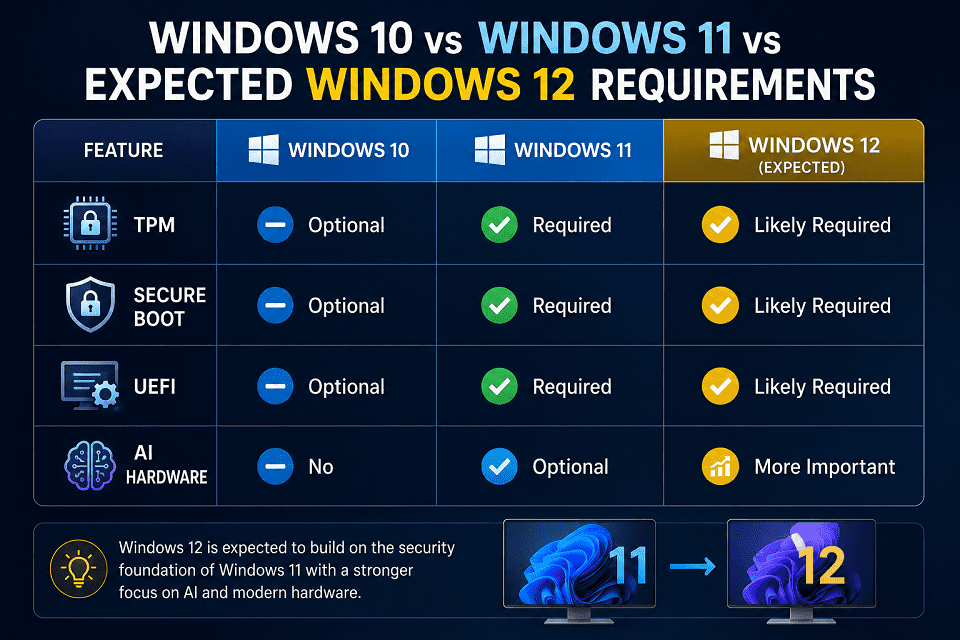 When Windows 11 launched, Microsoft introduced stricter hardware requirements than any previous version of Windows. Features such as TPM 2.0, Secure Boot, supported processors, and UEFI firmware became mandatory for many devices.
Although Windows 12 requirements remain unknown, it is reasonable to expect Microsoft to build upon the same security and hardware foundation rather than abandon it.
For that reason, understanding the relationship between Windows 11 and potential Windows 12 requirements can help users assess whether their PCs are prepared for future upgrades.
Key Takeaway
A PC that meets Windows 11 requirements is currently the strongest candidate for Windows 12 upgrade.
Similarities Between Windows 11 and Windows 12
The most likely similarity between Windows 11 and Windows 12 is a continued focus on security and modern hardware standards. Technologies such as TPM 2.0, Secure Boot, and UEFI firmware are expected to remain important.
Microsoft introduced these requirements to strengthen protection against malware, firmware attacks, and credential theft. These security goals are unlikely to disappear in future Windows releases.
As a result, many of the hardware checks currently used for Windows 11 will probably remain relevant.
The following table compares requirements that are widely expected to carry forward.
| Hardware Component | Windows 11 | Expected Importance for Windows 12 |
| TPM 2.0 | Required | Likely Required |
| Secure Boot | Required | Likely Required |
| UEFI Firmware | Required | Likely Required |
| 64-bit Processor | Required | Likely Required |
| Modern Graphics Support | Required | Likely Required |
| Hardware Security Features | Important | Increasingly Important |
These expectations are based on Microsoft’s current platform strategy rather than official Windows 12 announcements.
Key Takeaway
Security-focused hardware requirements introduced with Windows 11 will likely remain central to future Windows versions.
Potential New Hardware Requirements
While Microsoft has not confirmed any new Windows 12 requirements, future versions of Windows may place greater emphasis on artificial intelligence, advanced security technologies, and newer processor architectures.
Recent Windows developments have shown Microsoft’s growing interest in AI-powered features. Technologies such as Copilot and on-device AI processing are becoming more integrated into the Windows ecosystem.
Because of this trend, future Windows versions could benefit from hardware specifically designed for AI workloads.
One area receiving attention is the Neural Processing Unit, often called an NPU. These specialized processors accelerate AI tasks while reducing the load on the CPU and GPU.
The table below highlights technologies that may become more important in future Windows releases.
| Technology | Possible Future Role |
| Neural Processing Units (NPUs) | AI acceleration |
| Advanced Security Processors | Enhanced protection |
| Faster SSD Storage | Improved responsiveness |
| Higher Memory Capacity | Better AI and multitasking support |
| Modern CPU Architectures | Improved performance and efficiency |
It is important to remember that these possibilities are speculative. Microsoft has not announced any of these technologies as mandatory Windows 12 requirements.
Key Takeaway
Future Windows releases may benefit from AI-focused hardware, but official requirements have not yet been published.
Which PCs Are Most Likely to Be Supported?
Computers that already meet Windows 11 requirements and use relatively recent hardware are the most likely candidates for Windows 12 support. Newer systems generally include the security and performance features Microsoft prioritizes.
Devices released within the last several years often include TPM 2.0, Secure Boot, UEFI firmware, supported processors, and fast SSD storage. These technologies align closely with Microsoft’s current direction.
In contrast, older systems that lack modern security features may face greater compatibility challenges.
The following table provides a general outlook.
| PC Type | Likelihood of Future Compatibility |
| Modern Windows 11 PC | High |
| Recent Business Laptop | High |
| Recent Gaming PC | High |
| Mid-Age PC With TPM 2.0 and UEFI | Moderate to High |
| Older PC Without TPM 2.0 | Lower |
| Legacy BIOS System | Lower |
| Unsupported Processor System | Lower |
A computer does not need to be brand new to remain compatible. What matters most is whether it includes the hardware and security technologies that modern Windows versions depend on.
Users planning to keep their computers for several more years should focus on maintaining updated firmware, sufficient RAM, SSD storage, and supported processors.
Key Takeaway
The PCs most likely to support Windows 12 are those that already meet Windows 11 requirements and include modern security and performance features.
Comparison Summary
At present, Windows 11 compatibility remains the best predictor of Windows 12 readiness. While future requirements could introduce new technologies, Microsoft’s focus on security, reliability, and modern hardware is expected to continue.
Users who have already verified TPM 2.0, Secure Boot, UEFI firmware, supported processors, adequate memory, and SSD storage are in a strong position for future Windows upgrades.
Until Microsoft publishes official Windows 12 requirements, these factors remain the most practical indicators of compatibility.
Key Takeaway
If your PC fully supports Windows 11 today, there is a strong possibility that it will be better prepared for Windows 12 than systems that fail current compatibility checks.
Common Windows 12 Compatibility Errors and Solutions
When checking whether your PC supports Windows 12, you may encounter compatibility errors related to TPM 2.0, Secure Boot, processor support, or system requirements. Most of these issues are not actual Windows 12 errors but indicators that your hardware may not meet Microsoft’s current Windows compatibility standards.
Since Microsoft has not officially released Windows 12 requirements, many users rely on Windows 11 compatibility checks as a benchmark. During this process, certain warnings and error messages may appear.
Fortunately, many compatibility issues can be identified and resolved without replacing the entire computer.
The following sections explain the most common compatibility errors and the steps you can take to address them.
Key Takeaway
Most compatibility errors involve security settings, firmware configuration, or hardware limitations rather than software problems.
TPM 2.0 Not Detected
The TPM 2.0 Not Detected error usually means that Windows cannot find an active Trusted Platform Module. In many cases, TPM hardware exists but is disabled in the BIOS or UEFI firmware settings.
TPM 2.0 plays a critical role in modern Windows security. It protects encryption keys, authentication credentials, and other sensitive information.
When a compatibility tool reports that TPM is missing, the first step is verifying whether the feature is disabled rather than absent.
You can check TPM status by opening the Run dialog, typing tpm.msc, and reviewing the TPM Management Console.
If TPM is unavailable, enter the BIOS or UEFI setup menu and look for TPM-related settings. Depending on the system manufacturer, the feature may appear as Intel Platform Trust Technology (PTT) or AMD fTPM.
The table below summarizes common causes and solutions.
| Possible Cause | Recommended Solution |
| TPM disabled in firmware | Enable TPM in BIOS/UEFI |
| Firmware outdated | Update BIOS/UEFI firmware |
| TPM not initialized | Enable and configure TPM |
| No TPM hardware present | Hardware upgrade may be required |
Key Takeaway
A TPM detection error often results from disabled firmware settings rather than missing hardware.
Secure Boot Is Disabled
The Secure Boot Is Disabled error indicates that Secure Boot support exists on the system but is currently turned off. This issue can usually be resolved through BIOS or UEFI configuration settings.
Secure Boot helps prevent unauthorized software from loading during startup. Microsoft considers it a key security feature for modern Windows installations.
To verify Secure Boot status, open System Information by running msinfo32 and locate the Secure Boot State entry.
If the value shows Off, the feature is disabled.
In many cases, enabling Secure Boot requires entering the BIOS or UEFI settings and activating the option manually.
Systems running in Legacy BIOS mode may require additional configuration changes because Secure Boot depends on UEFI firmware.
Key Takeaway
Most Secure Boot errors can be resolved by enabling the feature within BIOS or UEFI settings.
This PC Doesn’t Meet System Requirements
The “This PC Doesn’t Meet System Requirements” message is a general compatibility warning that appears when one or more hardware or security requirements are not satisfied.
This error does not identify a single problem. Instead, it indicates that the system failed one or more compatibility checks.
Several factors can trigger this message, including unsupported processors, disabled TPM, missing Secure Boot support, insufficient memory, or incompatible firmware settings.
The following table highlights some of the most common causes.
| Compatibility Issue | Potential Impact |
| TPM 2.0 missing | Security requirement not met |
| Secure Boot disabled | Startup security requirement fails |
| Unsupported CPU | Processor compatibility issue |
| Legacy BIOS mode | UEFI requirement not satisfied |
| Insufficient RAM | Hardware requirements may not be met |
When this message appears, it is important to review each compatibility requirement individually rather than assuming the entire system is unsupported.
Key Takeaway
The system requirements warning is often caused by one specific compatibility issue that can potentially be corrected.
Processor Not Supported Error
The Processor Not Supported error occurs when the installed CPU does not meet Microsoft’s supported processor criteria. This is one of the most difficult compatibility issues to resolve because it often involves hardware limitations.
Modern Windows versions rely on certain processor features for security, stability, and performance.
A processor may function perfectly for everyday tasks while still failing Microsoft’s compatibility checks.
The first step is identifying the exact CPU model through System Information or Task Manager.
Once identified, compare the processor against Microsoft’s supported processor guidelines.
Desktop users may have the option to upgrade the processor if the motherboard supports newer models. Laptop users typically have fewer upgrade options because processors are often integrated into the motherboard.
The table below outlines possible solutions.
| Scenario | Possible Solution |
| CPU supported but outdated firmware | Update BIOS/UEFI |
| CPU is unsupported but upgradeable | Replace processor |
| Laptop CPU unsupported | Consider system replacement |
| CPU meets requirements | Recheck compatibility settings |
Key Takeaway
Processor compatibility errors are often hardware-related and may require a CPU upgrade or a newer system.
Quick Troubleshooting Summary
Most Windows compatibility errors fall into four categories: TPM issues, Secure Boot configuration problems, unsupported processors, and general system requirement failures. Identifying the specific cause makes troubleshooting much easier.
The table below provides a quick reference guide.
| Error Message | Most Common Solution |
| TPM 2.0 Not Detected | Enable TPM in BIOS/UEFI |
| Secure Boot Is Disabled | Enable Secure Boot |
| This PC Doesn’t Meet System Requirements | Review all compatibility requirements |
| Processor Not Supported | Verify CPU compatibility or upgrade hardware |
Many compatibility problems can be resolved through firmware configuration changes. However, some issues may require hardware upgrades to meet modern Windows standards.
Key Takeaway
Before replacing hardware, verify TPM settings, Secure Boot status, BIOS mode, and firmware updates. Many compatibility issues can be fixed through configuration changes alone.
Frequently Asked Questions on How to Check If Your PC Supports Windows 12)
How do I know if my PC will support Windows 12?
The best way to estimate Windows 12 compatibility is to check whether your computer meets Windows 11 requirements. Since Microsoft has not officially announced Windows 12 requirements, no tool can provide a definitive answer today.
A PC with TPM 2.0, Secure Boot, UEFI firmware, a supported processor, sufficient RAM, and adequate storage is more likely to support future Windows versions. Running Microsoft’s PC Health Check tool can provide a useful compatibility assessment.
Will every Windows 11 PC support Windows 12?
Not necessarily. A Windows 11-compatible PC has a strong chance of supporting Windows 12, but Microsoft has not confirmed whether all Windows 11 devices will qualify.
Future Windows releases could introduce new requirements related to security, performance, or AI capabilities. Until Microsoft publishes official specifications, compatibility cannot be guaranteed.
Does Windows 12 require TPM 2.0?
Microsoft has not officially announced Windows 12 requirements, but TPM 2.0 is widely expected to remain important.
TPM 2.0 became a mandatory requirement for Windows 11 because it strengthens device security and protects sensitive information. Since Microsoft continues to emphasize hardware-based security, TPM 2.0 will likely remain a key compatibility factor.
Can I install Windows 12 on an unsupported PC?
Possibly, but compatibility and support may be limited.
Historically, some users have installed newer versions of Windows on unsupported hardware through unofficial methods. Whether similar options will exist for Windows 12 remains unknown.
Even if installation is possible, unsupported systems may experience stability issues, driver problems, reduced performance, or limitations with future updates.
How much RAM will Windows 12 need?
Microsoft has not announced official Windows 12 memory requirements.
As a reference point, Windows 11 requires a minimum of 4GB of RAM. However, 8GB is generally recommended for everyday use, while 16GB provides a better experience for multitasking and future software demands.
If Windows 12 introduces more advanced AI and productivity features, memory requirements could increase.
Is Secure Boot required for Windows 12?
There is no official confirmation yet, but Secure Boot is expected to remain important.
Secure Boot helps protect the startup process from malicious software and unauthorized modifications. Because it is already required for Windows 11, many industry observers expect Microsoft to continue supporting this security standard in future Windows releases.
How can I check my TPM version?
You can check your TPM version using the TPM Management Console built into Windows.
Press Windows + R, type tpm.msc, and press Enter. In the TPM Management Console, locate the Specification Version field.
If the value shows 2.0, your computer supports TPM 2.0.
You can also view TPM information through Windows Security > Device Security > Security Processor Details.
Will Windows 12 work on older laptops?
Some older laptops may support Windows 12, but compatibility will depend on their hardware specifications.
Age alone does not determine compatibility. A laptop with TPM 2.0, Secure Boot, UEFI firmware, a supported processor, and sufficient RAM may still meet future Windows requirements.
Older laptops that lack these features are more likely to encounter compatibility limitations. Checking your hardware against current Windows 11 requirements provides the best indication of future support.
FAQ Summary
Most Windows 12 requirement questions can currently be answered by evaluating Windows 11 readiness. Until Microsoft releases official Windows 12 requirements, features such as TPM 2.0, Secure Boot, UEFI firmware, modern processors, and adequate memory remain the most reliable indicators of future compatibility.
Key Takeaway
If your PC already supports Windows 11 and includes modern security features, it is likely in a strong position for future Windows upgrades, including Windows 12.
Final Verdict: Is Your PC Ready for Windows 12?
If your PC already meets Windows 11 requirements, there is a good chance it will be well-positioned for Windows 12. While Microsoft has not officially announced Windows 12 system requirements, current Windows 11 compatibility remains the most reliable indicator of future support.
Throughout this guide, we examined the hardware and security features that Microsoft currently prioritizes. Components such as TPM 2.0, Secure Boot, UEFI firmware, supported processors, sufficient RAM, and modern storage technology have become essential parts of the Windows ecosystem.
A computer that includes these technologies is more likely to meet future Windows requirements than a system that lacks them.
However, compatibility is not only about whether Windows can be installed. Performance, security, reliability, and long-term usability are equally important. A system that exceeds today’s minimum requirements will generally provide a better experience as Windows continues to evolve.
Until Microsoft releases official Windows 12 specifications, the most practical approach is to evaluate your PC using current Windows 11 standards and prepare for potential future requirements.
Key Takeaway
A Windows 11-compatible PC with modern hardware and security features is currently the strongest candidate for Windows 12 support.
Key Takeaways Before Windows 12 Arrives
The best way to prepare for Windows 12 is to understand your current hardware and identify any potential compatibility limitations before Microsoft announces official requirements.
Several important points emerged from our compatibility assessment:
| Area | What You Should Know |
| TPM 2.0 | Likely to remain an important security requirement |
| Secure Boot | Expected to continue playing a major security role |
| Processor | Modern CPUs have the best chance of future support |
| RAM | 8GB is good, while 16GB offers more long-term flexibility |
| Storage | SSDs provide better performance and responsiveness |
| UEFI Firmware | Essential for modern Windows security features |
| Windows 11 Compatibility | Best predictor of Windows 12 readiness today |
Although future requirements may evolve, Microsoft’s focus on security and modern hardware is unlikely to change significantly.
For most users, understanding these core technologies provides a clear picture of how prepared their systems are for future Windows upgrades.
Key Takeaway
Windows 11 readiness remains the most useful benchmark until Microsoft officially announces Windows 12 requirements.
Steps You Should Take Today to Prepare Your PC
Preparing for Windows 12 does not require major changes for most users. A few simple checks and upgrades can significantly improve your system’s readiness for future Windows releases.
Start by verifying your processor, TPM 2.0 status, Secure Boot configuration, RAM capacity, and storage type. These checks provide a clear overview of your computer’s strengths and limitations.
If your system still uses a traditional hard drive, upgrading to an SSD can dramatically improve performance. Users with only 4GB of RAM may also benefit from a memory upgrade.
It is equally important to keep your BIOS or UEFI firmware updated. Firmware updates often improve compatibility, security, and hardware support.
Regular Windows updates should not be ignored either. Keeping your operating system current helps ensure that your computer remains aligned with Microsoft’s latest security and platform requirements.
The table below summarizes the most useful preparation steps.
| Recommended Action | Benefit |
| Check TPM 2.0 Status | Verifies security readiness |
| Verify Secure Boot | Confirms startup protection |
| Review Processor Compatibility | Identifies potential CPU limitations |
| Upgrade RAM if Needed | Improves multitasking and performance |
| Switch to an SSD | Enhances speed and responsiveness |
| Update BIOS/UEFI Firmware | Improves compatibility and security |
| Keep Windows Updated | Maintains support and protection |
Taking these steps today can help reduce compatibility concerns when Microsoft eventually releases official Windows 12 information.
Key Takeaway
The most effective preparation strategy is to ensure that your PC fully meets Windows 11 requirements while maintaining modern hardware, updated firmware, and strong security settings.
Bottom Line
If your PC supports Windows 11, includes TPM 2.0, Secure Boot, UEFI firmware, a modern processor, adequate RAM, and SSD storage, it is likely in a strong position for Windows 12.
No one outside Microsoft can confirm the exact Windows 12 requirements today. However, users who proactively evaluate and upgrade their systems now will be better prepared when official compatibility details become available.
Rather than waiting for a future announcement, use the checks and methods in this guide to understand your PC’s current readiness and make informed upgrade decisions.
Final Takeaway
The best answer to “How to Check If Your PC Supports Windows 12” is simple: verify that your computer meets current Windows 11 requirements and follows Microsoft’s modern security standards. Until official Windows 12 requirements are released, that remains the most reliable compatibility test available.
Related Guides
If you’re checking whether your PC supports Windows 12, these guides can help you understand the hardware, security features, and system settings that influence compatibility.
How to Check If TPM 2.0 Is Enabled on Windows
Learn how to verify TPM 2.0 status using Windows tools and BIOS settings. This guide explains why TPM matters and how it affects Windows compatibility and security.
How to Enable Secure Boot in Windows 11
Discover how Secure Boot works and how to enable it safely through your BIOS or UEFI firmware settings. The guide also covers common Secure Boot errors and troubleshooting steps.
Windows 11 System Requirements Explained
Get a detailed breakdown of Microsoft’s Windows 11 hardware requirements, including processor compatibility, RAM, storage, TPM 2.0, and Secure Boot requirements.
How to Update BIOS or UEFI Firmware Safely
Learn the correct way to update your motherboard firmware, reduce risks during the update process, and improve compatibility with modern Windows features.
SSD vs HDD: Which Is Better for Windows Performance?
Compare solid-state drives and traditional hard drives to understand how storage technology affects boot times, application performance, and overall system responsiveness.
How to Check Your PC Specifications in Windows
Learn how to find important hardware details such as processor model, installed RAM, graphics card information, and firmware settings using built-in Windows tools.
How to Check If Your PC Supports Windows 11
Follow a step-by-step guide to determine whether your computer meets Microsoft’s Windows 11 compatibility requirements and identify potential upgrade needs.
Common Windows Compatibility Errors and How to Fix Them
Explore solutions for issues such as TPM not detected, Secure Boot disabled, unsupported processors, and other hardware compatibility problems.
Final Note
Keeping your PC compatible with future Windows versions starts with understanding your hardware. These guides can help you verify critical system requirements, improve security, and make informed upgrade decisions before Windows 12 arrives.
Editorial Note: Microsoft has not officially announced Windows 12 requirements at the time of writing. This guide uses current Windows 11 requirements, Microsoft documentation, and publicly available hardware information to estimate future compatibility.
Author:
Rajkumar R R
Technology Writer | SEO Analyst | Founder of GeeklessTech
This setup is optimized for search intent, featured snippets, AI Overviews, and future updates when Microsoft eventually announces official Windows 12 requirements.
Last Updated: June 2026

